
Every feature
Everything in NutHouse, from the real menus.
This page is generated from NutHouse’s own lists, so it is always exactly what the app offers. Each item shows which mode it first appears in. For how to use each one, see the help centre.
Kinds of object
Every game is made of these. Sprites do the moving; the rest keep score, show words or make things happen.

Sprite
A character or thing that moves and animates: a player, enemy or ball.

Block
A coloured block: walls, floors and sky.
Counter
Shows a number you can add to or take away from.
Score
Shows the player's score.

Lives
Shows how many lives are left.
Text
Words on the screen, like "Game Over".
Timer display
A clock on the screen. Count down to zero for a race against time.
Health bar
A bar that shows how much health or energy is left.
Button
Something to click, like "Start" or "Play again".
Text box
A box the player types into, like their name or a quiz answer.
Question
A quiz question with answers to click. One is right!
High scores
A table of the best scores. It remembers them on this computer.

Spawner
Invisible. Makes a new copy of a sprite every few seconds, right where it is.
Object library
Ready-made sprites and tiles drawn in NutHouse’s pixel style, with animations where it makes sense. Search for “enemy”, “space” or “jump”, or browse by category. Add one, then change it in the sprite editor.
Search
Type what you want: “enemy”, “flying”, “door”. Every object has tags, so “collect” finds coins, stars, gems and keys.
My library
Press ⭐ on any sprite or background to keep it. It stays on your Mac and shows up in every game from then on.
From another game…
Open any .nuthouse file and pick objects out of it, or save a whole game’s objects to My library in one go.
Characters · 7


Animals · 4


Enemies · 10


Collectables · 6


Items · 5


Balls & Paddles · 2


Bricks & Blocks · 4


Space · 8


Vehicles · 1

Flyer · 2


Maze · 3


Scenery · 5


Tiles · 14


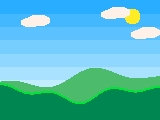
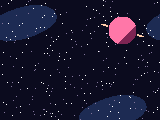
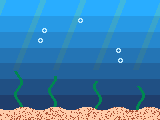
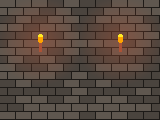
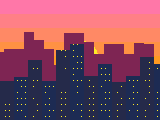
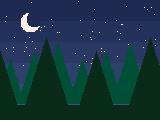
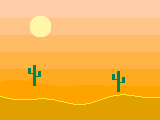
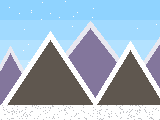
Backgrounds · 10
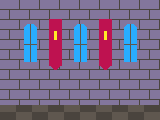
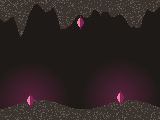
Level-sized scenes painted in code. Stretch them, tile them, or set them to repeat along for scrolling levels.
Movements
Pick one per sprite. Every movement has its own settings, like speed, jump strength and which keys to use.
Stays still
Doesn't move by itself.
Arrow keys (8 directions)
The player moves it with the arrow keys.
Platform (walk and jump)
Walks left and right, falls, and jumps onto backgrounds.
Bouncing ball
Flies in a straight line. Use a Bounce action to bounce it.
Patrols back and forth
Walks left and right by itself, turning round at walls.
Chases another object
Heads towards the nearest copy of another object.
Racing car (seen from above)
Left and right steer, up goes, down brakes.
First-person (3D levels)
See through its eyes in a 3D level: ↑↓ walk, ←→ turn.
Follows a path
Moves along points you set.
Follows the mouse
Sticks to the mouse pointer.
Any sprite can also tick Falls with gravity, and each level can pull gravity down, up or off. Every library sprite comes with a sensible movement already picked, and a banner explains what it does.
3D levels
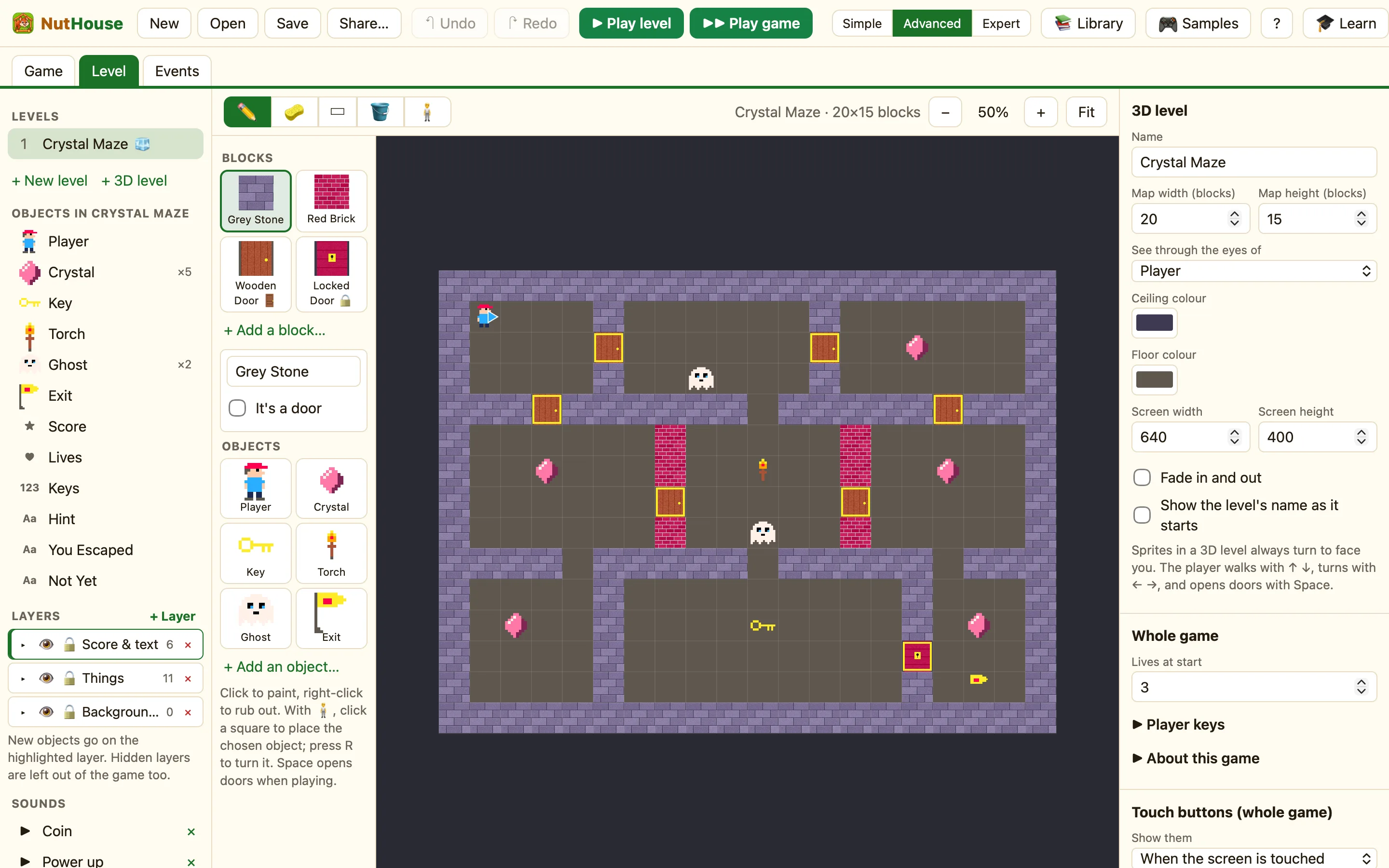
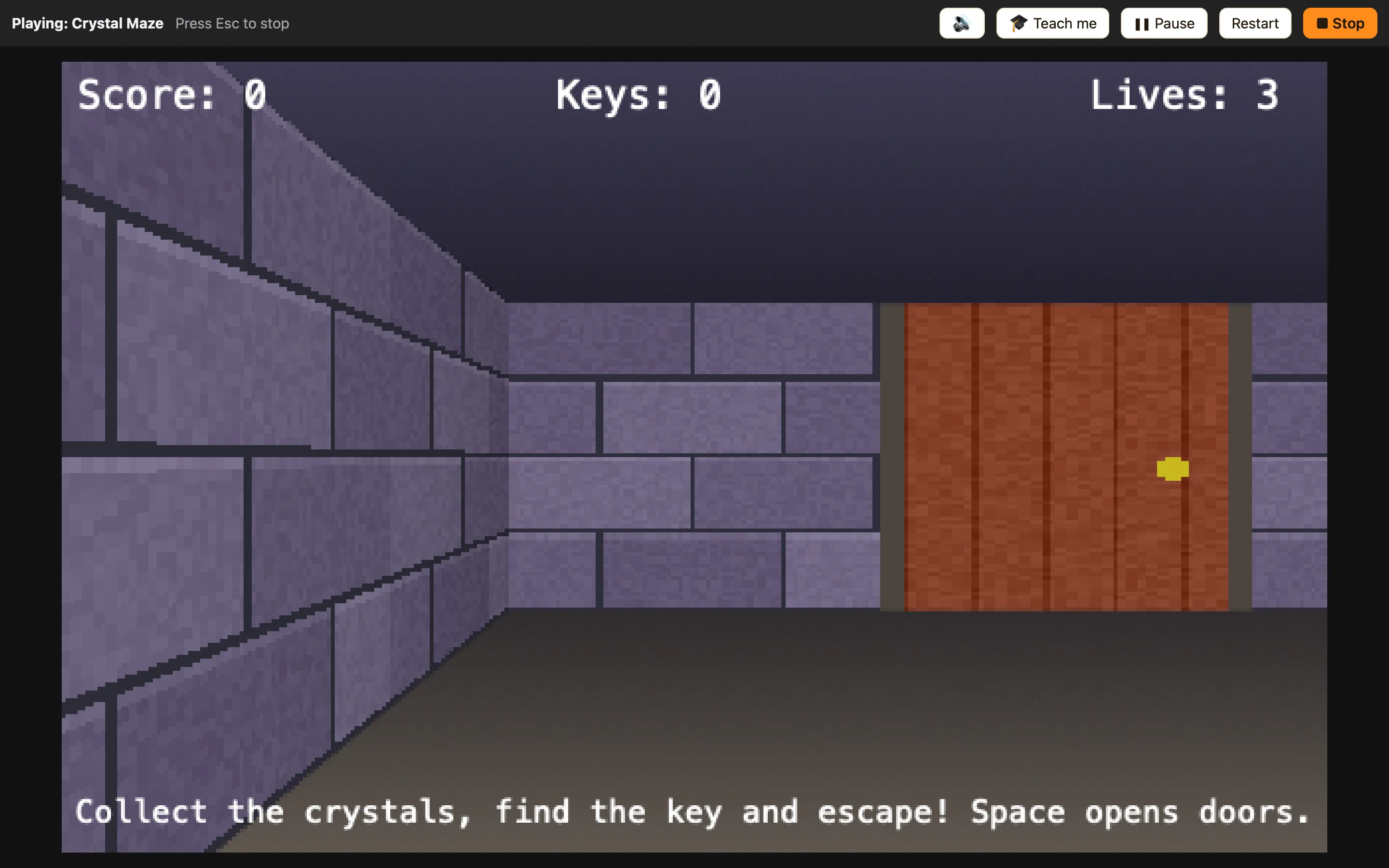
Press + 3D level and paint a maze on a grid. The player walks through it in first person, like the corridor games of the 1990s. Sprites in a 3D level always turn to face you.
Blocks and doors
9 wall styles to paint with, or draw your own block. Tick It’s a door and it slides open. A locked door only opens when a rule says so, for example once you have a key.
Ceiling, floor, screen
Pick the ceiling and floor colours and the screen size. Name the level and show its name as it starts.
3D rules
Rules for “the player can see”, “is facing a door”, “open the door in front” and more, so a crystal can glow when you spot it and ghosts can chase you round corners.
Wall blocks


Bigger levels
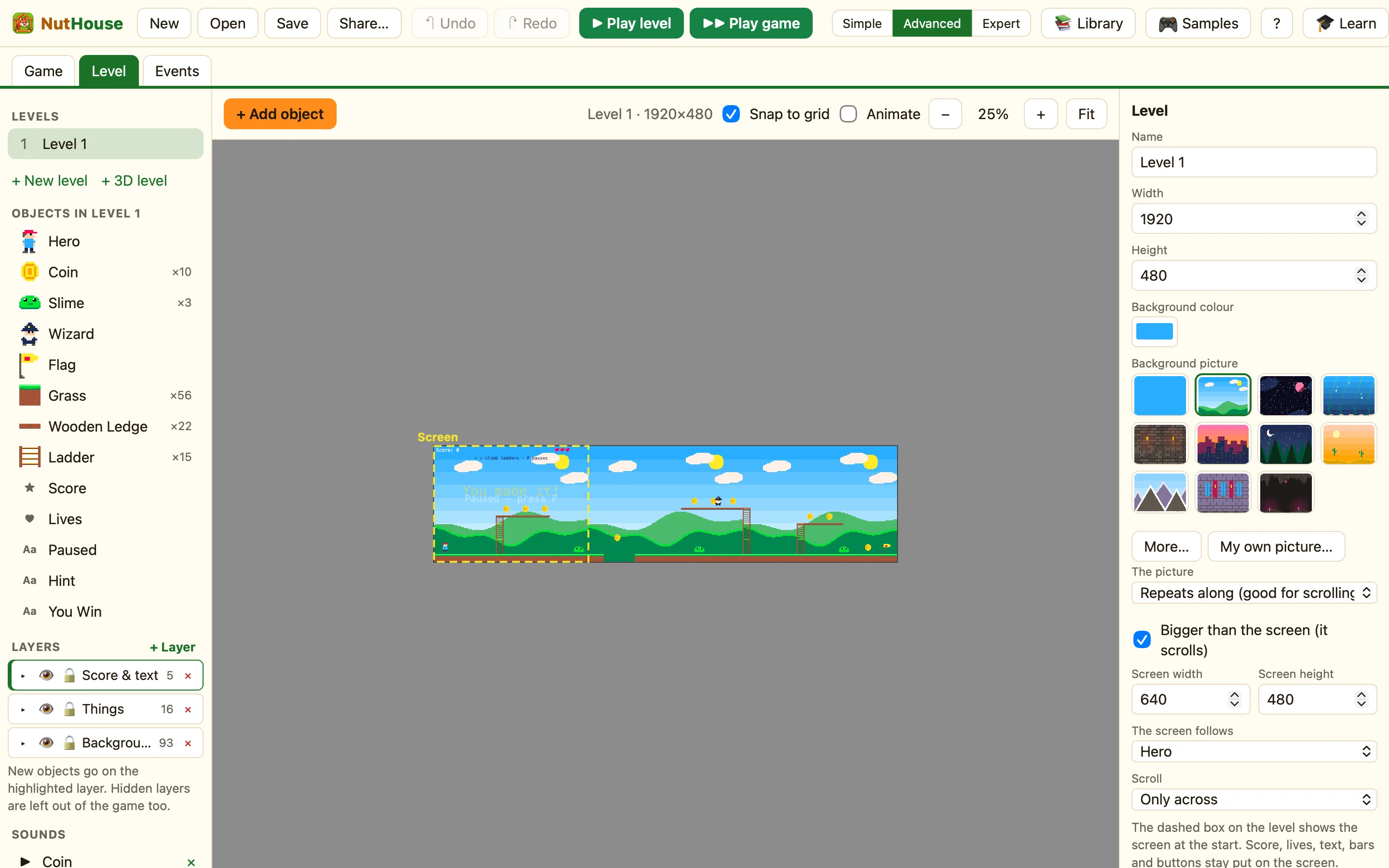
A level can be bigger than the screen. Tick Bigger screen (it scrolls), choose which sprite the screen follows, and off you go.
Scrolling
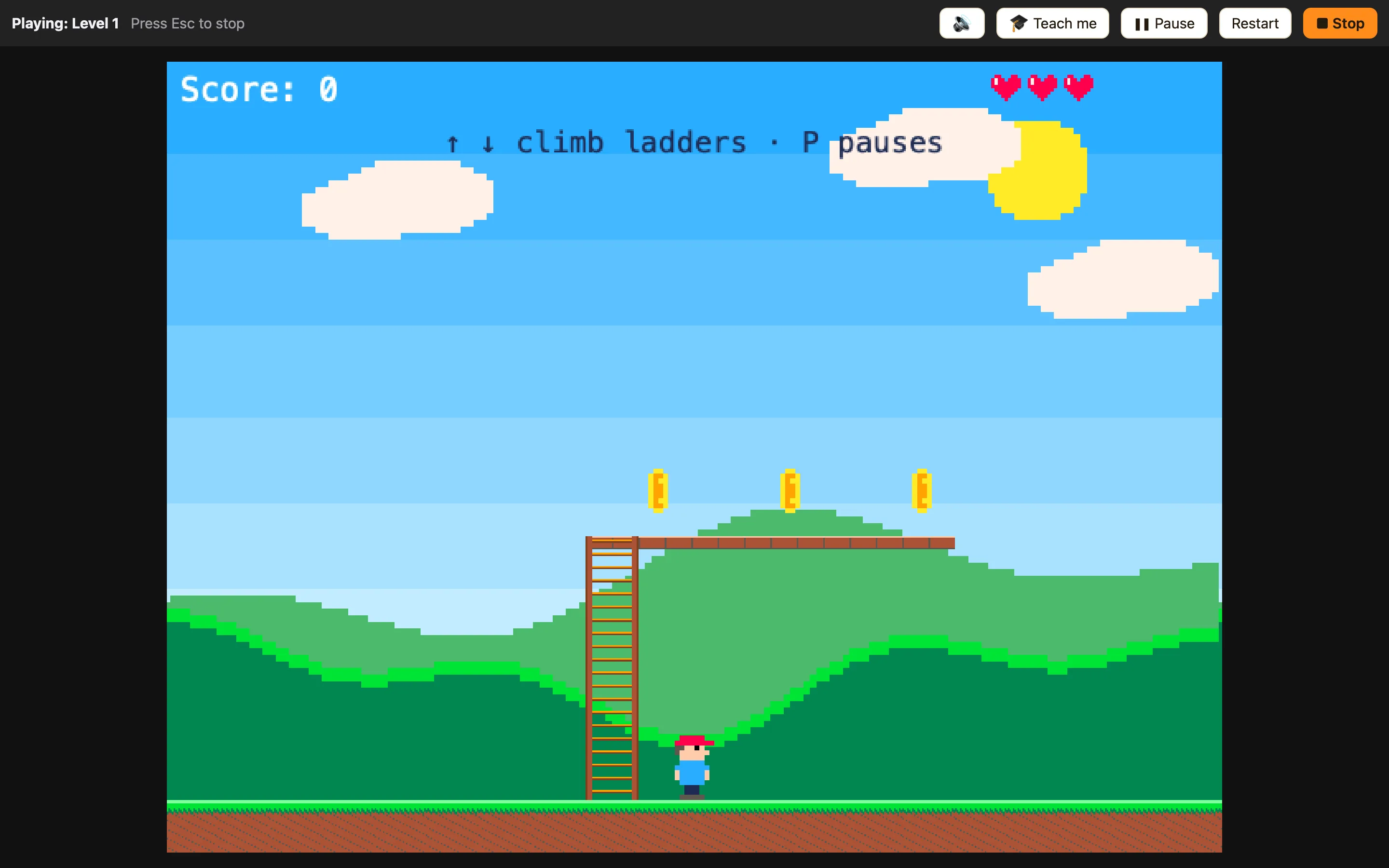
Follow a sprite across, up and down, or both. Scores, lives and other displays stay fixed on the screen. Backgrounds can repeat along as you go.
Ladders
Mark any block as a Ladder. Platform sprites climb with ↑ and ↓ and can jump off.
Music
A music channel next to the sound effects. Play a tune, loop it, stop it, set the volume, all from rules.
Pause
Pause the game and switch the controls off and on again, so you can make a pause screen or a cut-scene.
Fade and title
Fade each level in and out, and show its name as it starts.
Layers
Photoshop-style layers in every level. Lock a layer so you cannot nudge it by mistake, hide one to leave it out of the game, and move objects between layers.
Players and saving
Two players
Tick Two players on one keyboard. Player 2 gets their own keys, score and lives, and a column of their own in the event grid.
Saving
Save the game and load it again, from rules. Remember the best score between goes.
High scores
A high score table that asks for a name when a game ends well. Choose how many names it keeps.
Text box
Let the player type: a name, a password, an answer. Rules can read what they wrote.
Questions
A question with answers to pick from. Rules for right, wrong and “try again”, so you can build a quiz in minutes.
Buttons
Buttons can be words, a picture or a tick box. Rules for clicked, ticked and unticked, and actions to disable or hide them.
Player keys
Choose which keys mean up, down, left, right, fire 1 and fire 2 for each player.
About this game
Write who made it and how to play. Shared games show it on their start screen.
Touch buttons
Shared games grow an arrow pad and buttons on iPads and phones. NutHouse picks them from the keys your rules use, or you choose.
Conditions · 79
The When half of a rule. Grouped the way they appear in the picker.
Special · 11
3D
Global values
Levels · 2
Saving
Timer · 3
Keyboard & mouse · 8
Player · 4
Player 2 · 4
Sound · 1
Gravity · 2
Objects · 44
Collisions
Position
Movement
Animation
Values
Visibility
Pick or count
Gravity
3D
Actions · 115
The Do half of a rule.
Special · 9
Global values
Levels · 12
Saving
Keyboard & mouse · 2
Player · 8
Score
Lives
Player 2 · 6
Score
Lives
Sound · 6
Create objects · 1
Gravity · 3
Objects · 68
Position
Direction
Movement
Animation
Visibility
Values
Shoot
Gravity
3D
Formulas
In Advanced and Expert mode, any number can be a formula. The ƒx helper lists all of these with examples.
Game values
ScoreLivesTimerFrameNumberMouseXMouseYFrameWidthFrameHeightScore2Lives2ScrollXScrollYObject values — written as Name("Object")
| Value | Example |
|---|---|
X | X("Ball") is how far across the Ball is |
Y | Y("Ball") is how far down the Ball is |
Speed | Speed("Ball") is how fast it moves (0-100) |
Direction | Direction("Ball") is 0 right, 8 up, 16 left, 24 down |
Count | Count("Brick") is how many Bricks there are |
AnimFrame | AnimFrame("Hero") is the picture number in the animation |
Value | Value("Counter") or Value("Hero", "A") for alterable value A |
Flag | Flag("Hero", 0) is 1 if flag 0 is on, otherwise 0 |
Text | Text("Message") is the words in a String object |
Width | Width("Hero") is how wide it is |
Height | Height("Hero") is how tall it is |
Functions
| Function | Example |
|---|---|
Random | Random(10) gives a whole number from 0 to 9 |
Abs | Abs(-5) gives 5 (removes the minus sign) |
Min | Min(3, 7) gives the smaller number, 3 |
Max | Max(3, 7) gives the bigger number, 7 |
Floor | Floor(2.7) rounds down to 2 |
Ceil | Ceil(2.1) rounds up to 3 |
Round | Round(2.5) rounds to the nearest whole number, 3 |
Sqrt | Sqrt(9) gives the square root, 3 |
Str | Str(42) turns a number into text "42" |
Val | Val("42") turns text into the number 42 |
Len | Len("hello") gives the number of letters, 5 |
Left | Left("hello", 2) gives the first letters, "he" |
Right | Right("hello", 2) gives the last letters, "lo" |
Mid | Mid("hello", 1, 3) gives "ell" |
Distance | Distance(X("Hero"), Y("Hero"), X("Ghost"), Y("Ghost")) gives how far apart they are, in pixels |
Angle | Angle(X("Hero"), Y("Hero"), X("Ghost"), Y("Ghost")) gives the direction (0 to 31) from the first point to the second |
Global | Global("A") is global value A, which keeps its number from level to level |
Sprite editor
Tools
Brush sizes with [ and ]. Flip left-right, flip upside down, turn a quarter. Zoom from 1× to 32×. Left and right mouse buttons each have their own colour, plus see-through.
Animations
Stopped, walking, running, jumping, falling, appearing, disappearing, bouncing and shooting, or add your own. A 32-way facing compass, frames you can copy and reorder, speed from 1 to 30 pictures a second, repeat forever, and onion skin to see the picture before.
Resize without stretching. Import a picture or a whole sprite sheet (across × down); a plain background can be made see-through on the way in.
Makers
Select part of a picture, then move, copy and paste it (⌘C, ⌘V), even into another sprite. 8 directions and 32 directions fill in the other facings by turning the picture round. Flip all, Spin (seven new pictures turning round), Shrink (a disappearing animation) and Morph to next (in-between pictures).
Animate in the editor
Switch on Animate in the level editor to see every sprite moving where it stands.
The 32-colour palette
#000000#1d2b53#7e2553#008751#ab5236#5f574f#c2c3c7#fff1e8#ff004d#ffa300#ffec27#00e436#29adff#83769c#ff77a8#ffccaa#291814#111d35#422136#125359#742f29#49333b#a28879#f3ef7d#be1250#ff6c24#a8e72e#00b543#065ab5#754665#ff6e59#ff9d81Levels
Level editor
Select, drag, box-select, Alt-drag to duplicate, snap to grid. Zoom with ⌘+ and ⌘−, ⌘0 to fit. Arrow keys nudge, Shift nudges 10px. The pointer’s x,y shows in the corner. The grey area around the level is off-screen.
Level settings
Name, width and height (64 to 4096), background colour, background picture (stretched, tiled or repeating along; built-in or your own), gravity direction and strength, a bigger scrolling screen, fade in and out, show the name.
Draw a path
Give a sprite the Follows a path movement and draw the path with the mouse, right on the level. Paths show dotted when selected.
Copy and paste
⌘C, ⌘X and ⌘V for objects and for rules. Paste into another level, or into another game entirely.
Make a grid
Copy any object into rows and columns with a gap. A wall of 40 bricks in one go.
Solid settings
Any block or background can be Just decoration, Solid, a Platform you can jump up through, or a Ladder.
Game tab
Live thumbnails of every level with size, object and rule counts. Add, edit, duplicate, delete, and drag levels into order (Option-drag to copy).
Play
Play level runs the one you are editing. Play game starts from level 1. Restart any time. Esc to stop.
Sounds
17 built-in sounds and tunes, made by code so they are tiny. Listen to any of them in the library. Or import your own.
Modes
Simple
Just the main pieces. Great for starting out.
Advanced
More events, movements and objects.
Expert
Everything: formulas, values, switches and groups.
Teach me, and other tricks
Teach me
Press Teach me while playing. The first time two kinds of sprite touch and no rule says what should happen, the game stops and asks you. Pick an answer and the rule is written for you.
Search and “Only”
Search your rules, or show only the ones about one object. Big games stay easy to read.
Groups and comments
Put rules in groups, switch a group on and off from a rule, and leave comments between rows. A group can run on every level.
Red rules
One-off triggers are marked in red. Any other rule can be set to happen only once, once while true, not more than every so often, or repeat a number of times.
Object groups
Put Slime, Bat and Ghost in a group called Enemies and write one rule for all of them.
Global values
Values A to Z that every level shares, plus each object’s own values and switches, in Expert mode.
Pick and count
Pick a random one, test when none are left, or compare how many there are.
Mouse and keys
Right-click, double-click, the mouse over an object, any key pressed, hide the pointer.
How NutHouse works
A built-in guide with a page for each idea: levels, sprites, movements, layers, 3D levels, events, gravity, saving and sharing.
Sample games · 7
Every sample opens in NutHouse with all its rules, so you can see how it is made and change it.
Coin Quest
Run, jump, squash slimes and reach the flag. Two levels!
Teaches: Platform movement, gravity events, levels
Play itTreetop Trek
A long level that scrolls: climb ladders, dodge spells, reach the flag.
Teaches: Scrolling, ladders, music, pause
Play itStar Defender
Blast the aliens before they reach you.
Teaches: Creating objects, chasing, explosions
Play itCrystal Maze 3D
Walk the maze in 3D, collect crystals and find the key. (Advanced)
Teaches: 3D levels, doors, “can see”
Play itDungeon Key
Find the key, dodge the ghosts and escape the dungeon.
Teaches: Top-down movement, counters, doors
Play itThe Chocobreak tutorial
Build a bat-and-ball game step by step, and learn how events work.
- Let's make Chocobreak!
- This is your level
- Add a paddle
- Move it to the bottom
- How does it move?
- Try it!
- Add the ball
- Put the ball above the paddle
- Speed up the ball
- Add a brick
- Build a wall
- What happens now?
- Rules make the game
- When the ball hits a brick…
- …smash the brick
- …and bounce the ball
- Test your first rule
- Bounce off the paddle
- Keep the ball on the screen
- Keep the paddle on the screen
- Keep score
- Points for every brick
- Three lives
- Losing a life
- Game over
- A message for winners
- Winning!
- Play your game!
- Save it
- You made a game! 🎉