
The ƒx helper
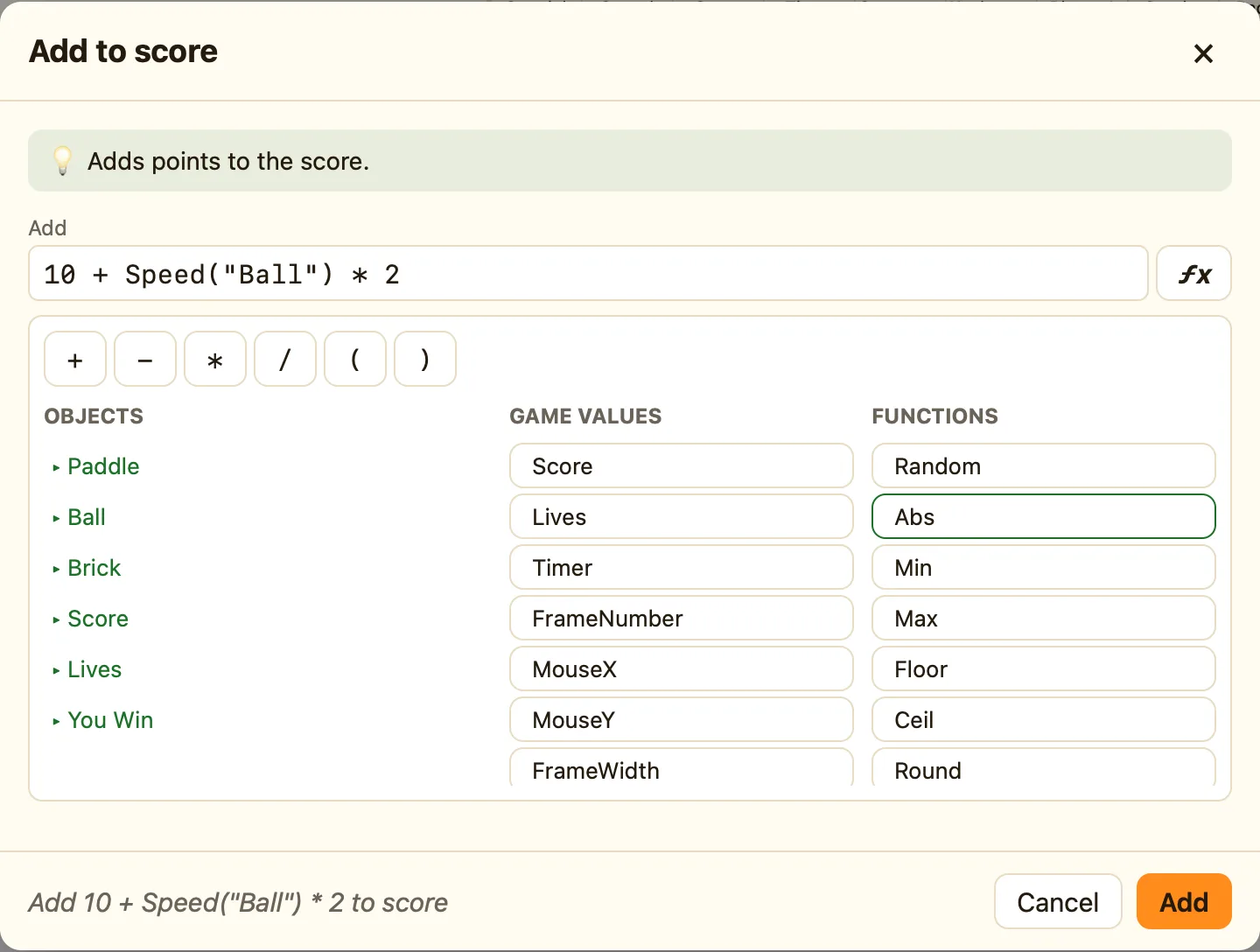
Click instead of typing: the helper lists every object, game value and function with an example.
Where it is
Next to every number box in a settings dialog there is a small ƒx button (“Help me write a formula”). It is hidden in Simple mode. Switch the toolbar to Advanced or Expert to see it. Changing mode never changes your game.
What is in it
| Operators | + − * / ( ). Click one to add it where the cursor is. |
|---|---|
| Objects | Every object in the level. Expand one to insert X("Ball"), Y("Ball"), Speed("Ball"), Direction("Ball"), Count("Ball"), AnimFrame("Ball"), Width("Ball"), Height("Ball"), Value("Ball", "A") and Flag("Ball", 0). Text objects offer Text("Message"), counters Value("Gems"). |
| Game values | Score, Lives, Timer, FrameNumber, MouseX, MouseY, FrameWidth, FrameHeight, Score2, Lives2, ScrollX, ScrollY. |
| Functions | Random, Abs, Min, Max, Floor, Ceil, Round, Sqrt, Str, Val, Len, Left, Right, Mid, Distance, Angle, Global. Each one shows an example, like “Random(10) gives a whole number from 0 to 9”. |
How to
- Open a settings dialog with a number box, for example Ball → Set speed.
- Click ƒx next to the box.
- Click Objects, expand Hero, and click
Speed("Hero"). It appears in the box. - Click
+, then type 5. The box readsSpeed("Hero") + 5. - Check the sentence at the bottom, then press Add.
WhenStart of level
DoSet speed of Ball to Speed("Hero") + 5
Why use it
The helper spells names exactly, puts in the quotes and brackets, and reminds you what each function does. Once you know a formula by heart, typing is faster. Both ways end up as the same formula in your rule.
Reading the examples
Every function in the list has a one-line example. Max(3, 7) gives the bigger number, 7. Floor(2.7) rounds down to 2. Len("hello") gives the number of letters, 5. The full list with all the examples is on Functions.
