
Search, and Only one object
Find one rule in a big game, or show only the rules about the Hero.
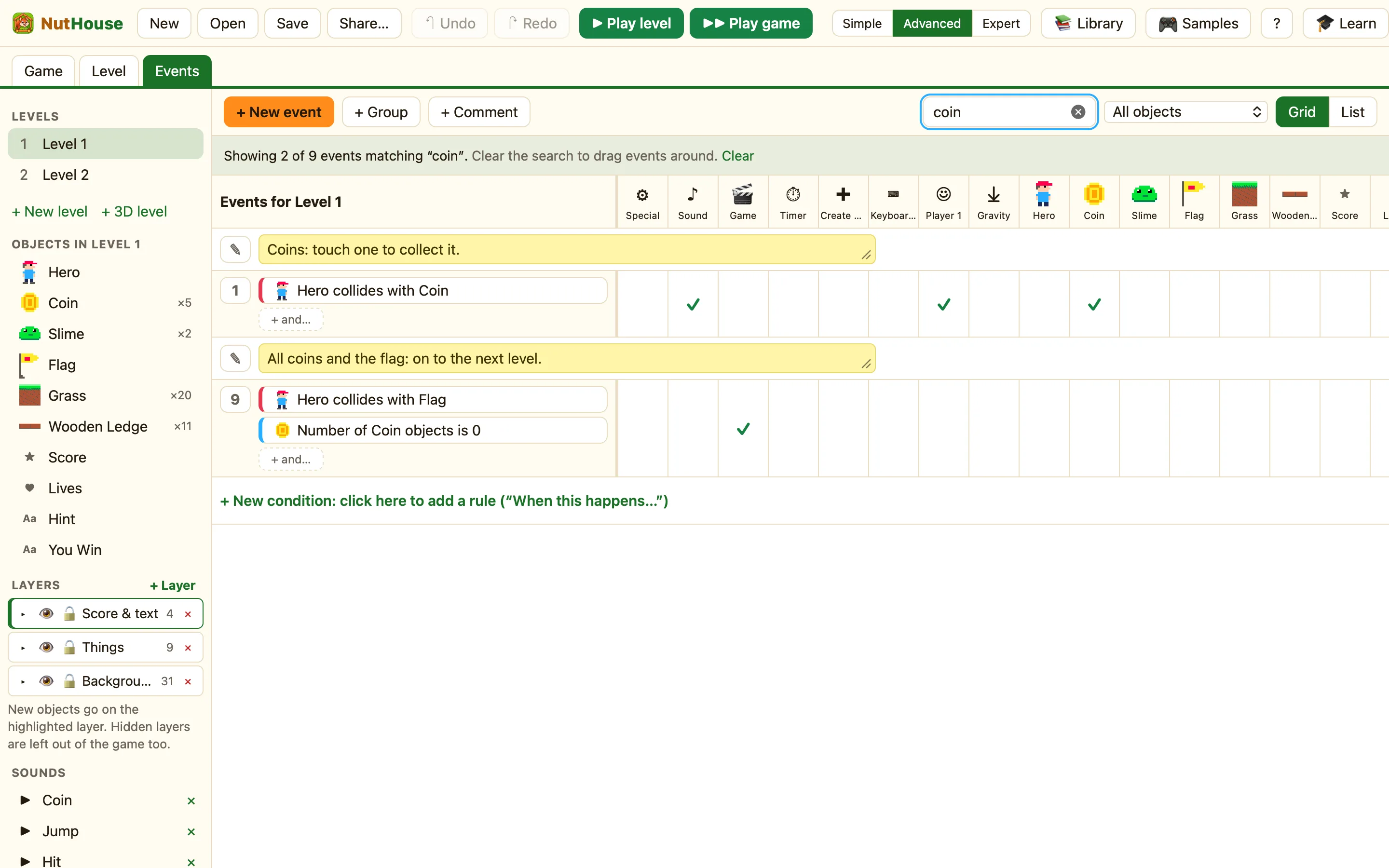
Search
The box in the Events toolbar says “Search events…”. Type any word. The grid shows only the rules whose conditions or actions mention it. Try an object’s name, a key, a sound, or a word like “score”.
A filter bar appears under the toolbar: “Showing N of M events that use X matching “…”. Clear the search to drag events around.” Press Clear to see everything again.
Only one object
Next to the search box is a menu that says All objects. Open it and choose an object. The grid now shows only the rules that use that object, in a condition or an action. The menu reads Only Hero.
There is a shortcut: click a column heading in the grid to toggle “Only” for that column. Click it again to show all.
How to
- Open the Events tab.
- Type coin in “Search events…”. Only the coin rules stay.
- Press Clear, then click the Hero column heading. Only the hero’s rules stay.
- Click the heading again to show everything.
When to use which
| Search | You remember a word: a sound name, “lives”, a key. Works across every column. |
|---|---|
| Only … | You want to think about one thing. “What does the Ghost do?” Shows every rule that touches it. |
| Both | Search and Only work together. “Only Hero” plus “jump” shows just the jumping rules. |
What filtering does not do
Filtering only hides rows. It never deletes or turns off a rule. Hidden rules still run when you play. You cannot drag rows while a filter is on, because the gaps between rows would not mean anything. Clear the filter first.
Groups and comments stay visible when they hold a matching rule, so you can see where it lives.
