
The map editor
Paint blocks, rub them out, draw boxes, fill areas and place objects on the grid of a 3D level.
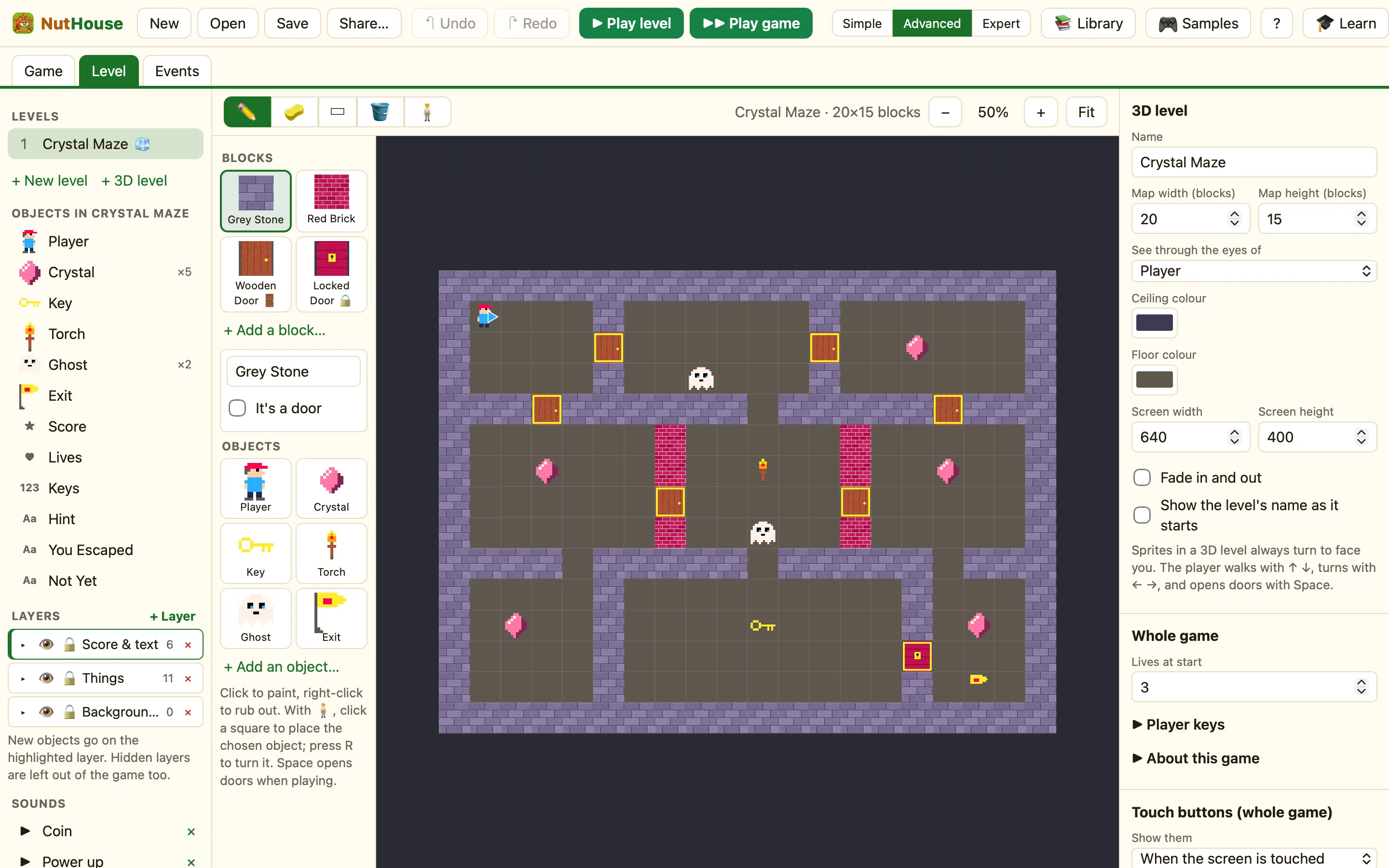
What you see
Open a 3D level and the Level tab turns into the map editor. The grid in the middle is your map. The top bar shows the level's name and its size in blocks, like Crystal Maze · 20×15 blocks, with zoom buttons and Fit.
On the left is the palette. Blocks holds the wall styles you can paint. Doors show a 🚪 and locked doors a 🔒. Objects holds the sprites and displays in this level. The blue arrow is the Player's start spot, and it points the way the Player faces.
The tools
| ✏️ Paint blocks (B) | Click or drag to paint the chosen block onto squares. |
|---|---|
| 🧽 Rub out blocks (E) | Clears squares. Right-clicking does the same with any tool. |
| ▭ Draw a box of blocks (U) | Drag to draw a rectangle of blocks. Tick Filled for a solid box instead of an outline. |
| 🪣 Fill an area (G) | Fills every joined empty square, like a paint bucket. |
| 🧍 Place and move objects (V) | Click a square to place the chosen object there. Drag objects to move them. |
How to paint a room
- Click a block in the Blocks palette, like Grey Stone.
- Choose ▭ Draw a box of blocks and drag out a rectangle. That is the outside wall.
- Switch to ✏️ Paint blocks and click squares inside to make corridors and corners.
- Made a mistake? Right-click the square to rub it out, or press ⌘Z.
Placing objects
Choose 🧍, click an object in the Objects palette, then click a square. The object snaps to the middle of that square. Hold Alt to place it anywhere, off the grid.
Select the Player's arrow and press R to turn it, so the player starts facing the right way.
