
Play in browser
See your shared page exactly as players will, without saving a file first.
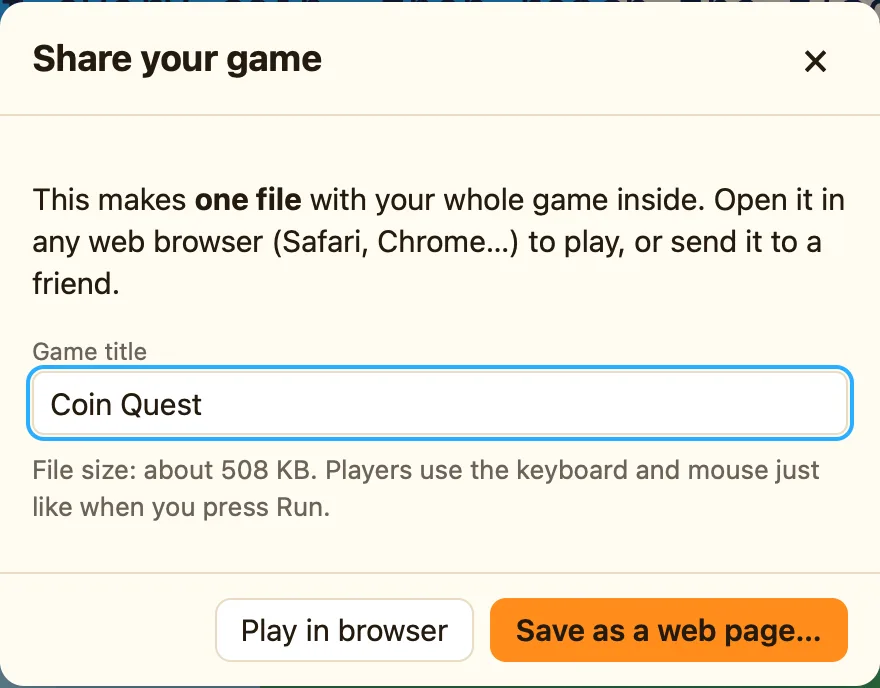
What it does
Play in browser is in the Share your game dialog. It builds the same web page that Save as a web page… would, but instead of saving it, it opens it in your browser straight away. Nothing is written to disk.
It is the fastest way to answer “what will my friend see?” You get the start screen, the scaled game, the sound and full-screen buttons and “The End”, all for real.
How to
- Press ⌘E, or click Share… on the toolbar.
- Check the Game title.
- Click Play in browser. Your browser opens with the game on its start screen.
- Play it. When you are done, close the browser tab and go back to NutHouse.
Play panel or Play in browser?
| ▶ Play level / Play game | Inside NutHouse. Has Pause, Restart, Teach me and the red error lines. Use it while making the game. |
|---|---|
| Play in browser | Outside NutHouse, in the real player. No editor tools. Use it to check the start screen, sound in a browser, and the end. |
When it is not there
On an iPad there is no Play in browser button, and no “show in Finder”. Use Save as a web page… and open the file from the Files app instead.
