
Searching the library
Type what you want, like “enemy”, “flying” or “door”, and the library shows only the things that match.
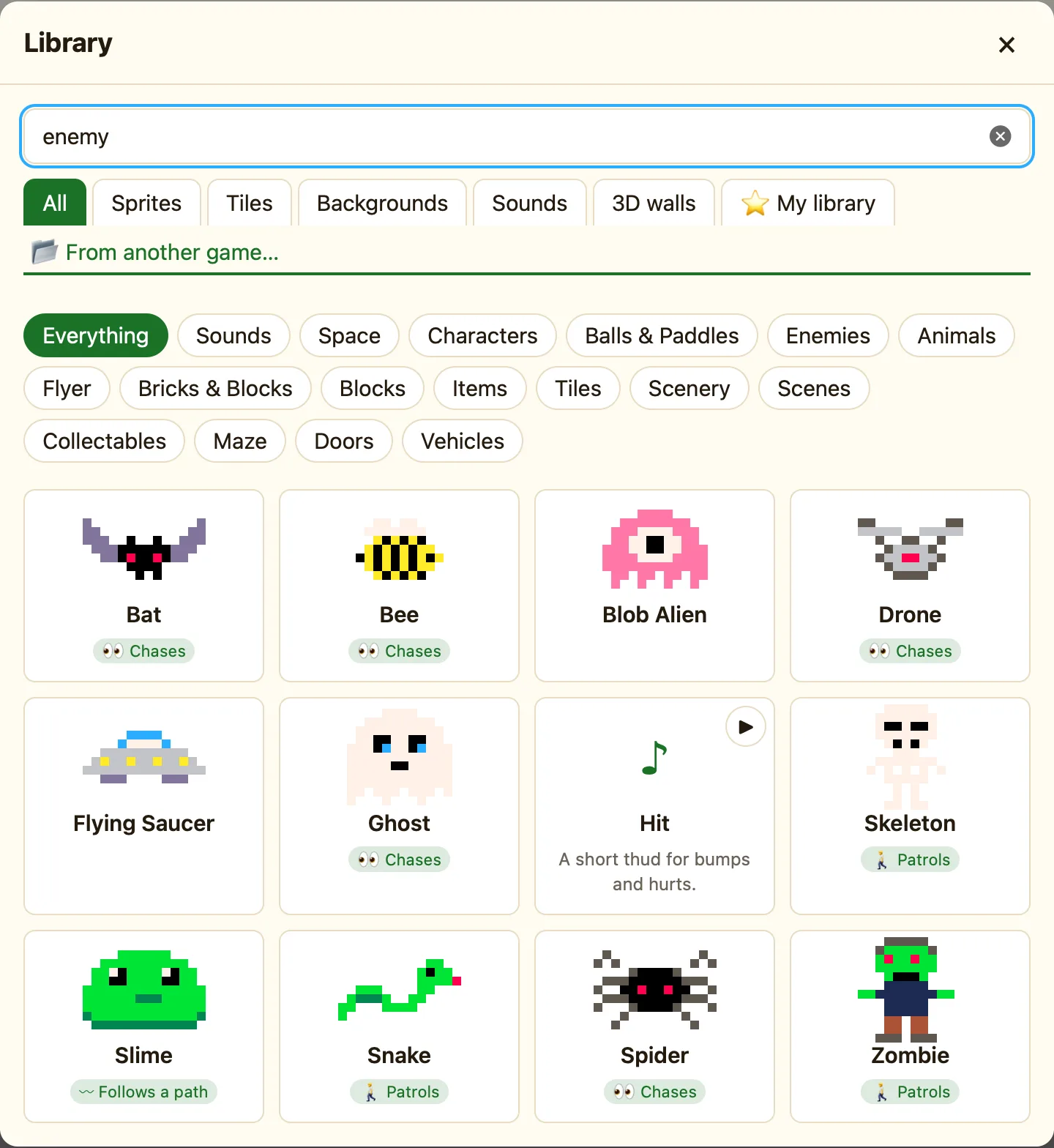
What the library is
The library is one window with everything ready-made in it: 71 sprites and tiles, 10 backgrounds, 17 sounds and 9 3D walls. Your own saved sprites live there too, under ⭐ My library.
Open it with 📚 Library in the toolbar. It also opens from + Add object → Library in the Level tab, from + Built-in sound in the sidebar, from More… under Background picture, and from + Add a block… in a 3D level.
How to
- Click 📚 Library.
- Click in the search box at the top. It says Search the library: “enemy”, “space”, “jump”…
- Type a word. The cards change as you type.
- Click a card to add it. A toast tells you what happened, like Added Slime.
What the tabs and chips mean
| All | Everything at once. |
|---|---|
| Sprites | Characters, enemies, items: things that can move. |
| Tiles | Ground, walls, ladders and water. Things that stay still. |
| Backgrounds | Ten big scenes to go behind a level. |
| Sounds | Fifteen effects and two tunes, each with a ▶ to listen. |
| 3D walls | Walls and doors for 3D levels. Advanced and Expert only. |
| ⭐ My library | Sprites you saved from your own games. |
| Chips | Under the tabs: Everything, then a chip for each category like Enemies or Tiles. Click one to see only that category. |
How searching works
Every word you type must match something: the name, the category, the description, or a hidden tag. “space” finds the Spaceship, the aliens and the Starry space background. “jump” finds things that walk and jump. Names that match come first.
If you type two words, both must match. “flying enemy” finds the Bat and the Drone but not the Bird.
For the full list with pictures, see Every sprite and tile.
