
Library sprites come with movements
A slime patrols, a bat chases, a ball flies straight. Every library sprite already knows how to move. You can change it any time.
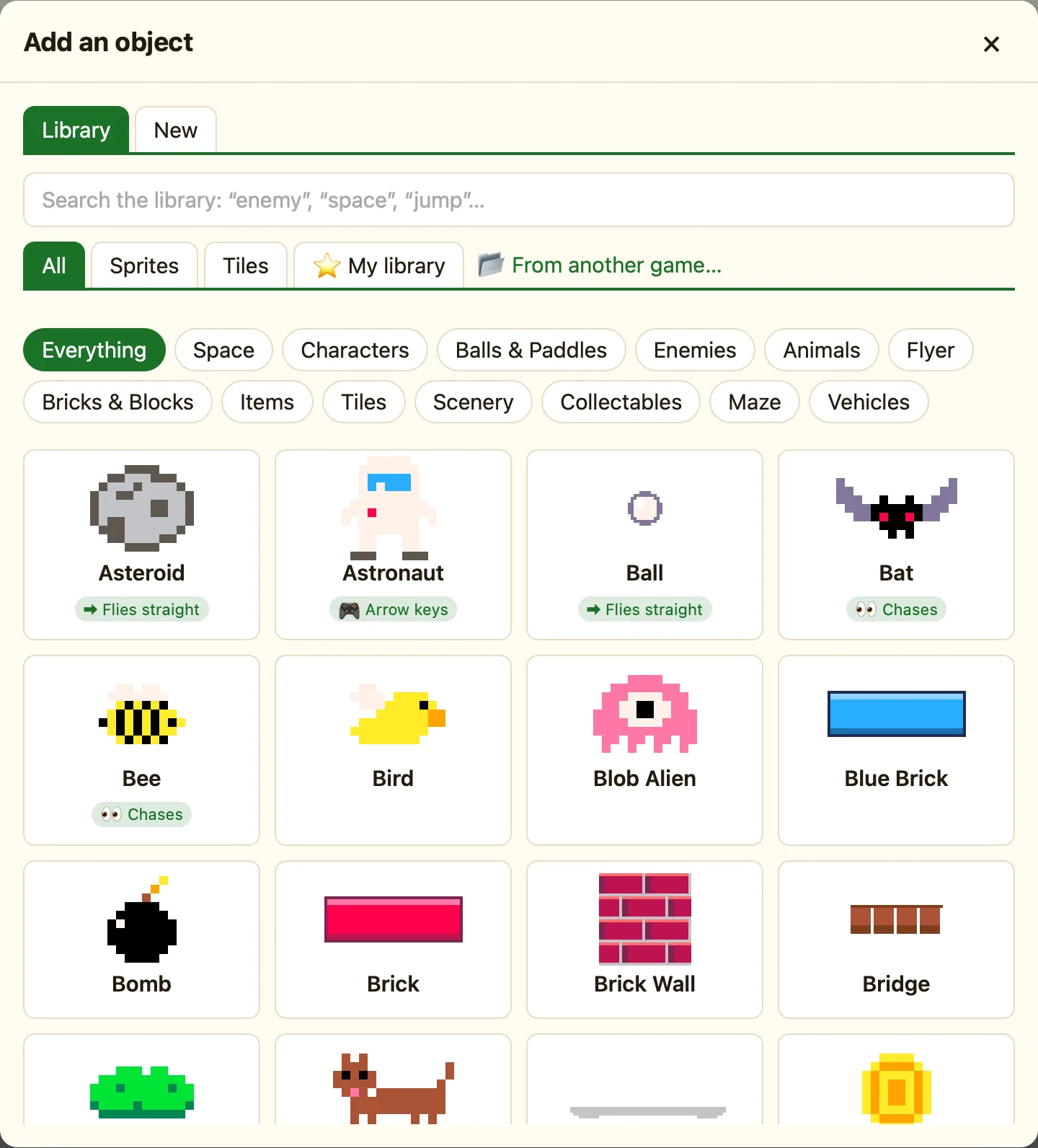
Why they move already
A movement is a ready-made way to move. Each sprite has one. The library picks a sensible one for you, so a Hero walks and jumps the moment you add it, with no rules at all.
When you add a moving sprite, a toast tells you: Slime moves by itself: … Change it in its settings on the right. A green banner under Movement says the same thing.
What the chips mean
| 🎮 Arrow keys | The player steers it. Hero (top-down), Spaceship, Paddle, Robot, Astronaut, Rocket. |
|---|---|
| 🎮 Walks & jumps | Platform movement. Hero, Explorer, Knight, Wizard, Cat. |
| ➡ Flies straight | Bouncing ball. Ball, Laser (up), Pipes (left), Asteroid. |
| 🚶 Patrols | Walks back and forth. Frog, Fish, Zombie, Skeleton, Snake. |
| 〰 Follows a path | Slime: a short path, 64 pixels right and back. |
| 👀 Chases | Heads for another object. Bat, Ghost, Bee, Spider, Drone. |
| 🏎 Drives | Racing Car. |
| No chip | Stays still. Coins, gems, keys, doors, scenery and all tiles. |
Chasers need a target
A Bat or a Ghost chases the nearest copy of another object. The library cannot know who your player is, so after adding one, click it and set Chases to your hero. Set Only when closer than to a number of pixels, or 0 to chase from anywhere.
How to change a movement
- In the Level tab, click the sprite.
- On the right, under Movement, change How it moves.
- Change the settings under it, like Speed.
Every copy of a sprite shares one movement. Change the Slime and every slime changes.
For what each movement can do, see How movements work. For the full list of sprites, see Every sprite and tile.
