
From another game
Open any .nuthouse file inside the Library and borrow its objects, without leaving the game you are working on.
What it does
Every object you add from another game comes with its pictures, animations, movement and settings. It is a copy, so changing it here never changes the other game.
This is different from My library. My library is for the pieces you want everywhere. From another game is for one-off borrowing: the wizard from last week’s game, or the whole set of tiles from a friend’s .nuthouse file.
How to
- Click 📚 Library in the toolbar.
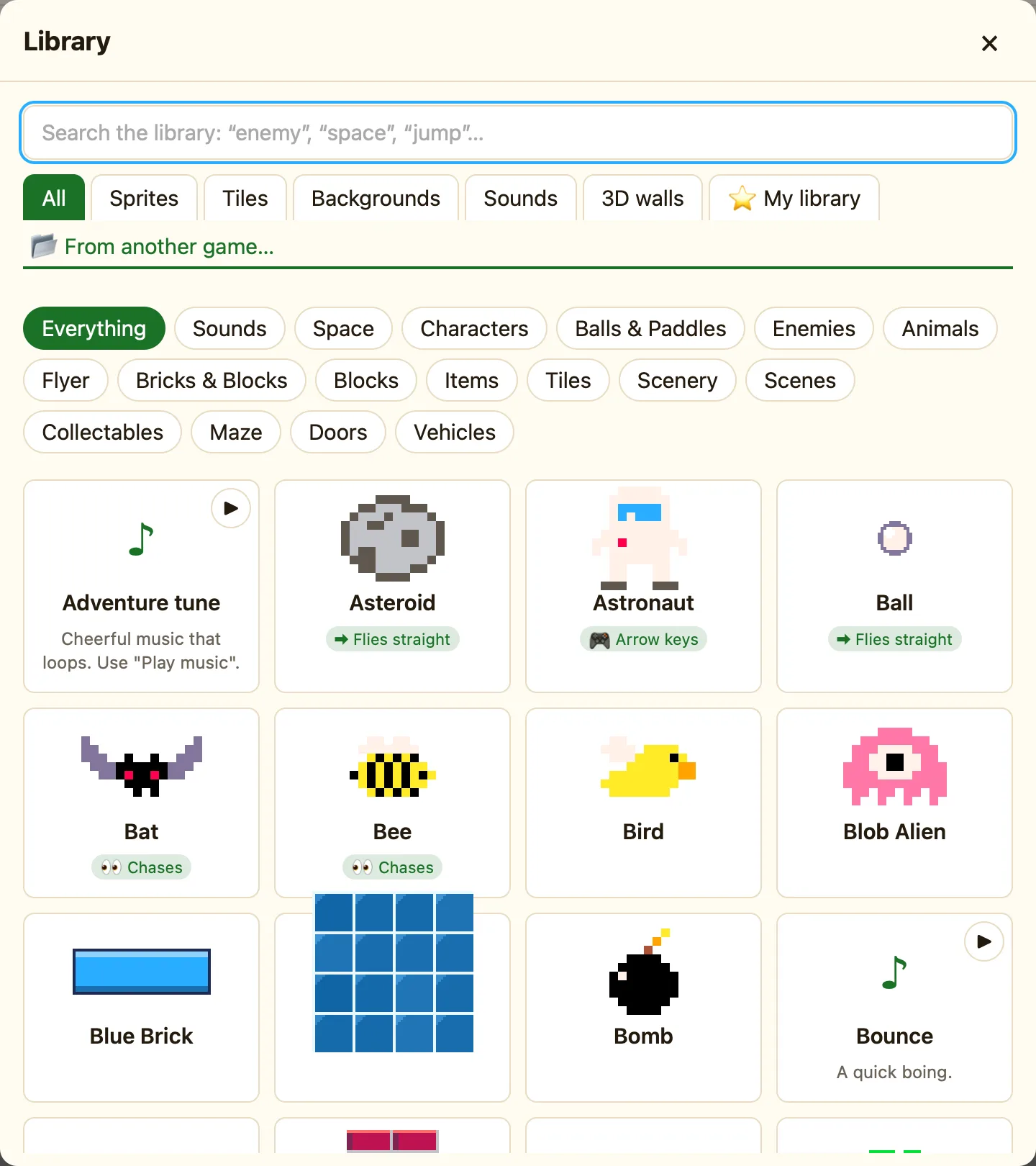
- Click 📂 From another game… at the end of the tabs.
- Choose a .nuthouse file.
- A new tab appears with a 📂 and the game’s name. Its sprites and tiles show as cards.
- Click a card to add it to the level you are editing.
- Add as many as you like, one click each. Close the Library when you are done, and the new objects are in the sidebar.
What to expect
| Sprites and tiles | Come across whole, with every animation. |
|---|---|
| Rules | Do not come across. Rules belong to a level, not to an object. Copy them with ⌘C and ⌘V in the Events tab instead. |
| Sounds and backgrounds | Add them from the built-in tabs, or import them again. |
| Pictures | A sprite’s pictures come with it, so the borrowed object looks the same in both games. |
| Names | If you already have an object with that name, you get two with the same name. Rename one on the right. |
