
My library
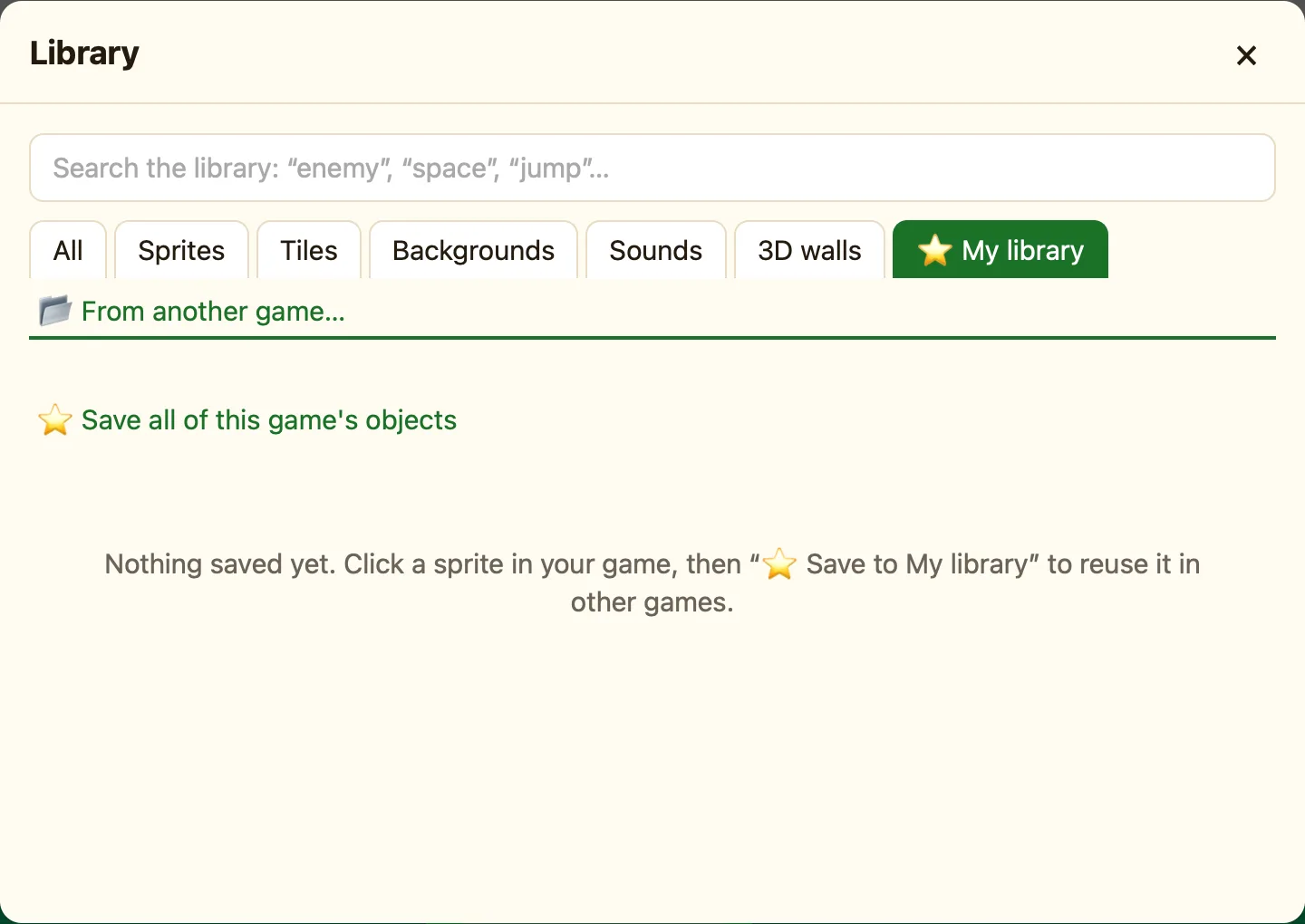
Star a sprite you made and it follows you into every game you make after. Your own pieces, next to NutHouse’s.
What My library is
When you draw a sprite you like, you do not want to draw it again in your next game. ⭐ Save to My library keeps a copy outside any game. It stays on this Mac, in NutHouse’s own data folder, until you remove it.
A saved sprite brings everything with it: its pictures, its animations, its movement and its settings. Only the sprite is saved, not the rules about it.
How to save one
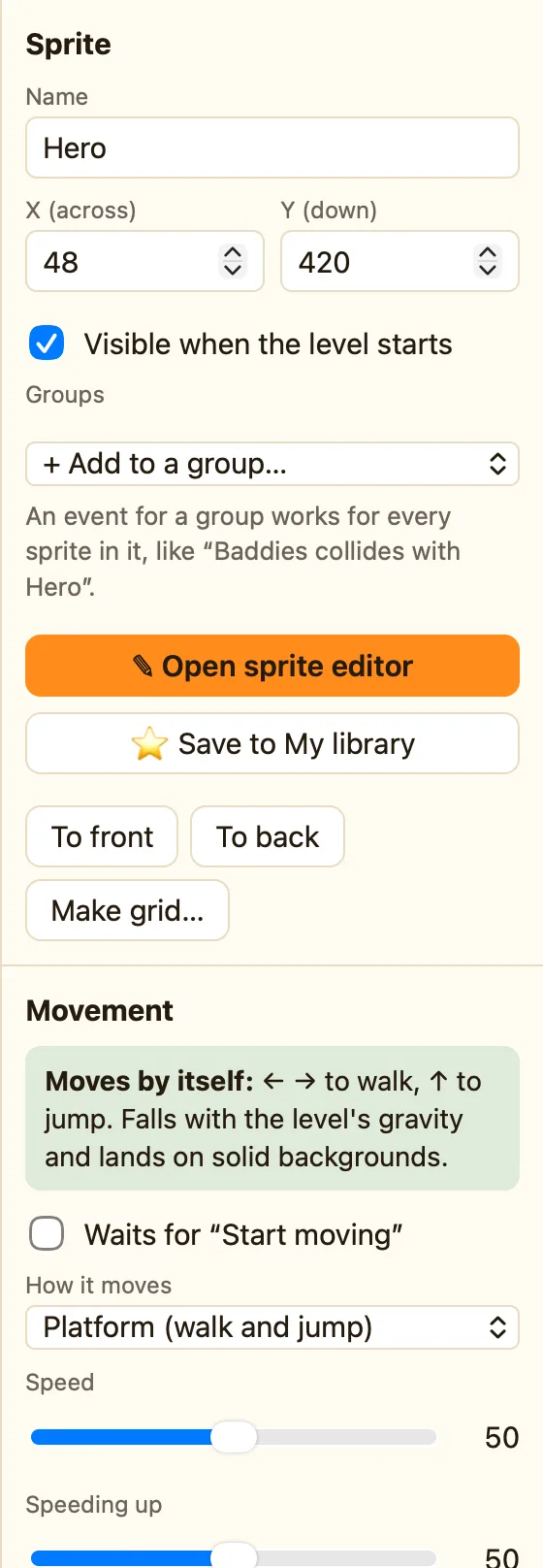
- In the Level tab, click the sprite.
- On the right, click ⭐ Save to My library.
- The toast says Saved “Hero” to My library. Find it in 📚 Library → ⭐ My library.
Use it for the pieces you keep remaking: your own hero, a favourite baddie, a set of tiles you drew. Once saved, they are two clicks away in any game.
To save everything at once, open the Library, click ⭐ My library, then ⭐ Save all of this game's objects. The toast tells you how many were saved.
How to use one
- In another game, click 📚 Library and then ⭐ My library.
- Click the sprite. It is added to the level like any library sprite.
What the buttons mean
| Rename | Changes the name shown in My library. Games that already use it are not changed. |
|---|---|
| Remove | Takes it out of My library. NutHouse asks first: Remove “Hero” from My library? Games that use it keep their copy. |
To borrow objects from a game file instead, see From another game.
