
Settings every object has
Name, X and Y, visible at the start, falls with gravity, to front and to back. The top of the panel is the same for every kind.
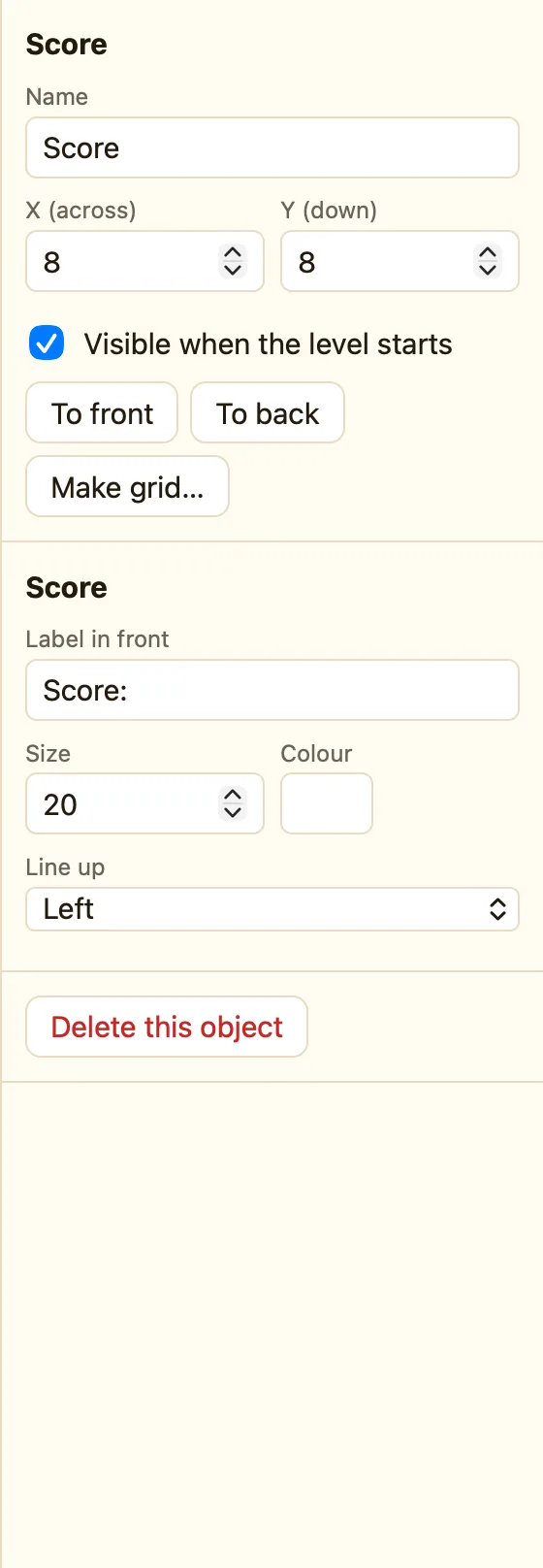
The shared settings
Click any object in the Level tab. The heading on the right is its kind, like Sprite or Score. Under it come these settings.
| Name | What rules call it. Every copy of this object shares the name and settings. Keep names short and clear: Hero, Coin, Keys. |
|---|---|
| X (across) | How far from the left edge, in pixels. 0 is the left edge. |
| Y (down) | How far from the top edge. 0 is the top. Bigger numbers are lower down. |
| Visible when the level starts | Untick it and the object starts hidden. A Show rule can bring it back. Good for “You Win!” text. |
| Falls with gravity | Sprites only. Tick it and the sprite drops with the level's gravity. Platform sprites always fall, so they do not show this box. |
| Groups | Sprites only, Advanced. See Groups of sprites. |
The buttons
| ✎ Open sprite editor | Sprites and blocks. Draw and animate it. |
|---|---|
| ⭐ Save to My library | Sprites. Keep it for other games. |
| To front / To back | Draws it in front of, or behind, the other things on its layer. To go in front of everything, move it to a higher layer. See Layers. |
| Make grid… | Rows and columns of copies. See Make a grid. |
| Delete this object | Removes the selected copy. Delete does the same. |
Shared settings and copies
If a level has forty bricks, the sidebar shows Brick ×40. They are one object, forty times. Change the colour of one and all forty change. Only X and Y belong to each copy.
When you select several things, the panel says 3 objects selected and offers Delete them. Drag to move them together.
