
The properties panel
The settings on the right side of the Level tab. What it shows depends on what you have selected: nothing, one object, or several.
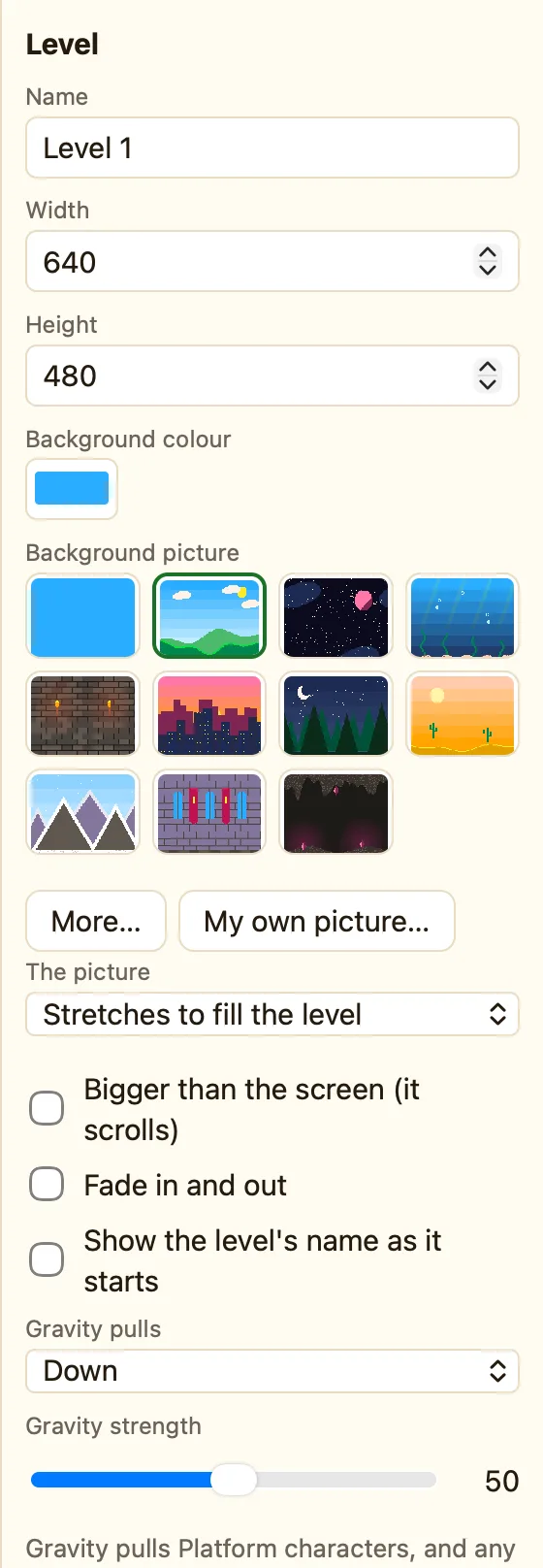
Nothing selected: the level
Click empty space in the level and the panel shows the level itself.
| Name, Width, Height | What the level is called and how big it is, in pixels (64 to 4096). |
|---|---|
| Background colour, Background picture | A plain colour, or one of ten pictures, or your own. |
| Bigger than the screen (it scrolls) | For long levels. Then you choose which sprite the screen follows. |
| Fade in and out · Show the level's name as it starts | Little touches for when the level begins. |
| Gravity pulls | Down, Up, or Off (everything floats). And a Gravity strength slider. |
Lower down are settings for the whole game: Lives at start, Player keys, About this game and Touch buttons. These are the same in every level.
One object selected
The heading says what kind it is: Sprite, Block, Score and so on. Then its Name (every copy shares it), X and Y, and Visible when the level starts. Sprites also get a Movement section with How it moves and that movement's settings, and a green banner saying what the movement does.
Buttons at the bottom: ✎ Open sprite editor, ⭐ Save to My library, To front, To back, Make grid… and Delete this object.
Several selected
The panel says “N objects selected” and offers Delete them. Drag any of them to move them all.
How to rename an object
- Click the object in the level.
- Click in the Name box on the right and type a new name.
- Press Return. Every copy, and every rule that uses it, now shows the new name.
