
Level settings
Click empty space in a level and the panel on the right shows its name, size, background colour, scrolling, fade and gravity.
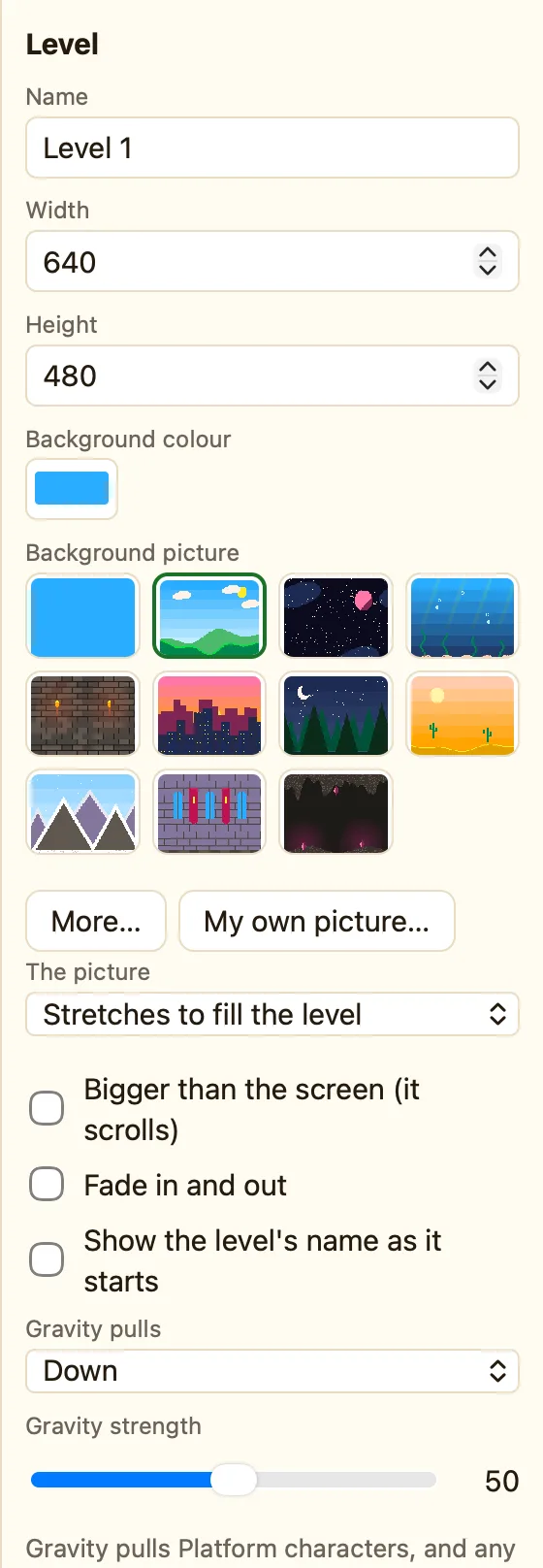
How to get to them
- Open the level in the Level tab.
- Click on empty space, so nothing is selected.
- The panel on the right now has the heading Level.
What the settings mean
| Name | What the level is called. It shows in the sidebar and on the Game tab. |
|---|---|
| Width and Height | The size of the level in pixels, from 64 up to 4096. A new level is 640 by 480. |
| Background colour | The colour behind everything. You see it where there is no picture. |
| Background picture | One of ten scenes, or My own picture…. See Background pictures. |
| The picture | Stretches to fill the level, Repeats along (good for scrolling) or Repeats like tiles. |
| Bigger than the screen (it scrolls) | Tick it for a long level the screen slides along. See Levels bigger than the screen. |
| Fade in and out | The level fades up from black and fades out at the end. |
| Show the level's name as it starts | Shows the name for a moment as the level begins. |
| Gravity pulls | Down, Up or Off (everything floats). See Gravity. |
| Gravity strength | A slider. 50 is normal. Lower feels like the moon. |
Making a level bigger
Type a new Width or Height. The level grows from the top-left corner, so nothing moves. If you make it smaller, things past the new edge end up in the grey area outside. They are not in the game any more, so drag them back in.
If the level is bigger than the screen but you do not tick the scrolling box, the whole thing is squashed to fit. That is sometimes fine. For a platformer, tick the box instead.
