
Background pictures
Pick one of ten built-in scenes or use your own picture, then choose whether it stretches, tiles or repeats along.
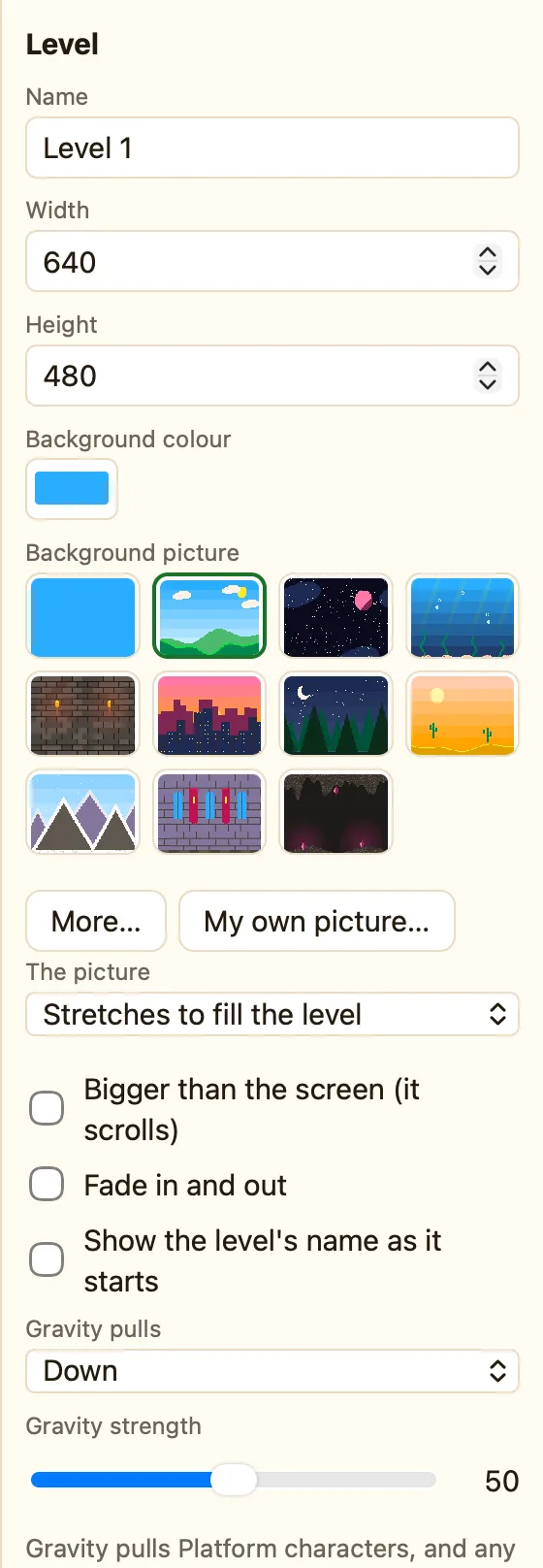
The ten scenes
Click empty space in a level and look at Background picture. The first square is no picture, so you only see the Background colour. After it come Sunny hills, Starry space, Underwater, Dungeon, Sunset city, Night forest, Desert, Snowy mountains, Castle hall and Cave.
Click More… to see them big in the Library window. Click one there and a toast says Sunny hills is now behind this level.
How to use your own picture
- Click empty space in the level so the Level panel shows.
- Click My own picture… and choose a picture file on your Mac.
- NutHouse shrinks it to fit the level. Big files get a warning at about 3 MB, because they make your shared game big.
What the picture does
Under the thumbnails is a menu called The picture. It has three choices.
| Stretches to fill the level | One copy, pulled to the level's size. Best for a normal level that fits the screen. |
|---|---|
| Repeats along (good for scrolling) | The picture is as tall as the level and repeats sideways. Best for a long level. Treetop Trek uses this. |
| Repeats like tiles | The picture keeps its own size and repeats across and down, like bathroom tiles. Good for a brick or stone pattern. |
Background or Block?
A background picture is only a picture. Nothing can stand on it and nothing bumps into it. For a floor or a wall, add a Block or a tile from the Library and make it solid. Read Blocks: decoration, solid, platform, ladder.
