
Levels bigger than the screen
Tick one box, choose who the screen follows, and your level scrolls like a real platformer.
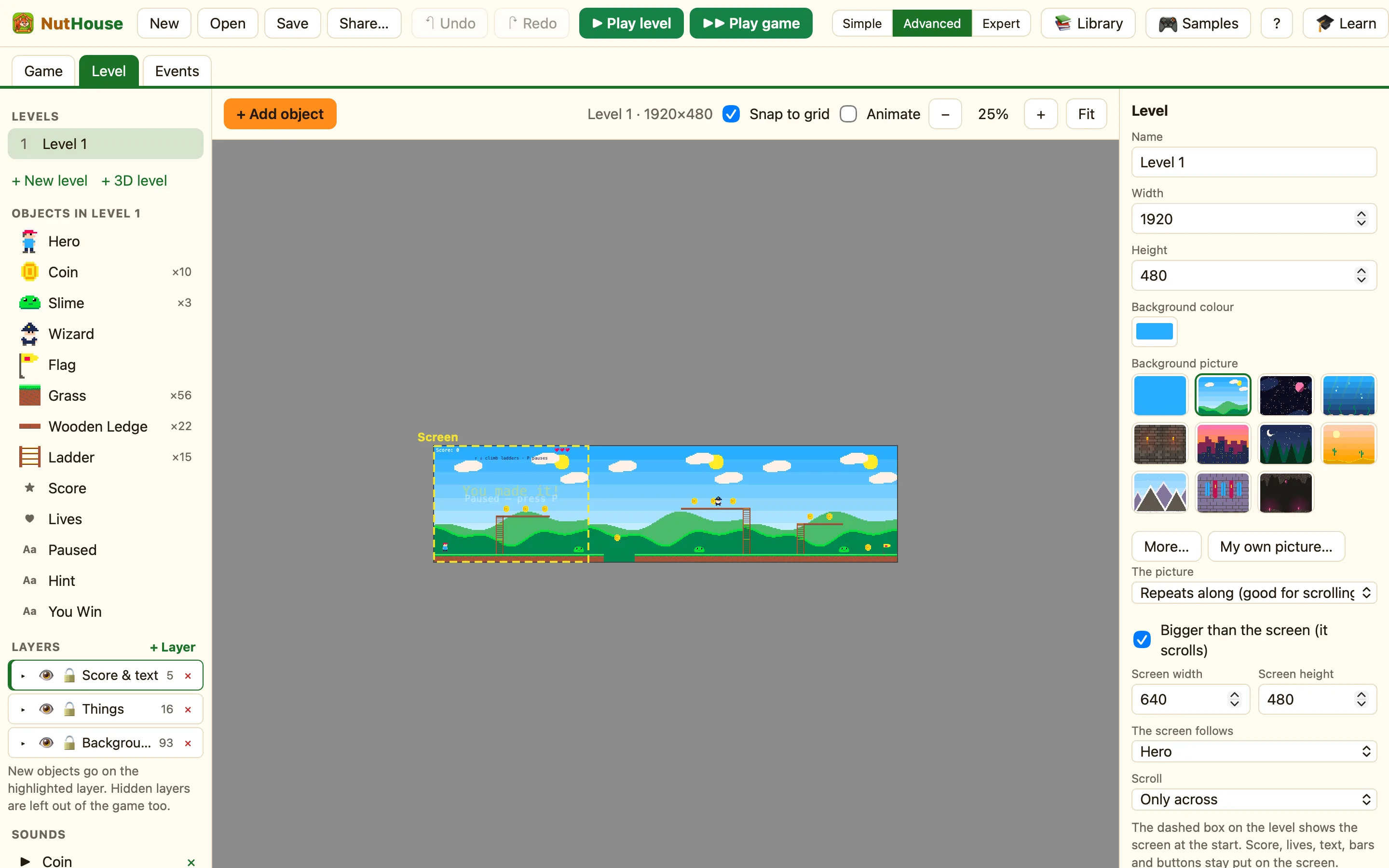
How to make a level scroll
- Click empty space so the Level panel shows.
- Make the Width bigger. Treetop Trek is 1920 wide and 480 tall.
- Tick Bigger than the screen (it scrolls).
- Under The screen follows, pick your hero.
- Set The picture to Repeats along (good for scrolling) so the background never runs out.
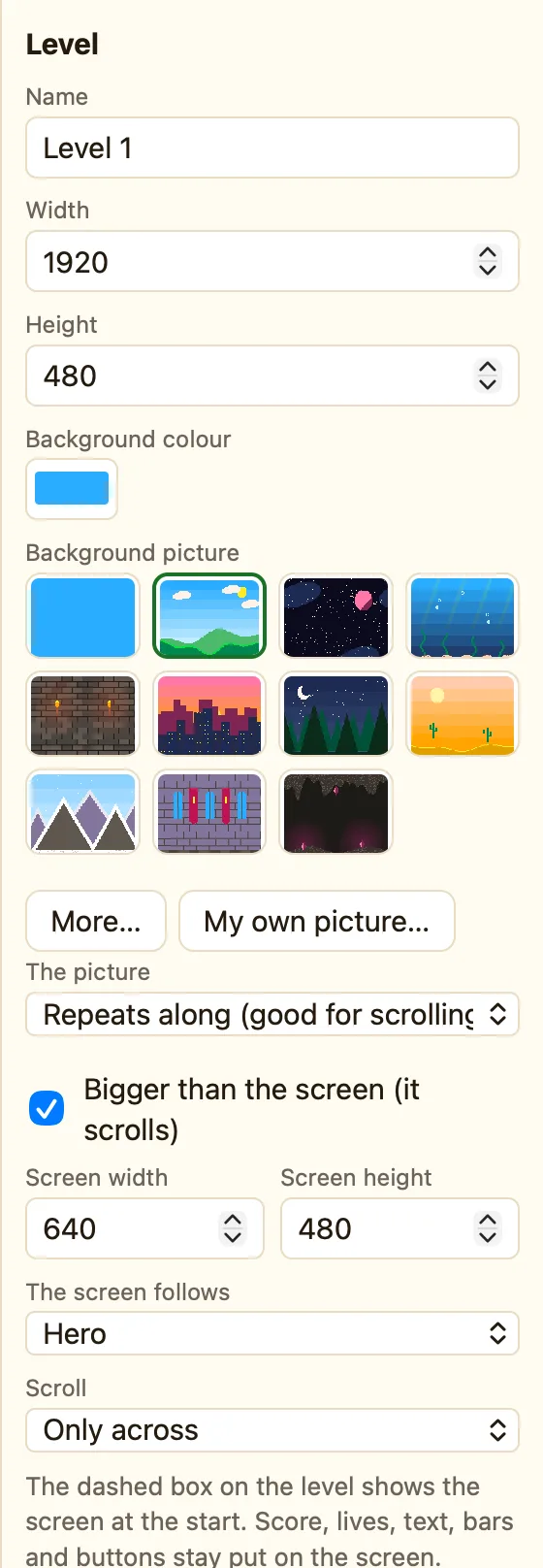
What the settings mean
| Screen width and height | The size of the window the player looks through. 160 to 1920 wide and 120 to 1080 tall. 640 by 480 is normal. |
|---|---|
| The screen follows | A sprite the screen keeps in the middle. Or Nothing (use events to move it) if you want rules to move the screen. |
| Scroll | Across and up/down, Only across or Only up and down. A side-scroller wants Only across. |
Score, lives, text, bars and buttons do not scroll. They stay put on the screen, wherever the hero goes.
Moving the screen with rules
You can also drive the screen from the Events tab, in the 🎬 Game column:
Make the screen follow an object Stop the screen following Move the screen to a spot
That lets you swap who the screen follows, or lock it during a boss fight.
