
The level editor
Select, drag, box-select, Alt-drag to copy, snap to a grid, zoom in and out, and nudge with the arrow keys.
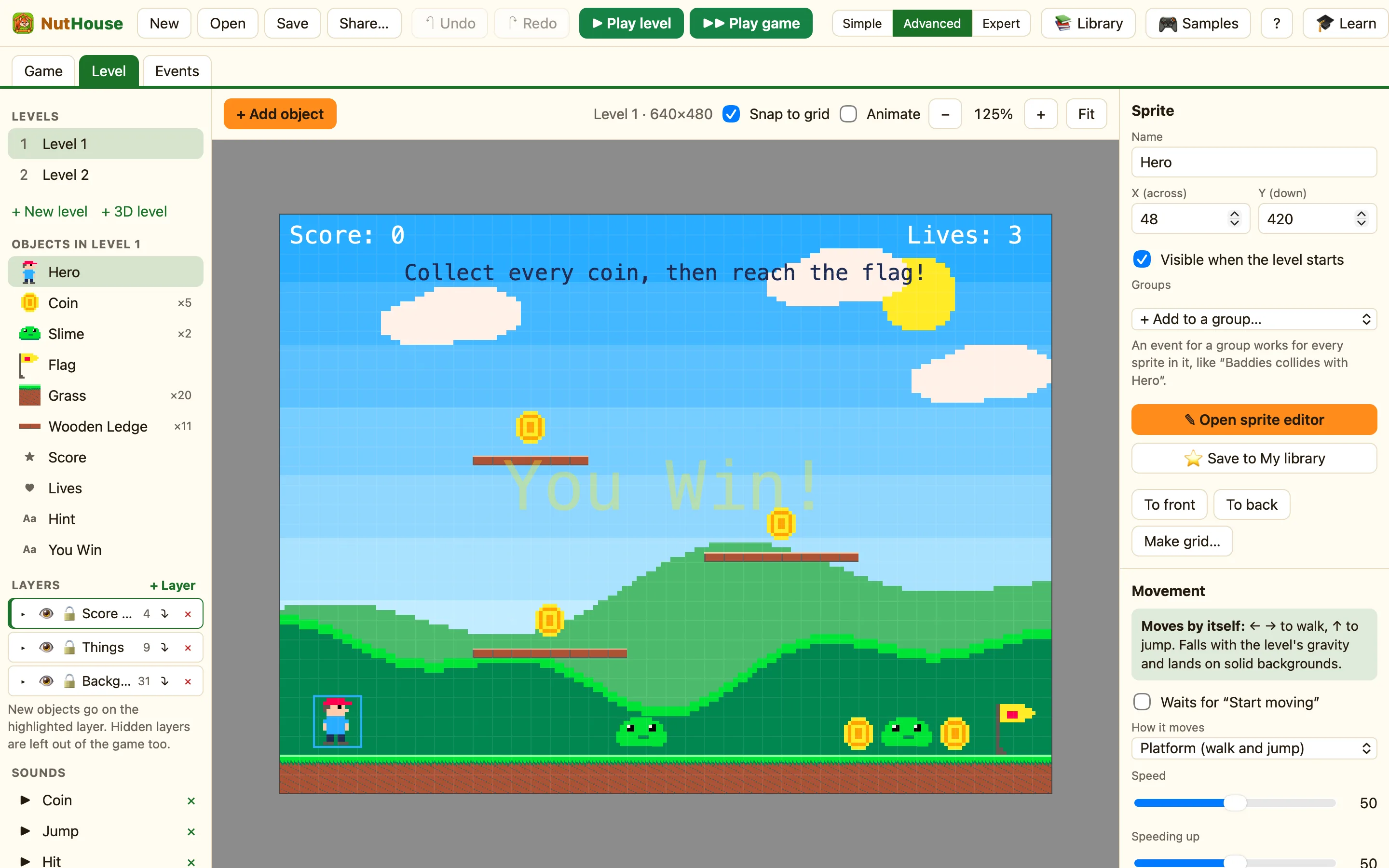
The toolbar
| + Add object | Opens the Add an object dialog. Double-clicking empty space does the same, right where you clicked. |
|---|---|
| Snap to grid | Tick it and things you drag land on neat grid lines. |
| Animate | Plays the sprites' animations while you edit. |
| − and + | Zoom out and in. ⌘− and ⌘= do the same, and so does pinching. |
| Fit | Shows the whole level. The shortcut is ⌘0. |
Between the buttons you see the level's name and size, like Level 1 · 640×480. Grey space outside the level is off the edge. Things there are not in the game.
Selecting and moving
- Click a thing to select it. Hold Shift and click to add more.
- Drag on empty space to draw a box. Everything inside it gets selected.
- Drag a selected thing to move it. Press the arrow keys to nudge it 1 pixel. Hold Shift for 10 pixels.
- Press Delete to remove what is selected.
Hold Alt or Ctrl while you drag to make a copy. Alt also turns snapping off while you hold it. ⌘D duplicates without dragging. ⌘A selects everything.
Double-click a sprite to open it in the Sprite editor. The small numbers next to the pointer tell you where it is, across and down.
Moving around a big level
Hold Space and drag to pan. Scrolling the mouse wheel moves too. In a scrolling level you see a dashed yellow box labelled Screen. That is what the player sees at the start.
