
Copy and paste objects
Use ⌘C and ⌘V to copy things inside a level, between levels, and even between games.
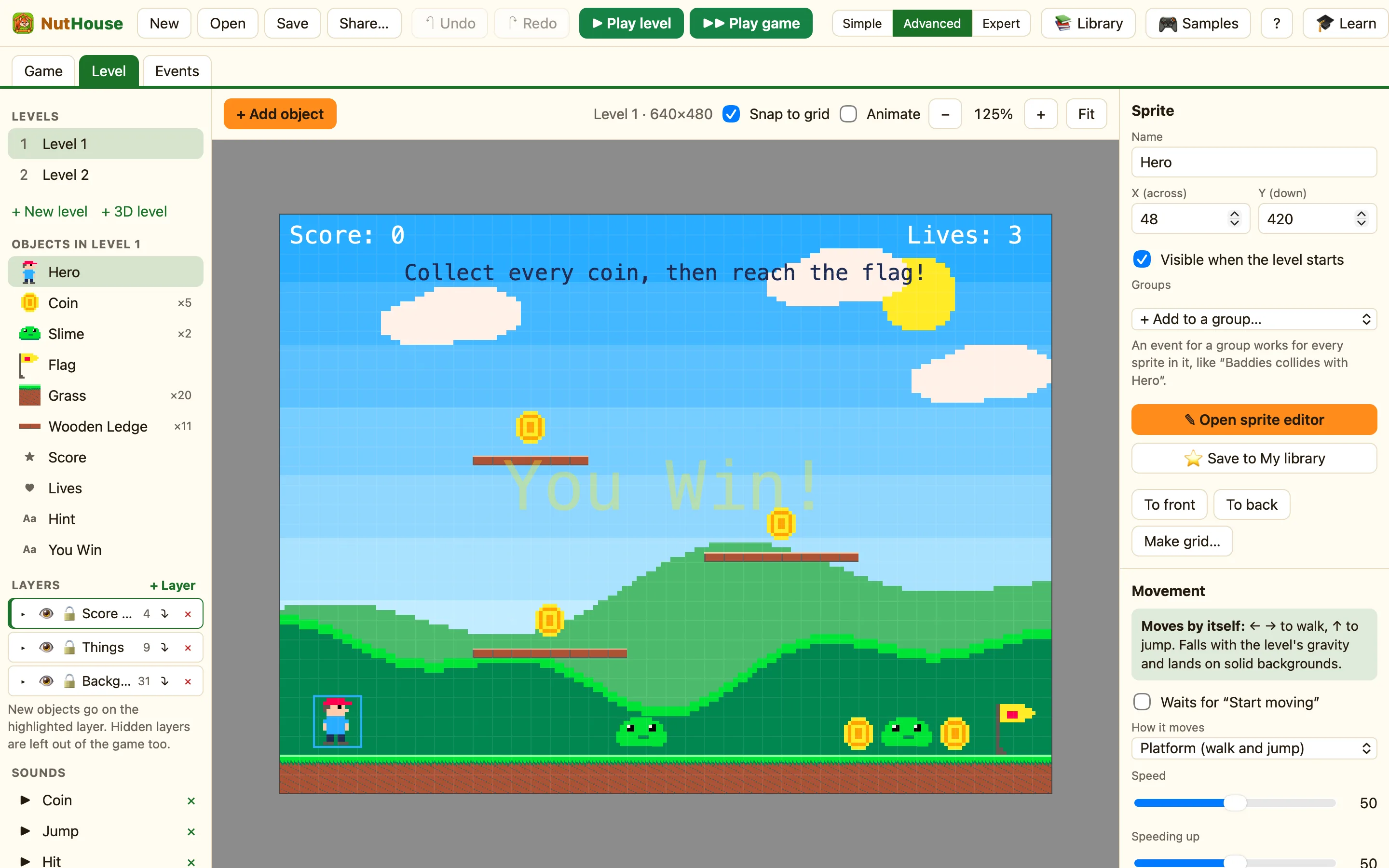
Three ways to copy
| Alt-drag | Hold Alt (or Ctrl) and drag a thing. A copy comes away and the original stays. Quickest for one or two copies. |
|---|---|
| ⌘D | Duplicates the selected things right next to themselves. No dragging needed. |
| ⌘C and ⌘V | Copies to the clipboard, then pastes. This is the one that works across levels and games. |
When you press ⌘C a toast says Copied it. Press ⌘V to paste. ⌘X cuts instead, so the original goes.
How to copy between levels
- In level 1, click the thing you want. Hold Shift and click to pick more.
- Press ⌘C.
- Click level 2 in the LEVELS list in the sidebar.
- Press ⌘V. The copies land in the same place they were in level 1.
Pasting brings the object's pictures, movement and settings with it. It does not bring its rules. Rules belong to the level, so write them again in the Events tab, or copy the rows there with ⌘C and ⌘V too. See Turn off, duplicate, copy and paste rules.
Copying between games
Open the first game, copy, then open the second game and paste. If you want to keep a sprite for good, use ⭐ Save to My library instead. It stays on your Mac and appears in 📚 Library under ⭐ My library in every game.
There is also 📂 From another game… in the Library window. It opens any .nuthouse file and lets you pick things out of it without copying by hand. See From another game.
