
Layers
Layers are sheets of see-through paper. Lock the ground so you never nudge it, or hide a layer to leave it out.
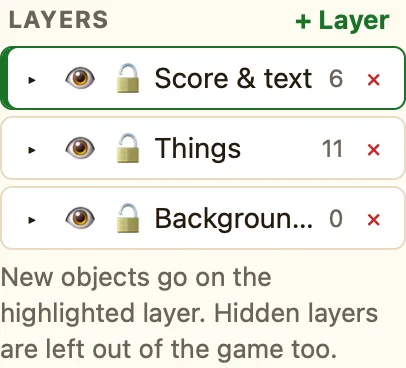
What layers are
Imagine three sheets of clear plastic, one on top of the other. Draw the sky on the bottom sheet, the ground on the middle one and the score on the top one. That is layers.
The LAYERS panel is in the sidebar on the left. The top row is the front layer. Everything on it is drawn in front of the layers below.
How to make a layer
- Click + Layer. The new layer goes in front.
- Double-click its name and type a new one, like Baddies.
- Click the layer to highlight it. New objects now go on it.
- To move things you already placed, select them, then click ⤵ on the layer you want.
What the buttons mean
| ▸ / ▾ | Opens the layer to show the objects on it. An empty one says Empty. Drag objects here. |
|---|---|
| 👁 / ◌ | Hides the layer while you edit. Hidden layers are left out of the game too. |
| 🔒 / 🔓 | Locks the layer. You cannot select or drag anything on a locked layer. |
| ⤵ | Moves the selected objects onto this layer. It only appears while something is selected. |
| ✕ | Deletes the layer. NutHouse asks first, and moves its objects to the layer behind. |
Layers and To front
To front and To back in an object's settings only move it within its own layer. To put a thing in front of everything, move it to the top layer instead.
