
Counter
A number you can add to or take away from. Keys collected, gems left, arrows in the quiver.
What a counter is
Shows a number you can add to or take away from. The score is a counter too, but there is only one score. You can have as many counters as you like: one for keys, one for gems, one for ammo.
Counters appear in Advanced and Expert mode. Switch mode at the top if you cannot see the card.
How to add one
- Click + Add object, then New, then Counter.
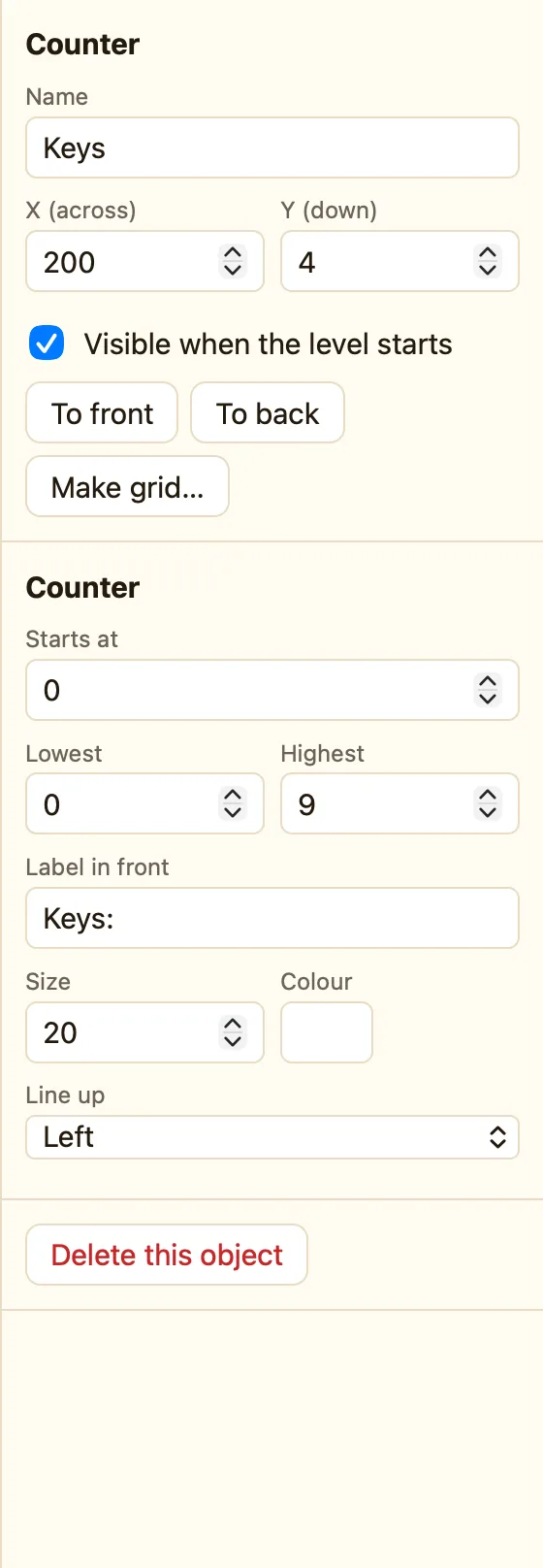
- Change its Name to what it counts, like Keys.
- Type Keys: in Label in front so the player knows what the number means.
- Drag it to a corner of the screen.
What the settings mean
| Starts at | The number when the level begins. Every level starts it again. |
|---|---|
| Lowest and Highest | The counter never goes past these. With Lowest 0 you cannot have minus one key. |
| Label in front | Words shown before the number. |
| Size and Colour | How big the writing is, and its colour. |
| Line up | Left, Centre or Right. Pick Right for a counter in the top-right corner. |
Rules for counters
Add to the counter Subtract from the counter Set the counter Compare the counter
Dungeon Key keeps the door shut while Keys = 0 and opens it when Keys > 0.
WhenHero collides with Key
DoDestroy KeyAdd 1 to Keys
In a formula, Value("Keys") is the counter's number. All the counter rules are in Counters, displays and gadgets.
