
Text
Words on the screen, like “Game Over”. In Advanced mode it can hold several lines you step through, like speech.
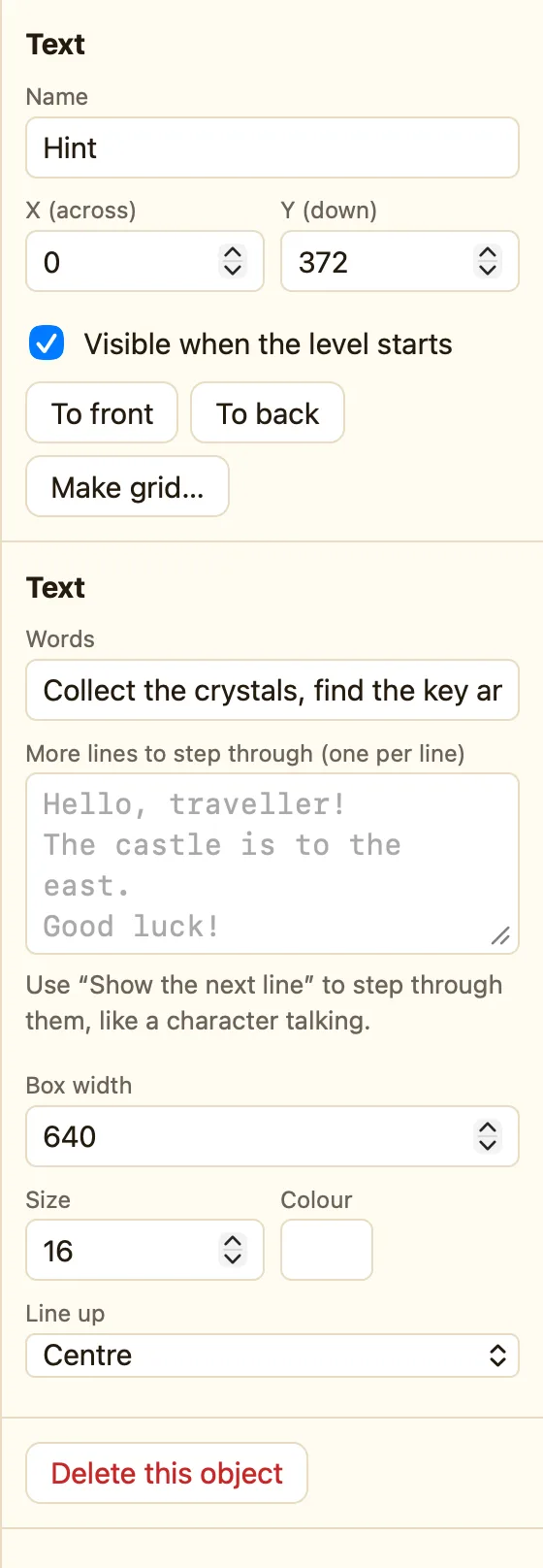
What a text object is
A Text object shows words. A title, a hint, “Press Space to start”, “You Win!”. It does not move. In a scrolling level it stays on the screen.
Text appears in every mode. The More lines box appears in Advanced and Expert.
How to add one
- Click + Add object, then New, then Text.
- Type what it should say in Words.
- Set Box width wide enough. Long words wrap onto a new line inside the box.
- Pick a size and colour, and drag it into place.
What the settings mean
| Words | What it shows at the start. |
|---|---|
| More lines to step through (one per line) | Advanced. Type extra lines here, one per line. A rule can show the next one. |
| Box width | How wide the text can go before it wraps. |
| Style | Size, colour and how it lines up. |
Rules for text
Set the text Show the next line Show the line before Show line number… Is showing its last line
Set the text takes a formula, so it can show numbers: "Coins: " + Str(Value("Coins")). See Text formulas.
For a talking character, put each thing they say on its own line in More lines. Then:
WhenUpon pressing Space bar
DoSpeech shows its next line
WhenSpeech is showing its last lineUpon pressing Space bar
DoGo to the next level
In a formula, Text("Speech") is the words it shows right now.
