
A start screen with buttons
By the end you will have a first level with your game's name, a line of instructions and a Play button that starts the real game.
What you need
Everything here is in Simple mode.
| Title | + Add object → New → Text. Words: your game's name. Make the size big. |
|---|---|
| How to play | Another Text: Arrow keys to move, Space to jump. |
| Play button | + Add object → New → Button. Words: Play. Pick a Colour and Words colour. Name it Play. |
| A sound | + Built-in sound → Click. |
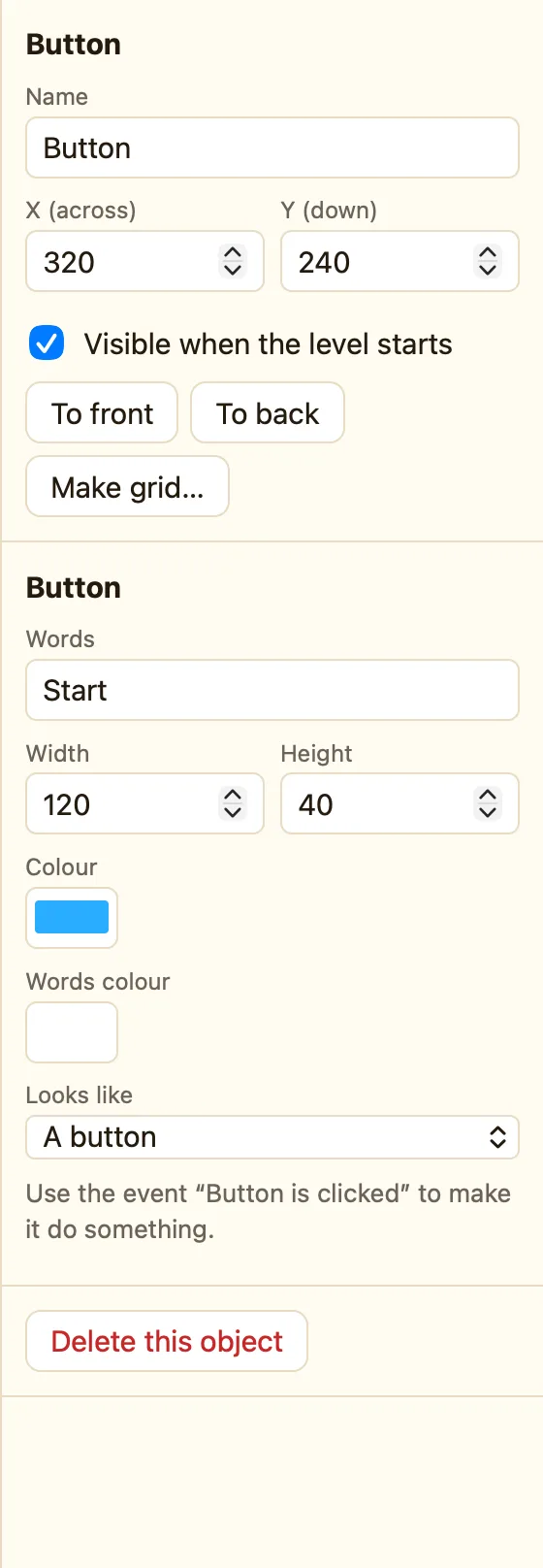
Build it
- Open the Game tab. Click + Add level. Drag the new card to the top. NutHouse plays levels from top to bottom.
- Double-click the card to edit it. Name the level Start. Pick a background colour you like.
- Add the title text near the top, the how-to-play text in the middle, and the Play button under it.
- Want a picture? Add your hero from the library. Set How it moves to Stays still so it waits.
- Events tab → + New event → click Play → Button is clicked.
- In the 🎬 Game cell choose Next level. In ♪ Sound choose Play a sound → Click.
- Press ▶▶ Play game. The start screen shows first. Click Play.
WhenPlay is clicked
DoNext levelPlay sound Click
Press ▶ Play level on the second level while you build it. The start screen only matters when you play the whole game.
Make it yours
- Any key works too: Upon pressing any key → Next level. Add it as a second rule.
- A High scores object on the start screen shows the best scores before each go.
- In Advanced, set the button's Looks like to A picture of your hero. Now the hero is the button.
