
The start screen and About this game
Fill in who made the game and how to play, and players see it on a “Tap to play” screen before the game starts.
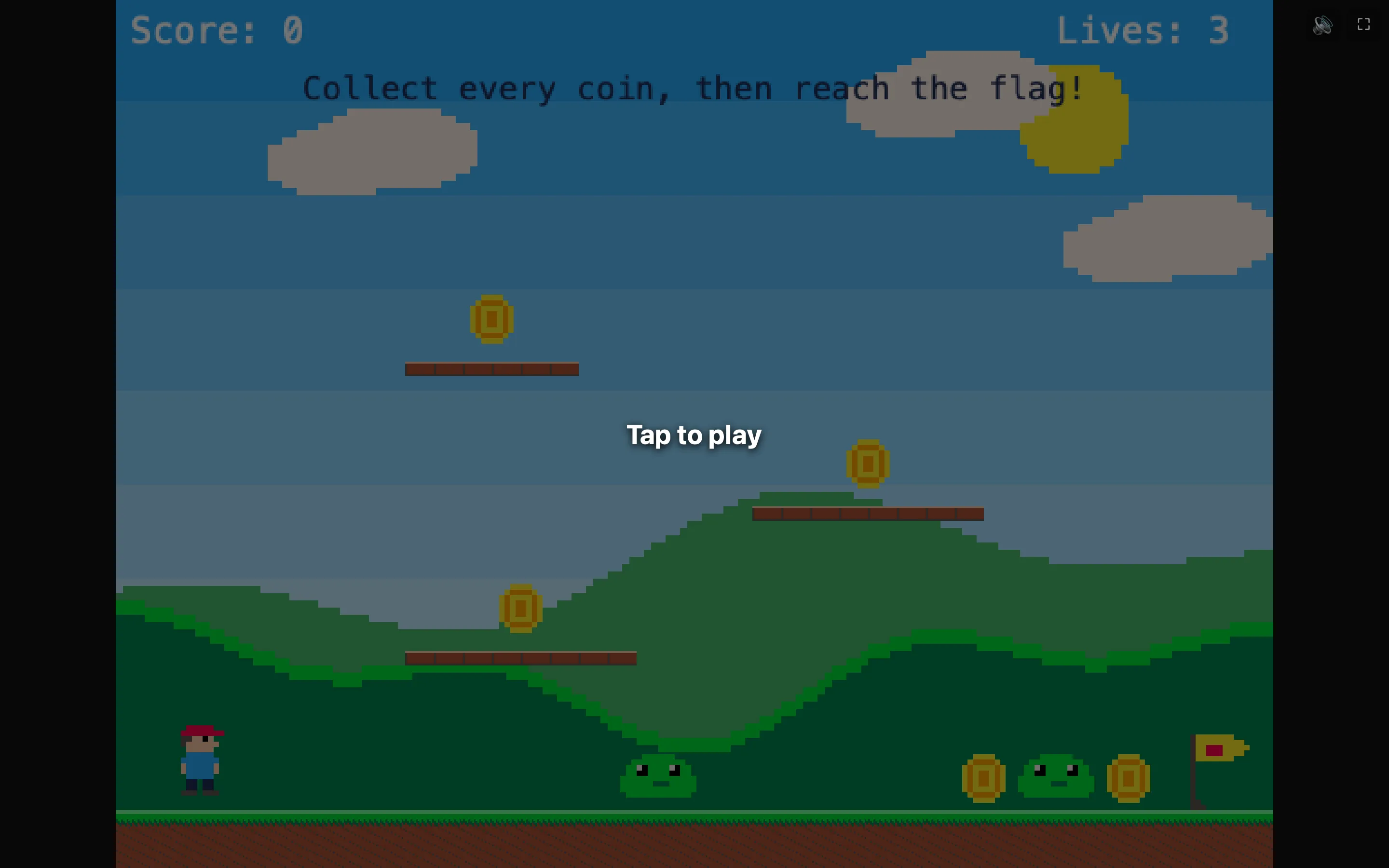
What the start screen shows
When someone opens your shared web page, the game waits on a start screen. It shows the game's name, “by {your name}”, your How to play words and “Tap to play”. A click, a tap or a key starts the game.
If you leave About this game empty, the screen only says “Tap to play”.
How to fill it in
- Click empty space in any level so the Properties panel shows the level.
- Scroll to Whole game and open ▸ About this game.
- Type your name in Made by.
- Type the controls in How to play, like “Arrow keys to move, Space to jump. Collect every coin!”
- Press ⌘E and click Play in browser to see the result.
What the settings mean
| Made by | Your name, or a made-up one. Shown as “by …” under the title. |
|---|---|
| How to play | A line or two about the keys and the goal. New lines are kept, so you can list the controls one per line. |
The panel reminds you: “Shown before the game starts when you share it.” It does not appear in NutHouse's own Play panel.
Why the start screen matters
Browsers do not play sound until the player clicks or taps something. The start screen gives them something to tap, so your music and sounds work from the first moment. It also gives the player a second to read the controls.
