
Installing, and what you need
An Apple Silicon Mac running macOS 11 or later, a free download from www.playnuthouse.com, and a drag into Applications.
What you need
| Mac | Any Mac with an Apple chip (M1 or newer). There is no build for Intel Macs yet. |
|---|---|
| macOS | Version 11 (Big Sur) or later. |
| Windows, Linux, Chromebook | Not yet for making games. Games you share as a web page play on all of them. |
| iPad | A separate iPad version exists. See The iPad version. |
| Internet | Only to download. NutHouse never needs it after that. |
| Price | Free. No account, no sign-in, no in-app purchases. |
How to install
- Download the .dmg from www.playnuthouse.com.
- Open it. A window shows NutHouse and a shortcut to Applications.
- Drag NutHouse onto Applications.
- Eject the disk image and open NutHouse from Applications or Launchpad.
The first time it opens
macOS checks apps downloaded from the web before they run. The first launch may take a moment longer. If macOS says the app cannot be opened, right-click NutHouse in Applications and choose Open, then Open again in the dialog. You only need to do this once. If that does not help, see NutHouse will not open on my Mac.
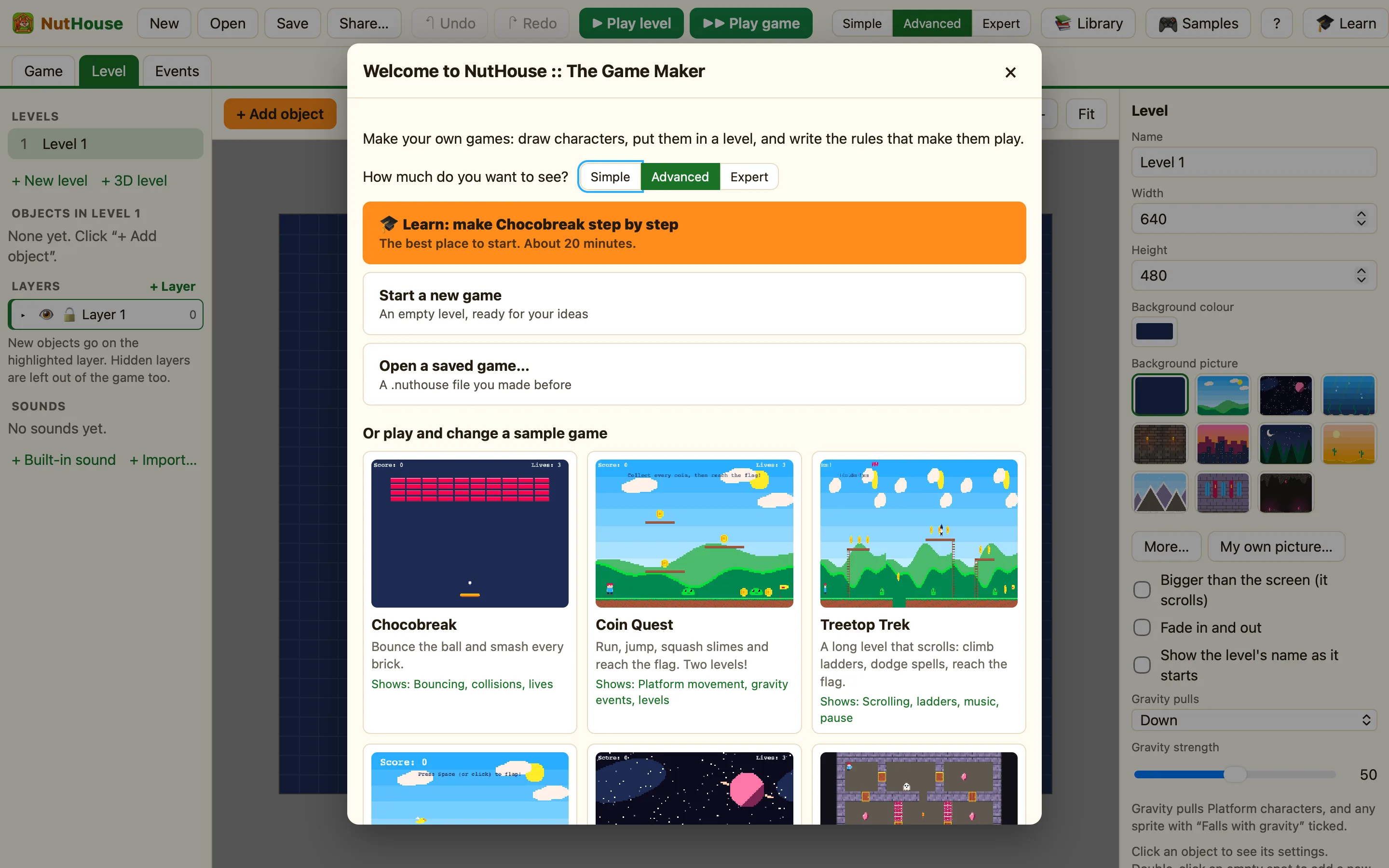
NutHouse then shows the Welcome window: a mode switch (How much do you want to see?), 🎓 Learn: make Chocobreak step by step, Start a new game and Open a saved game….
Updating and removing
To update, download the new .dmg and drag NutHouse over the old one. Your games are separate files and are not touched. To remove NutHouse, drag it from Applications to the Bin. Your .nuthouse files stay where you saved them.
For the child-facing version of these steps, see Install NutHouse on your Mac.
