
The iPad version
NutHouse also runs on iPad, with touch controls for playing. Almost everything is the same; here is what is different.
What you need
An iPad running iOS 16 or later. The iPad version is the same NutHouse, built with Tauri, with the same editor, library, samples and tutorial. Games are the same .nuthouse files and open on either device.
What is different
| Playing | A touch arrow pad and up to four round buttons appear over the game. The game’s Touch buttons (whole game) settings decide which ones. |
|---|---|
| Play in browser | Not on iPad. Share… still saves the .html file. |
| Show in Finder | Not on iPad. Saved files are in the Files app. |
| Keyboard shortcuts | Work with an attached keyboard. Without one, use the toolbar buttons. |
| Right-click | Touch and hold instead. |
| Editing | Drawing in the sprite editor and dragging in the level work with a finger or a pencil. A bigger screen is more comfortable for the Events tab. |
Touch controls, in detail
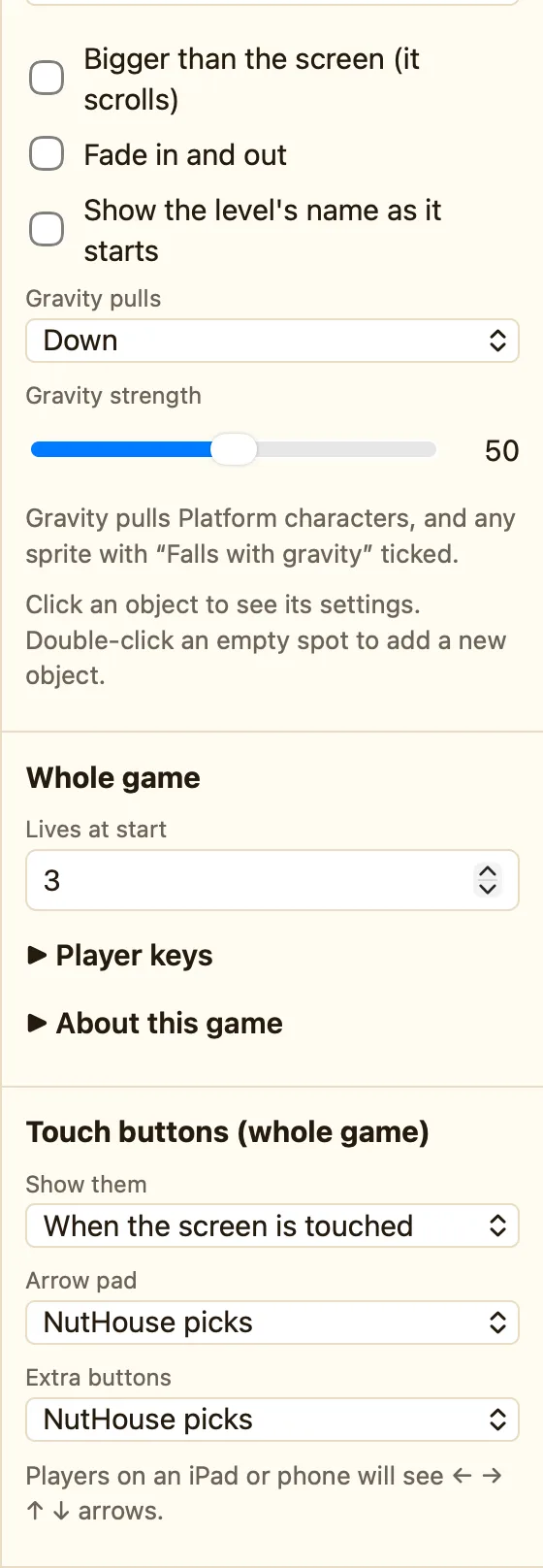
In the editor’s Play panel, and in any shared game, a touch screen shows the arrow pad and buttons. Show them can be When the screen is touched, Always or Never. Arrow pad and Extra buttons can be left to NutHouse picks, which looks at the game’s movements and rules, or chosen by hand. A live sentence in the settings says what players will see, such as “Players on an iPad or phone will see ← → arrows and a Jump button.” See Touch buttons on iPad and phone.
Moving games between Mac and iPad
- On the Mac, save the game to iCloud Drive, or AirDrop the .nuthouse file.
- On the iPad, open NutHouse and choose Open a saved game….
- Edit, play, save. Send it back the same way.
Everything else in this help centre applies to the iPad as well. Where it says “click”, tap.
