
Touch buttons on iPad and phone
On a touch screen an arrow pad and round buttons appear under the game. NutHouse picks them for you, or you choose.
What players get
When someone plays your shared web page on an iPad or phone, there is no keyboard. So NutHouse draws an arrow pad on the left and up to four round buttons on the right. A jump key gets a button called Jump. Other keys get buttons named after the key, like Space or Shift.
The same buttons appear in NutHouse's own Play panel on a touch screen, so you can test them.
Where the settings are
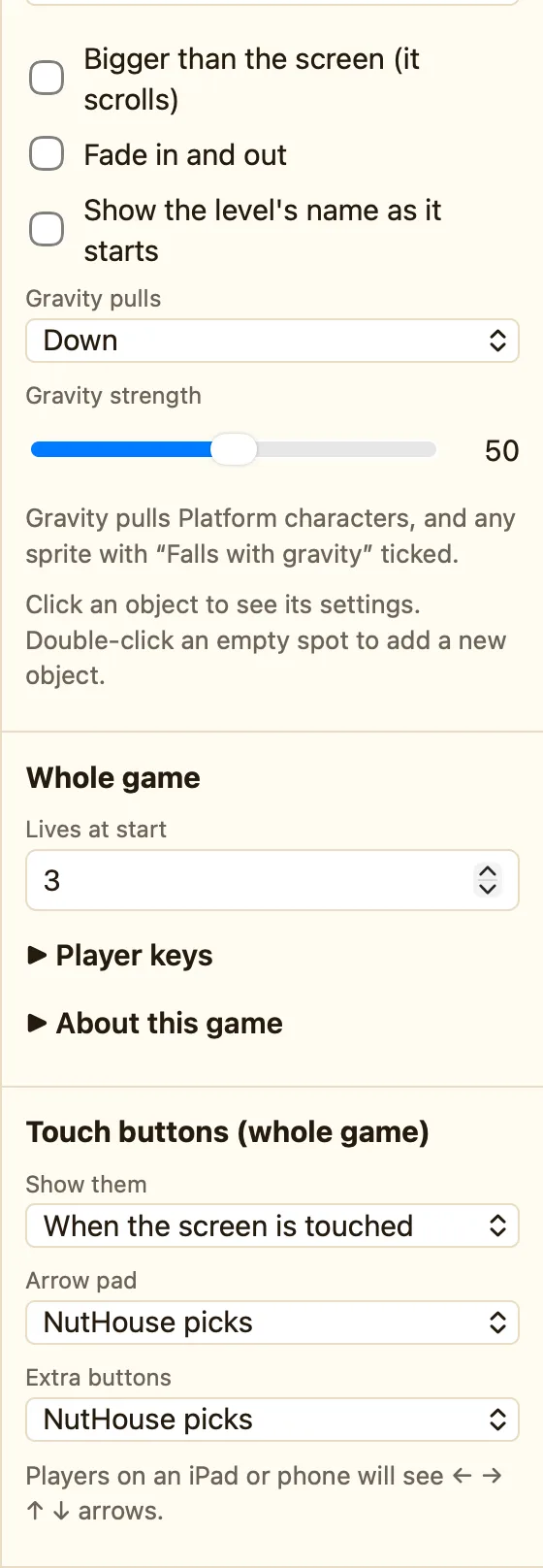
Click empty space in a level and scroll the Properties panel down to Touch buttons (whole game). They apply to every level.
What the settings mean
| Show them | When the screen is touched: buttons appear on the first touch and hide when a real key is pressed. Always: they never hide. Never: no touch buttons at all. |
|---|---|
| Arrow pad | NutHouse picks looks at your movements. Or choose All four arrows, Left and right, Up and down or No arrows. |
| Extra buttons | NutHouse picks adds a button for each key your rules and movements use. I will choose lets you pick the keys yourself, up to 4. |
The sentence at the bottom tells you the result, for example “Players on an iPad or phone will see ← → arrows and a Jump button.”
How to choose your own buttons
- Set Extra buttons to I will choose.
- Click + Add a button. A key picker appears for Button 1.
- Click it, then press the key you want, like Space.
- Add up to four. Click ✕ to remove one.
