
Restart and stop
Restart puts the level back to its start, Stop takes you back to the editor, and neither of them can change your game.
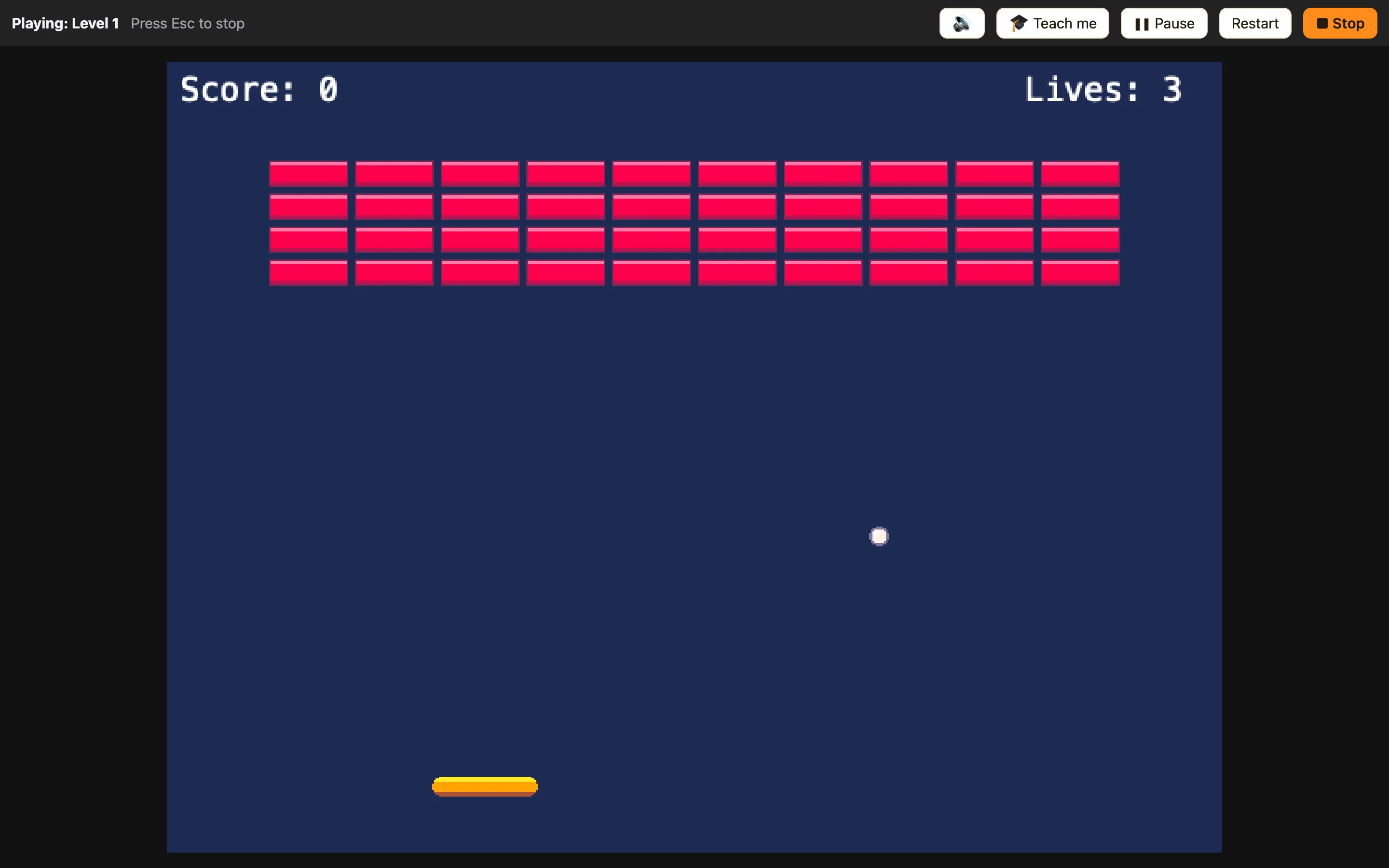
Playing never changes your game
When you press play, NutHouse makes a copy of your game and plays that. Everything that happens while playing happens to the copy. When you stop, the copy is thrown away. Your level, your sprites and your rules are exactly as you left them.
That means you can play without fear. Destroy every brick, lose every life, walk the hero off the edge. Press Esc and it is all back.
Restart
Click Restart on the play bar. The level you are playing starts again from the beginning, with every sprite back in place. If you are playing the whole game, Restart restarts the level you are on, not level 1.
Stop
Click ■ Stop or press Esc. The Play panel closes and you are back on the tab you came from. Stop is also in the Play menu, and it is the one menu item that works while a game is playing.
Restarting from a rule
Players need a way to try again too. These actions are in the 🎬 Game column.
| Restart this level | Starts this level again. Score and lives stay the same. |
|---|---|
| Restart the game | Starts the whole game again from level 1, with the score and lives reset. |
How to add a Play Again button
- Add a Button object with the words Play again. Untick Visible when the level starts.
- Add a rule that shows the button when the player loses.
- Add a rule: Button is clicked → Restart this level.
