
Start moving, stop, and waiting
Make a sprite hold still until the game is ready, then set it going or freeze it with a rule.
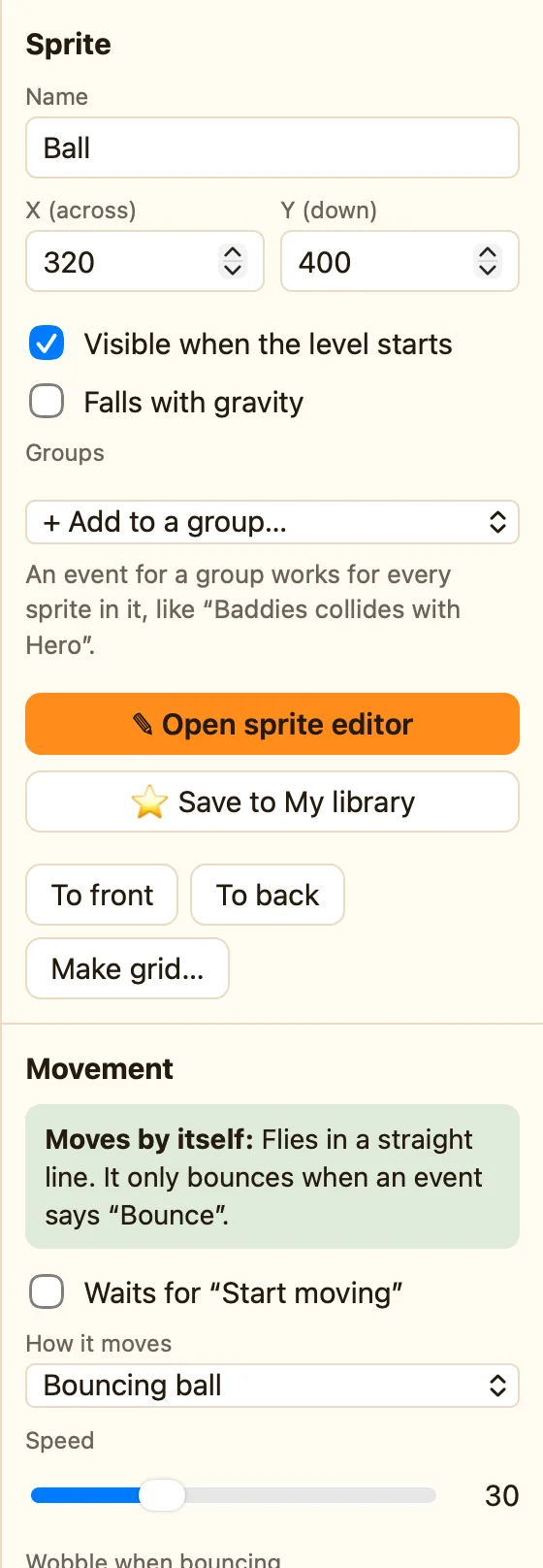
Waiting at the start
Sometimes a sprite should not move the moment the level starts. The ball should wait for the player to press Space. The boss should wait until the hero walks in.
Tick Waits for “Start moving” in the Movement section. The sprite stays still, even if its movement would move it, until a rule says Start moving. You see this tick in Advanced and Expert mode, on every movement except Stays still.
A Bouncing ball has its own version: untick Moving when the level starts. Either way works for a ball.
The rules
- Start moving sets a waiting or stopped sprite going.
- Stop freezes it. If it has just hit something, it steps back out first so it does not get stuck.
- Is stopped and Is moving let other rules check.
- Set speed to 0 is another way to stop, and back up to start again.
How to make a ball wait for Space
- Open Chocobreak and click the Ball.
- Untick Moving when the level starts.
- In the Events tab, click + New event. Pick Keyboard & mouse, then Upon pressing a key, and press Space.
- In the Ball's column, add Start moving.
- Press ▶ Play level. Nothing moves until you press Space.
Stopping everyone
For a pause or an ending, you do not have to stop each sprite. Switch off the player's controls stops the player listening to the keys. The sample Treetop Trek uses it at the end. For a real pause, see A pause screen.
