
The play bar
The strip above a playing game: sound, Teach me, Pause, Restart and Stop.
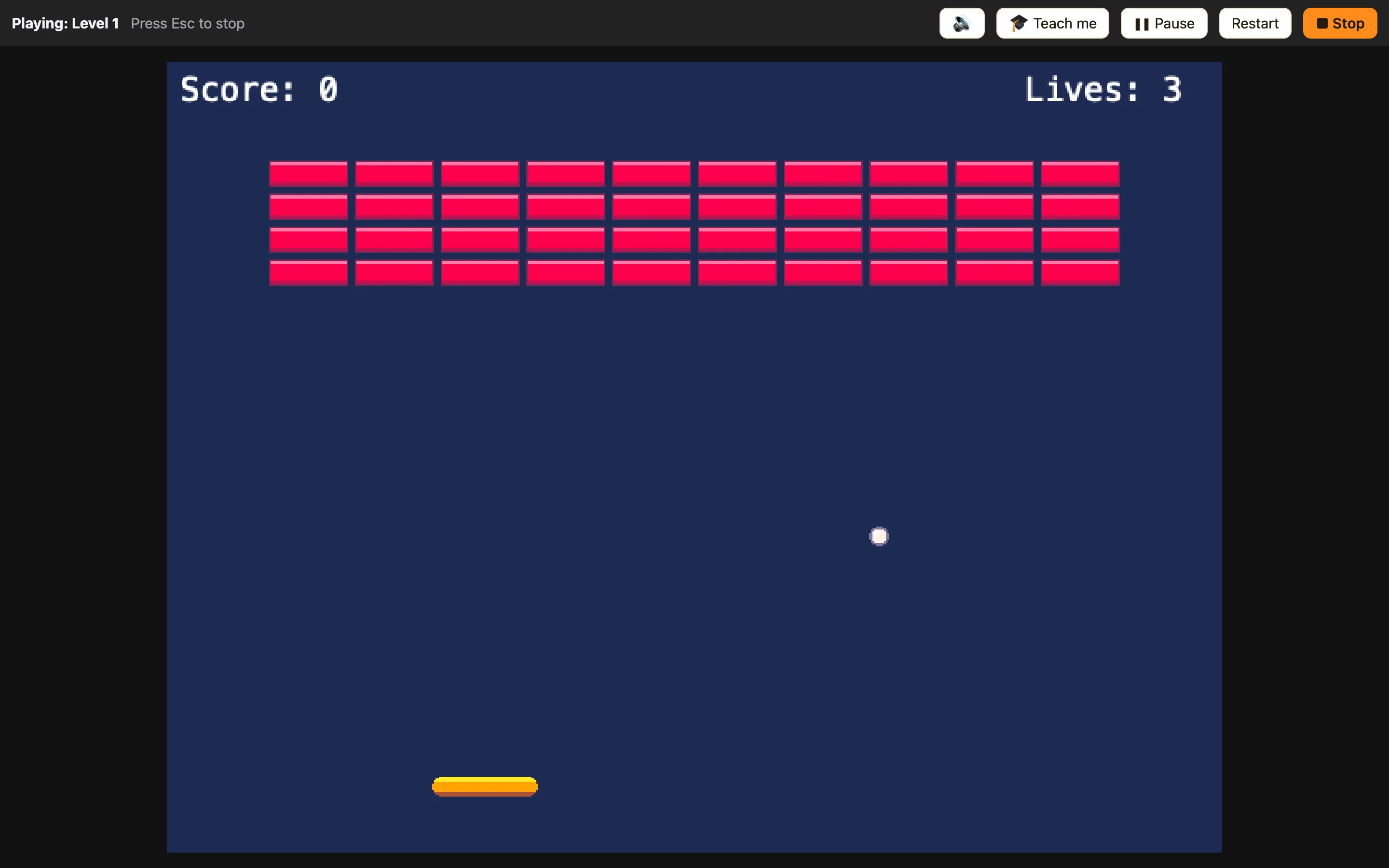
What is on it
| Playing: {level} | The name of the level that is running now. It changes when the game moves to the next level. |
|---|---|
| Press Esc to stop | A reminder. On an iPad it says “Tap Stop when you are done” instead. |
| 🔊 / 🔇 | Mutes and unmutes all sound. Handy in a classroom. |
| 🎓 Teach me | “When two things touch and no event says what happens, the game stops and asks you.” See Teach me. |
| ❚❚ Pause / ▶ Carry on | Freezes the game and shows “Paused”. Click again to carry on. See Pause and carry on. |
| Restart | Starts the level again from the beginning. |
| ■ Stop | Stops playing and goes back to the editor. The same as Esc. |
Under the game
If a rule cannot run, red text appears under the game saying which event had the problem. See Errors while playing.
How to use Teach me
- Click 🎓 Teach me so it lights up.
- Play until two sprites touch that have no rule yet. The game pauses and asks “What should happen?”
- Tick what you want, like “Add 10 to the score” and “Coin disappears”, then click Make it happen.
- NutHouse adds the rule to your Events tab and the game carries on.
Overlays
Three things can appear on top of the game: “Paused” while paused, “The End” with a Play again button when the game finishes, and the Teach me panel. See What “The End” means.
