
Adding actions
Click the cell under a thing, choose what it should do, and put the actions in the order you want.
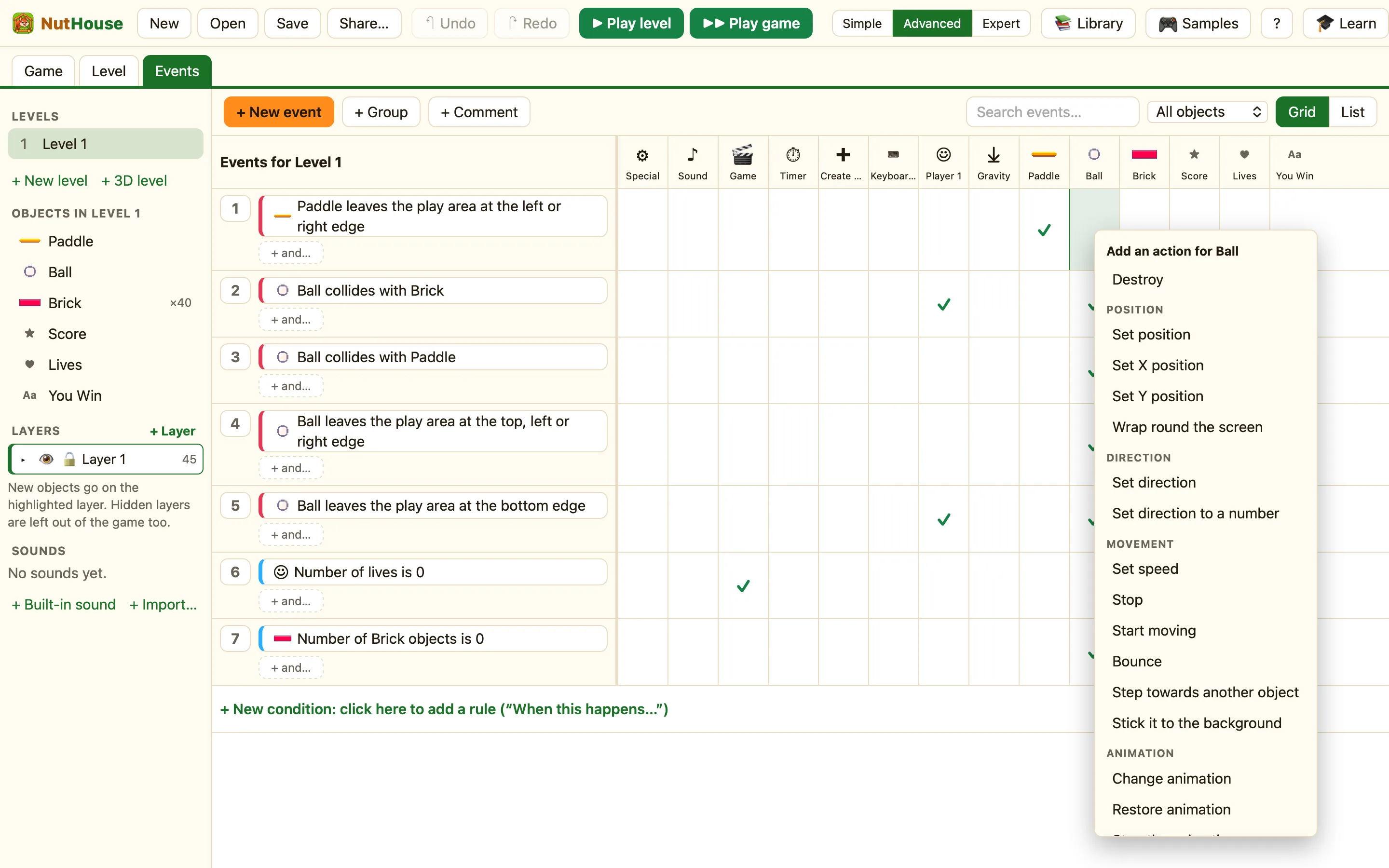
Cells are where actions go
In the grid, every rule is a row and every thing is a column. The cell where they meet holds that thing’s actions for that rule. An empty cell says “Click to make {col} do something”. A cell with actions shows ✓, or ✓2 if there are two.
How to
- Find the row of your rule.
- Click the cell under the thing you want to act. A menu opens headed “Add an action for {col}”.
- Actions are grouped by sub-menu, like Position, Movement, Animation and Visibility. Point at one to read its help sentence, then click it.
- If it needs settings, the settings dialog opens. Fill it in and press Add.
- Press ▶ Play level to test.
Some columns have nothing to add in a given rule. The menu then says “Nothing to do here.”
Change, move or delete an action
Click a cell that already has actions. The top of the menu is headed “{col} does:” and lists each one with three small buttons:
| ✎ | Change its settings. |
|---|---|
| ↑ | Move it up, so it runs before the one above. |
| ✕ | Delete it. |
Under the list you can add another action for the same thing.
Order matters
Actions in a rule run in order, one after the other, in a single tick. Most of the time the order makes no difference. It does matter with Create an object: later actions in the same rule work on the new copy. So create first, then set its speed or direction.
