
Grid or list
Switch between the grid and the list to see the same rules as a table or as sentences.
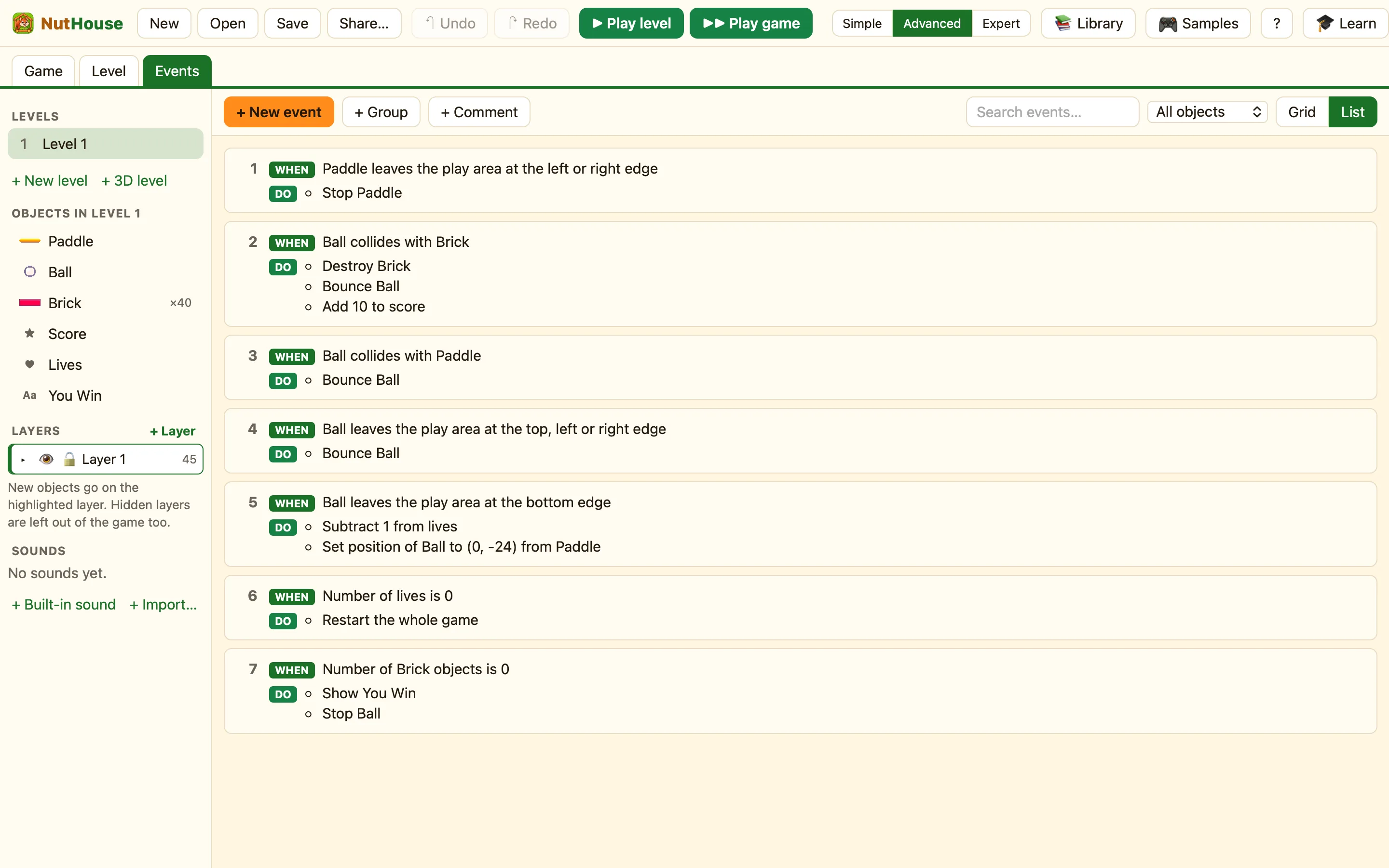
Two views, one set of rules
The Grid / List switch is at the right of the Events toolbar. Changing it never changes your game. It only changes how the rules are drawn.
| Grid | One row per rule, one column per thing. Good for building. You can see which objects have actions, and click a cell to add one. |
|---|---|
| List | One block per rule, written out: “When … and … / Do • …”. Good for reading. Groups show as “Group: X” (and “off at start” if they start off). |
When to use the grid
Use the grid when you are making rules. It shows every object as a column, so adding an action is one click in the right cell. Dragging rows into a different order is easier here too.
When to use the list
Use the list when you want to understand a game. Open a sample, switch to List, and read it from the top like a story. Each rule says exactly what it tests and what it does. This is the quickest way to learn from Coin Quest or Treetop Trek. See Reading a sample’s rules.
The list is also handy when a game has lots of objects. The grid gets wide, but the list stays the same width.
How to
- Open the Events tab (⌘3).
- Click List at the right of the toolbar.
- Read the rules. Click Grid to go back.
The same rule, both ways
In the grid, this rule is one row with a red chip and two ticks. In the list it reads “When Ball collides with Brick / Do • Destroy Brick • Bounce Ball”.
