
Animations
Give a sprite several pictures for walking, jumping and more, and the game flips through them by itself.
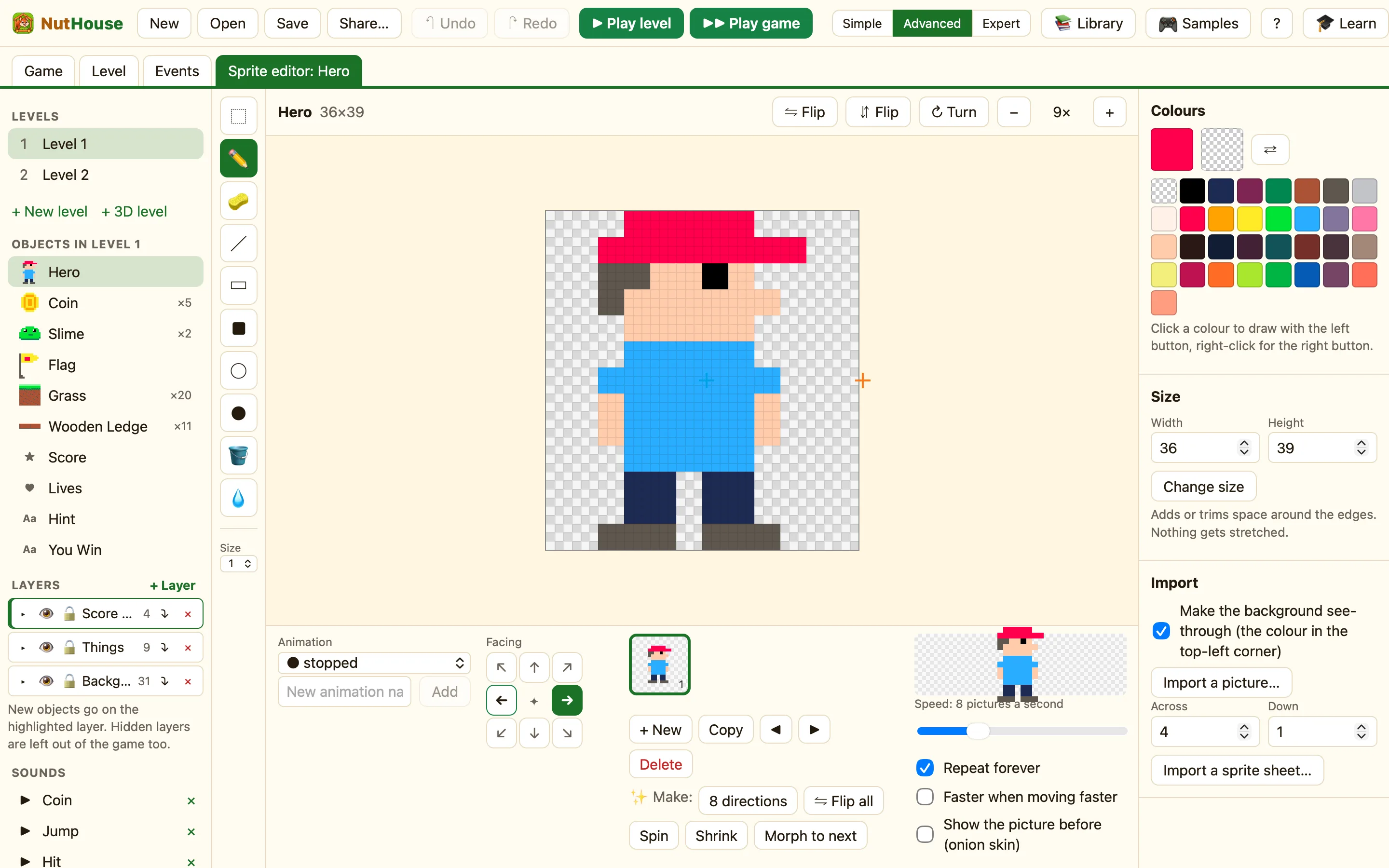
What an animation is
An animation is a list of pictures shown one after another. Two pictures of legs in different places, played fast, look like walking.
Each sprite has a set of named animations. stopped is the one every sprite has. Pick one from the Animation list: stopped, walking, running, jumping, falling, appearing, disappearing, bouncing, shooting or climbing. A ● means it has pictures. A ○ means it is empty.
Which one plays
The sprite's movement picks for you. Moving sprites play walking. Still ones play stopped. A Platform sprite also uses jumping, falling and climbing. A bouncing ball uses bouncing. If the one it wants is empty, it plays stopped instead. So a sprite with only a stopped picture still works. It just does not wiggle.
Rules can change it too: Change animation plays a named one, and Animation has finished happens once when an animation that does not repeat reaches its last picture.
How to add a walking animation
- Open the sprite in the sprite editor.
- In the Animation list, choose walking.
- Click Copy to copy the current picture, or + New for an empty one.
- Move the legs a little. Click Copy again and move them the other way.
- Watch the preview on the right. Set Speed until it looks right.
Use ◀ and ▶ to move a picture earlier or later. Delete removes one. A sprite always keeps at least one picture, so the last one will not go.
Your own names
Type in New animation name and click Add. A door might have open. A chest might have full and empty. Play them with Change animation.
What the settings mean
| Speed: N pictures a second | 1 to 30. Walking looks good at 6 to 8. Explosions want 12 or more. |
|---|---|
| Repeat forever | Ticked, it loops. Untick it for a one-off, like an explosion. |
| Faster when moving faster | Walking legs move faster when the sprite goes faster. Not in Simple mode. |
