
Drawing tips
Small tricks that make pixel art quicker: brush sizes, straight lines, filling, right-click colours and a see-through background.
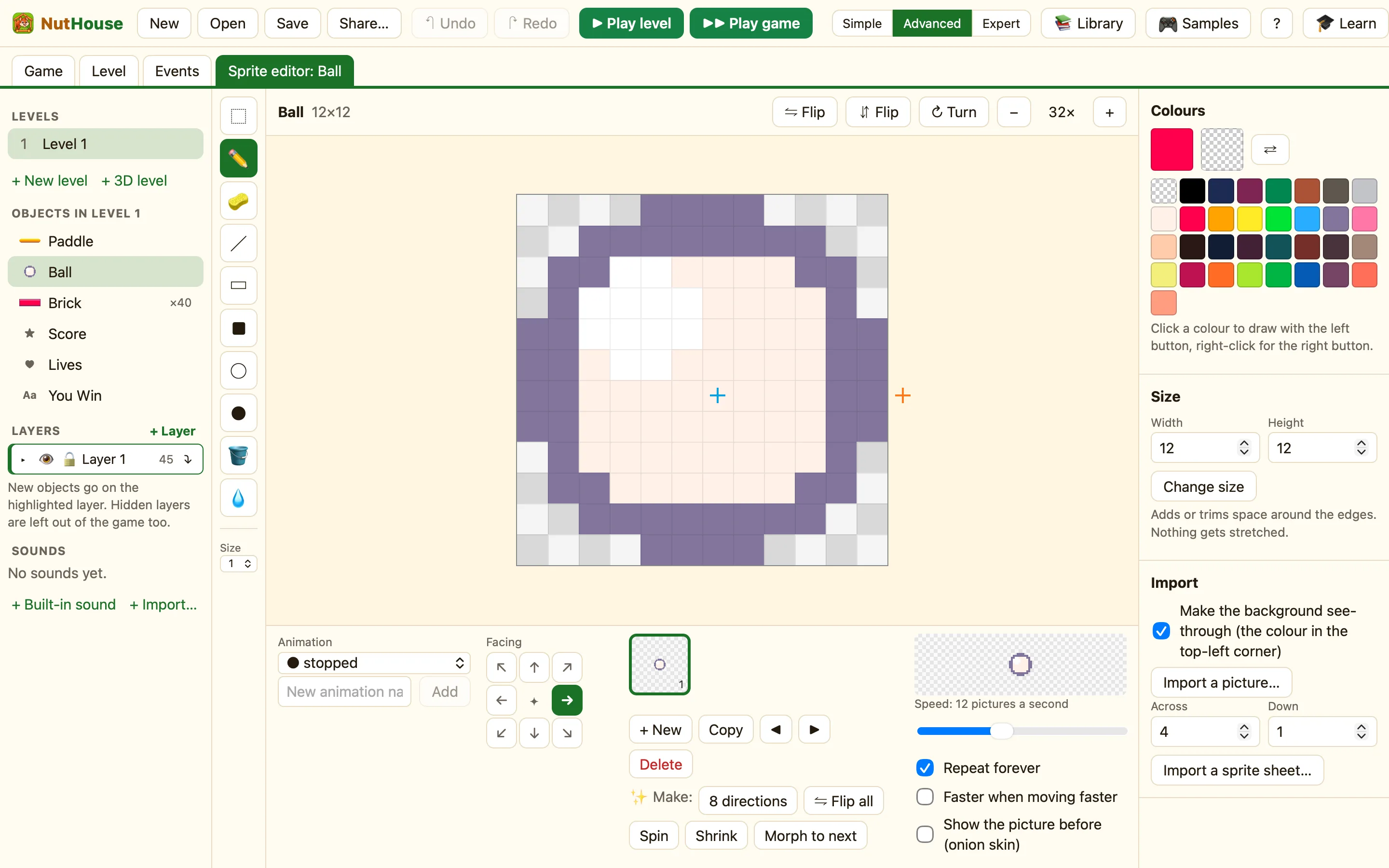
Zoom in
Click + in the top bar until each pixel is a big square. Pixel art is easier when you can see the dots. Click − to see how it will look in the game.
Brush sizes
The Size control under the tools goes from 1 to 4. Press ] to make the brush bigger and [ to make it smaller. Size 1 is for outlines and eyes. Size 3 or 4 is for colouring in big patches.
Straight lines and shapes
Do not try to draw a straight line with the pencil. Pick ╱ Line (L) and drag. For a wall, use ■ Filled box (⇧R). For a ball or a head, use ● Filled circle (⇧O). The outline versions, ▭ Box and ◯ Circle, draw the edge only.
Filling
The 🪣 Paint bucket (G) fills every joined pixel of the same colour. If the fill leaks out everywhere, there is a gap in your outline. Press ⌘Z, close the gap with the pencil, and fill again.
Two colours, two buttons
Left-click draws with your left-click colour. Right-click draws with your right-click colour. Keep the outline on the left and the fill on the right, and you never need to visit the palette mid-drawing. See Colours and the palette.
A see-through background
A sprite should not have a coloured square round it. Pick the See-through swatch and the 🪣 Paint bucket, then click the background. Or use the 🧽 Eraser (E) to rub pixels out.
Fixing mistakes
- Press ⌘Z to undo the last stroke. Press it again to go further back.
- Press ⇧⌘Z to redo.
- Use the 💧 Colour picker (I) to grab a colour you already used.
