
Colours and the palette
Thirty-two colours plus see-through, with one colour on your left mouse button and another on your right.
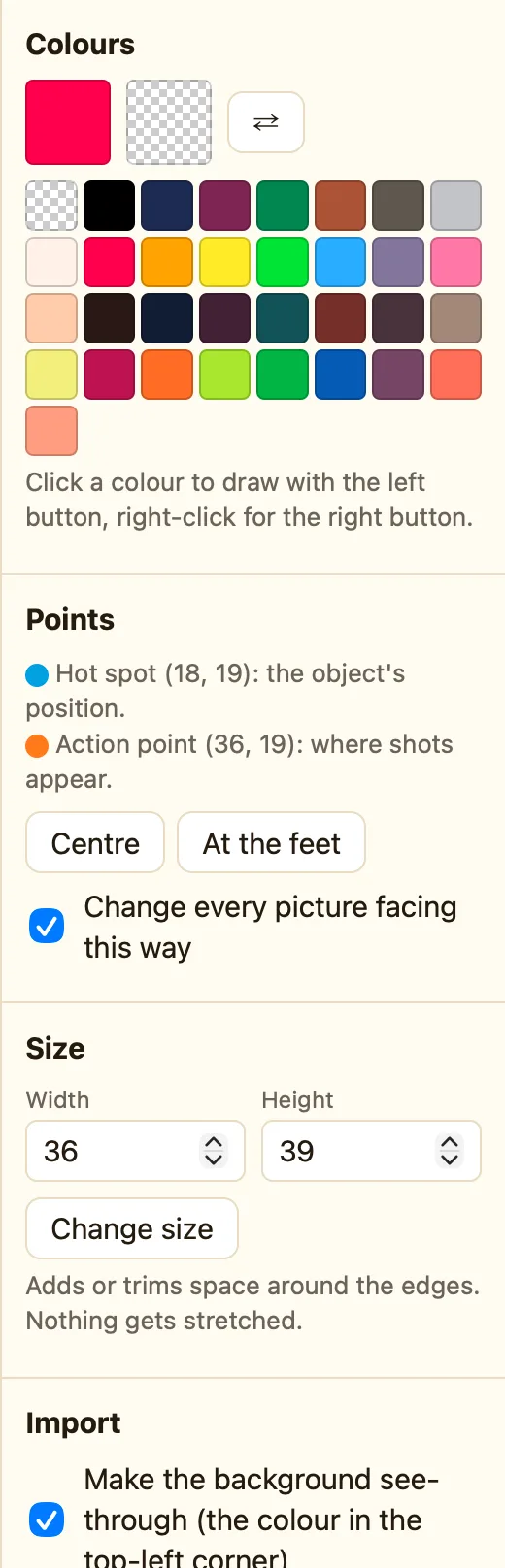
Two colours at once
The Colours panel has two big swatches. The first is your Left-click colour. The second is your Right-click colour. Draw with the left mouse button and you get the first. Draw with the right button and you get the second.
Click ⇄ between them, or press X, to swap them. Lots of pixel artists keep the outline colour on one button and the fill colour on the other.
Picking from the palette
- Left-click a colour in the palette. It becomes your left-click colour.
- Right-click a colour. It becomes your right-click colour.
- Draw. Both buttons are ready.
The palette has 32 colours plus see-through. Every game made in NutHouse uses the same 32, so sprites from the library match the ones you draw. The exact colours and their codes are on the brand page.
See-through
The last swatch is See-through. Draw with it and pixels disappear, showing the chequered background. That is how a round ball has no square corners. The 🧽 Eraser is see-through on both buttons, whatever colours you picked.
In the game, see-through pixels show whatever is behind the sprite, so a round ball looks round on any background.
Picking a colour from the picture
Choose the 💧 Colour picker (I) and click any pixel. Left-click sets the left-click colour. Right-click, or hold ⌥, sets the right-click colour. It is the quickest way to match a colour that is already there.
