
Import a picture
Bring in a picture you made somewhere else, and make its background see-through on the way in.
What you can import
A PNG or JPEG works best. GIF and WebP files open too. The picture becomes a new picture in the current animation, placed after the one you are looking at. A picture can be up to 1024 pixels wide and tall.
Pictures from elsewhere keep all their colours. They do not have to use the 32-colour palette.
How to import
- Open the sprite in the sprite editor.
- Choose the Animation and Facing direction the picture belongs to.
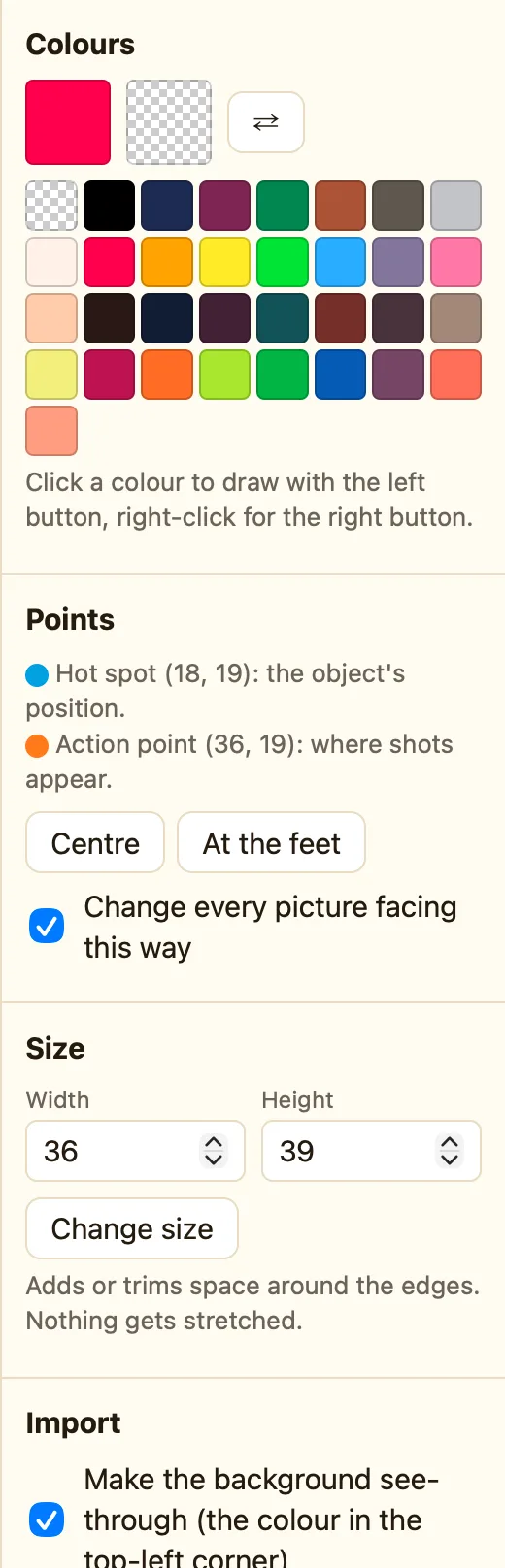
- In the Import section, leave Make the background see-through (the colour in the top-left corner) ticked.
- Click Import a picture… and choose the file.
- The toast says Added 1 picture. It appears in the animation strip.
The see-through trick
Pictures drawn in other apps often have a plain background, white or magenta. With the tick on, NutHouse looks at the pixel in the top-left corner and makes every pixel of that colour see-through. So keep the corner clear of the drawing.
If your picture already has a see-through background, the tick does nothing. If a white part of the drawing vanishes, untick it and import again, then rub the background out by hand with the 🧽 Eraser.
Into a background
Backgrounds open in the same editor. Importing there replaces the picture instead of adding one, because a background has only one.
After importing
The hot spot lands in the middle of the new picture. If your sprite is a Platform hero, you may want it at the feet. See Hot spot and action point. If the picture is huge, shrink it before importing. NutHouse does not scale pictures.
