
Import a sprite sheet
One picture with a grid of poses becomes a whole animation, cut up for you.
What a sprite sheet is
A sprite sheet is one big picture made of equal-sized squares. Four walking poses in a row is a sprite sheet with 4 across and 1 down. NutHouse cuts it into pieces and adds each piece as a picture.
Every square must be the same size, with no gaps between them. NutHouse divides the width by Across and the height by Down, so an uneven sheet comes out wonky.
How to import a sheet
- Open the sprite in the sprite editor.
- Choose the Animation the poses belong to, like walking, and the Facing direction.
- In the Import section, type how many pictures are Across and Down. It starts at 4 across and 1 down.
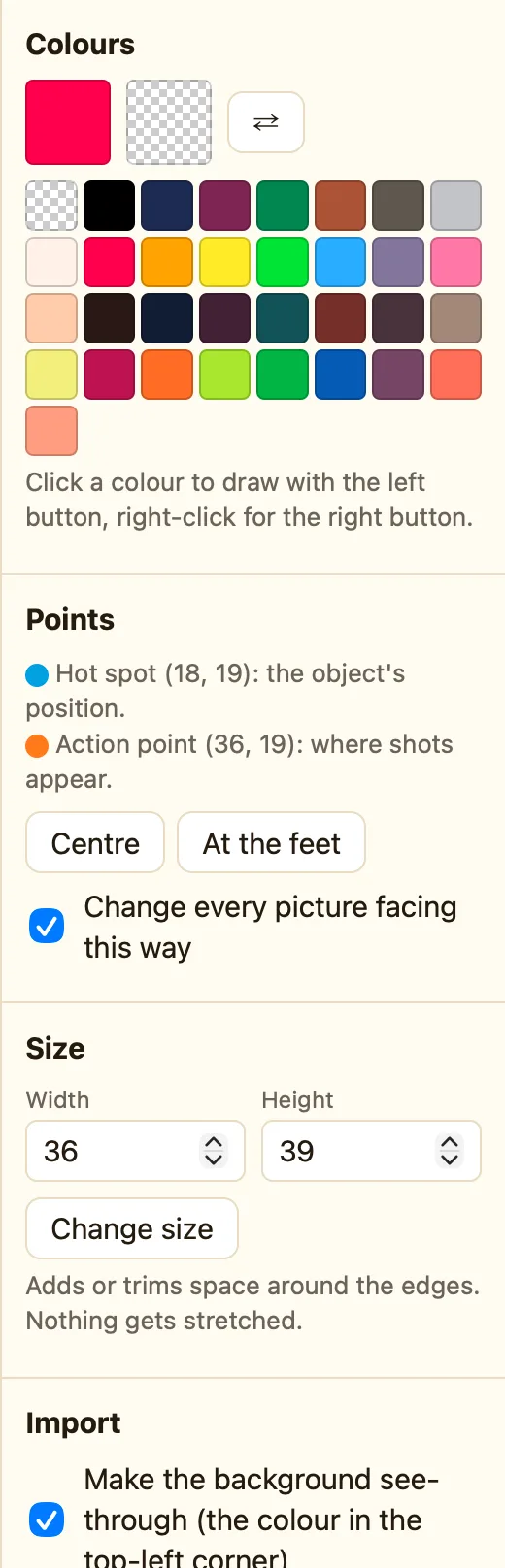
- Decide about Make the background see-through (the colour in the top-left corner). It works on the whole sheet at once.
- Click Import a sprite sheet… and pick the file.
- The toast says Added 4 pictures, or however many squares there were.
The pieces go in after the picture you were looking at, left to right, then the next row down. If the animation was empty, they become the whole animation.
Tidying up
- Delete any blank squares with Delete in the animation strip.
- Use ◀ and ▶ to put poses in the right order.
- Set Speed and tick Repeat forever for a walk.
- Click the left arrow on the Facing compass and choose Mirror the right pictures for the other way.
