
Change the size
Make the picture bigger or smaller by adding or trimming space round the edges. Nothing gets stretched.
What it does
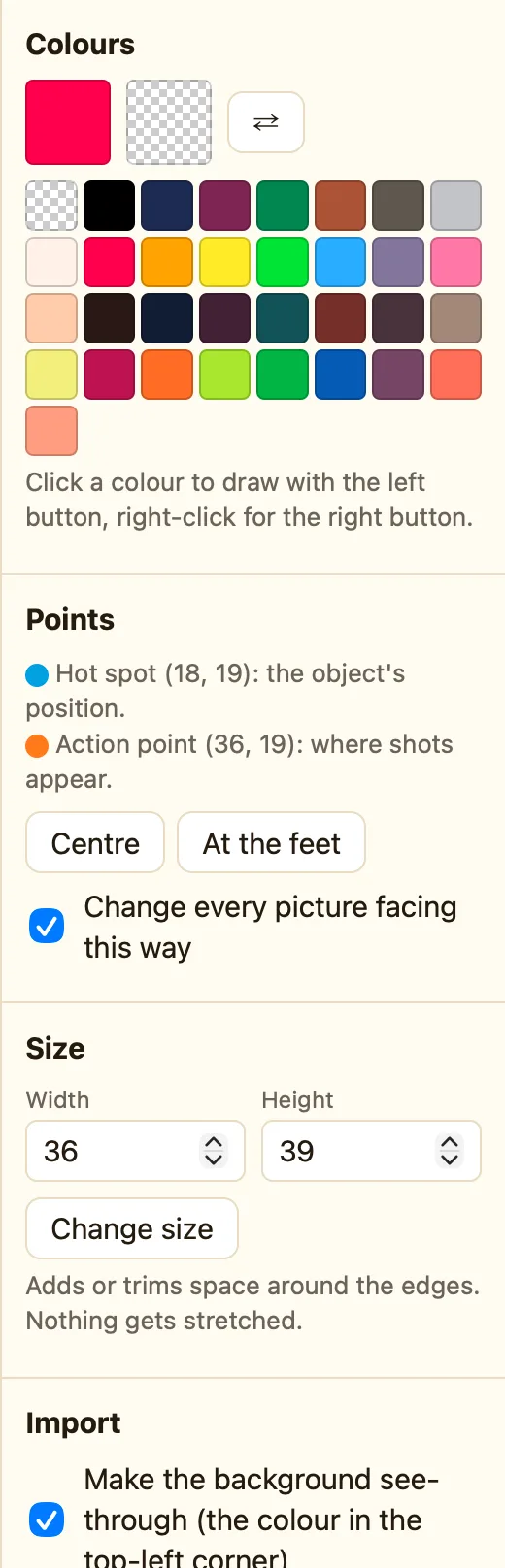
The Size section shows the picture's Width and Height in pixels. Type new numbers and click Change size. The note underneath says it all: Adds or trims space around the edges. Nothing gets stretched.
Make it bigger and you get extra see-through room to draw in. Make it smaller and the edges are cut off. The drawing itself stays exactly the same size, pixel for pixel.
Sizes can be anything from 1 to 1024. Type something outside that and the toast says Pick a size from 1 to 1024.
How to add room for a hat
- Open the sprite. Note the Height, say 32.
- Type 40 in Height and click Change size.
- Use ⬚ Select to grab the whole character and drag it down into the new space, or draw the hat in the room that appeared.
How to trim empty edges
- Count how many see-through columns you can spare.
- Lower the Width by that much and click Change size.
- If the wrong side got cut, press ⌘Z, move the drawing with ⬚ Select, and try again.
Why not stretch?
Stretching pixel art makes it blurry or uneven. If you want a bigger hero, redraw it bigger, or draw it small and let the game scale everything up together. Every sprite in the game is scaled the same way, so a 16-pixel hero and a 16-pixel coin always match.
Size and the rest of the game
Changing the size changes one picture. Other pictures in the animation keep their own size. The hot spot stays where it was, counted from the top-left, so a sprite can shift a little in the level after a resize. Check it with Hot spot and action point if it looks off.
