
Select, copy and paste pixels
Grab part of a picture, move it, copy it to another picture, or paste it into a different sprite.
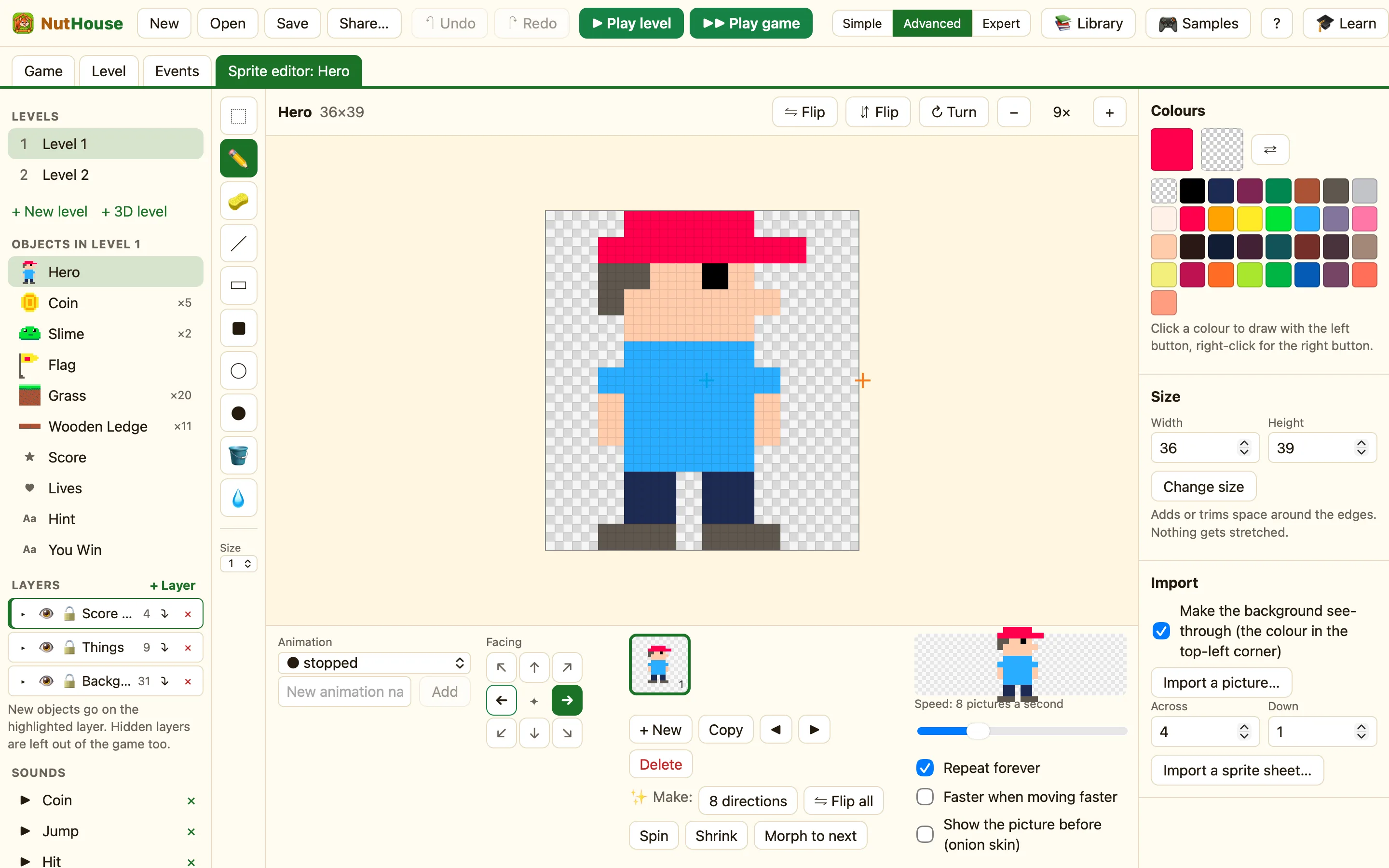
Selecting
Pick ⬚ Select (S) and drag a box round the pixels you want. Only what is inside the box counts. Click anywhere outside the box to let go of the selection.
While something is selected, the top bar shows four extra buttons: Copy, Cut, Rub out and Paste.
Moving pixels
With a selection, drag inside the box to move those pixels somewhere else. The space they left behind becomes see-through. This is the quickest way to shift a hat up a bit or nudge an eye across.
Copy, cut and paste
| Copy ⌘C | Copies the selected pixels. The toast says Copied. Press ⌘V to paste. |
|---|---|
| Cut ⌘X | Copies them and makes the box see-through. |
| Rub out Delete | Makes the box see-through without copying. |
| Paste ⌘V | Puts the copied pixels into the picture as a new selection. Drag it where you want. |
How to copy an eye to the other side
- Press S and drag a box round the eye.
- Press ⌘C, then ⌘V. A copy appears, selected.
- Drag it to the other side of the face.
- Click outside the box to finish.
Pasting into another picture or sprite
The copy stays on the clipboard. Click another thumbnail in the animation strip and press ⌘V. Or click the Level tab, double-click a different sprite, and press ⌘V there. A knight's shield can become a wizard's shield in a few seconds.
If the pasted pixels are bigger than the picture, the edges are cut off. Make the picture bigger first with Change the size.
