
Editing a background tile
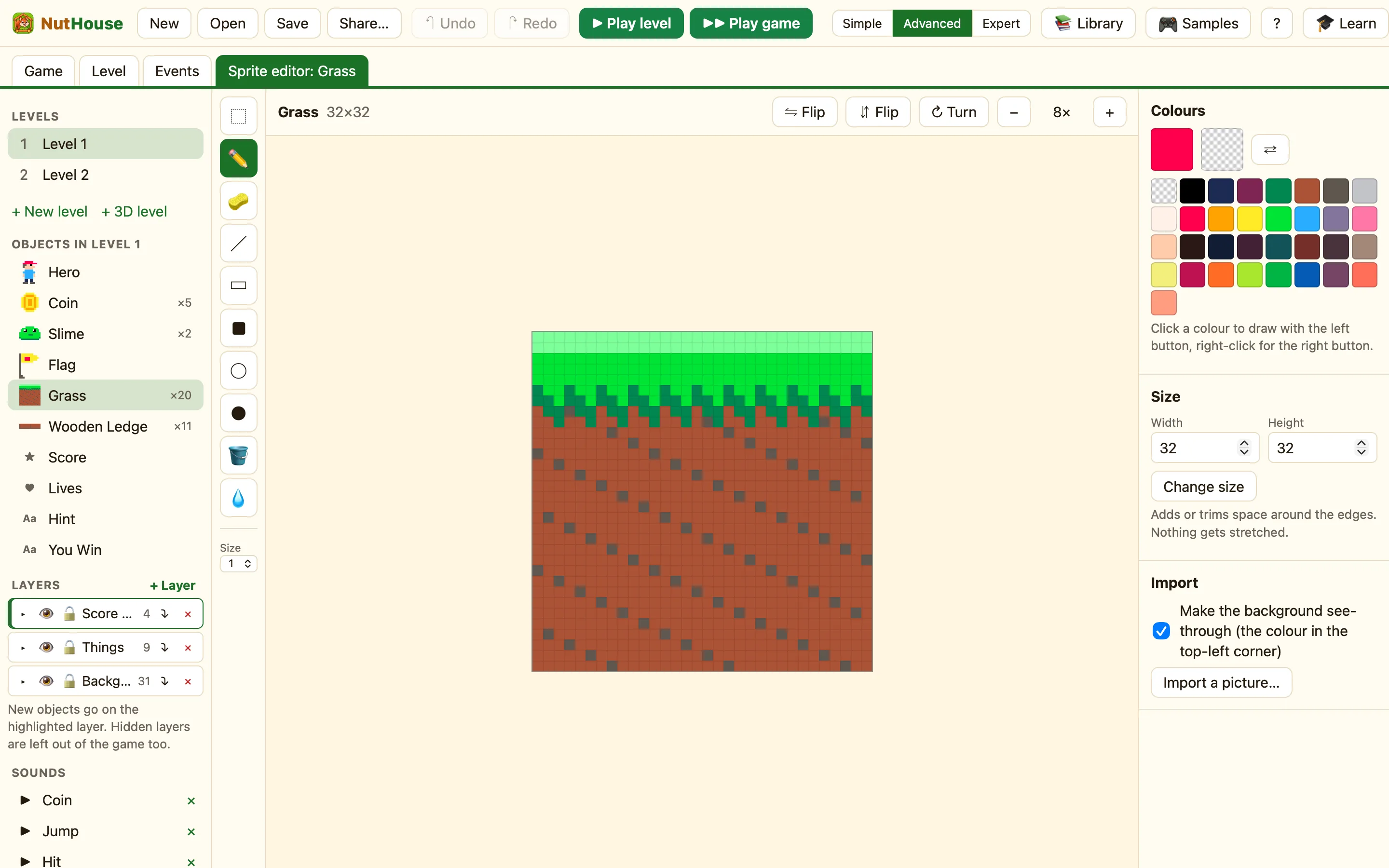
Grass, bricks and ladders are backgrounds. They open in the same editor as sprites, with no animations to worry about.
Two kinds of block
A Block is a plain coloured rectangle. It has no picture to edit. Change its Width, Height and Colour in its settings on the right, and it stretches to fit. Blocks never open the sprite editor.
A Background is a picture tile, like Grass, Stone Wall, Crate or Ladder from the library. Double-click it and the sprite editor opens with Sprite editor: Grass in the tab. Both kinds have the same Is it solid? setting. See Blocks: decoration, solid, platform, ladder.
What is different
A background has exactly one picture. So there is no animation strip under the drawing, no Animation list, no Facing compass and no ✨ Make row. The Points section is missing too, because a background does not move or shoot.
Everything else is the same: the tools, the Colours panel, ⇋ Flip, ⇵ Flip, ↻ Turn, the Size section and Import. Importing a picture replaces the tile rather than adding to it.
How to recolour the ground
- In Coin Quest, double-click a piece of Grass in the level.
- Pick the 🪣 Paint bucket (G) and a new colour.
- Click the green part. Every joined green pixel changes.
- Click the Level tab. Every piece of Grass in the level has changed, because they all share one picture.
Tiles that repeat
Tiles are placed side by side, often with Make grid…. Make sure the left edge of your drawing lines up with the right edge, and the top with the bottom. Then the join is invisible. The easiest check is to put two copies next to each other in the level and look.
