
I cannot see my sprite
A sprite is in the sidebar's object list, but it does not show up in the level or when you play.
Check these first
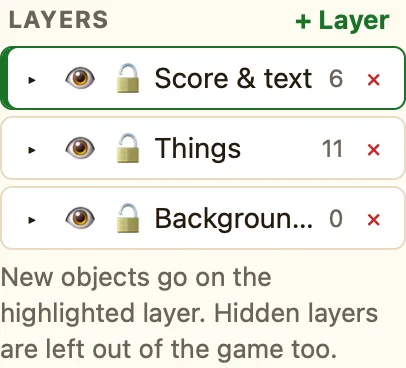
- Is its layer hidden? Look at the Layers panel. A layer showing ◌ is hidden, in the editor and in the game. Click the eye to show it.
- Is "Visible when the level starts" unticked? Click the sprite's name in OBJECTS IN {level} to select it, then look in the Properties panel. Tick Visible when the level starts, or add a rule that says Show.
- Is it behind something? A big Block or background on a layer in front covers it. Select the sprite and click To front, or move it to a higher layer with ⤵.
- Is it off the level? Press Fit to see the whole level. The grey area outside the edge is off-level. Drag the sprite back in.
- In a scrolling level, is it outside the Screen box? The dashed yellow Screen box is what the player sees first. The sprite may be fine, only far away.
- Did a rule hide or destroy it? Search the Events tab for Hide and Destroy. A Start of level rule can remove it before you see it.
- Is the picture blank? Double-click the sprite. If the Sprite editor shows an empty canvas, draw something or Import a picture….
Why it happens
NutHouse draws layers from back to front, skips hidden layers completely, and skips any object whose Visible when the level starts box is unticked until a rule shows it. All three look the same from the outside: the sprite is in the list, but not on the screen.
