
Ceiling, floor and screen
Pick the two colours above and below the walls, set the size of the map, and the size of the view.
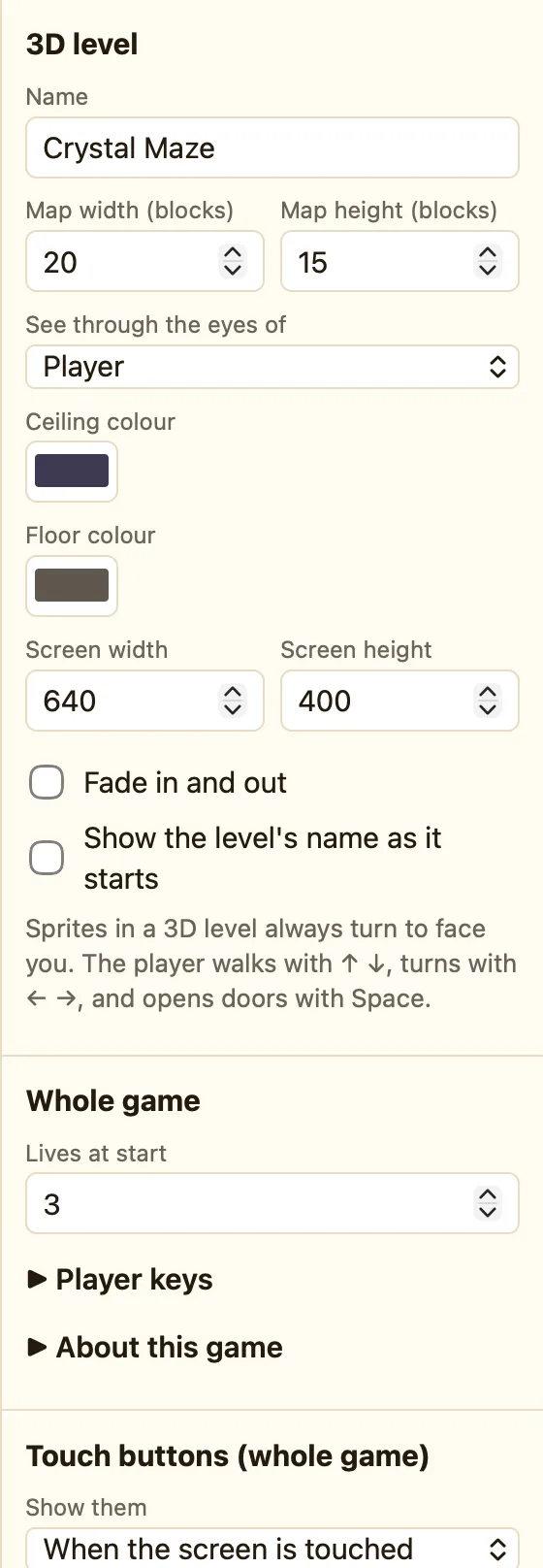
Where the settings are
Click an empty square on the map, or click nothing at all, and the Properties panel on the right shows the level. A 3D level has fewer settings than a 2D level because there is no background picture and no gravity.
What the settings mean
| Name | The level's name. It shows in the sidebar and on the Game tab. |
|---|---|
| Map width (blocks) | How many squares across, from 8 to 64. New levels are 16. |
| Map height (blocks) | How many squares down, from 8 to 64. New levels are 16. |
| See through the eyes of | The first First-person sprite, or a sprite you choose. See The player and first-person movement. |
| Ceiling colour | The colour of everything above the walls. New levels use a dark purple-grey. |
| Floor colour | The colour of everything below the walls. New levels use a warm brown-grey. |
| Screen width / Screen height | The size of the picture the player sees, in pixels. Displays like Score sit inside this box. |
| Fade in and out | The level fades from black at the start and to black at the end. |
| Show the level's name as it starts | Shows the name for a moment before play begins. |
How to make the maze bigger
- Click empty space on the map so the level's settings show.
- Change Map width (blocks) to 24.
- New squares appear on the right, empty. Paint a wall round them so the player cannot walk off the edge.
Choosing colours
A sky-blue ceiling and green floor make an outdoor maze. Black and black make a scary cave. Try matching the floor to the wall block: a brown floor under Wood Panels looks like a house.
