
The player and first-person movement
Choose whose eyes you see through, set how fast they walk and turn, and learn the keys.
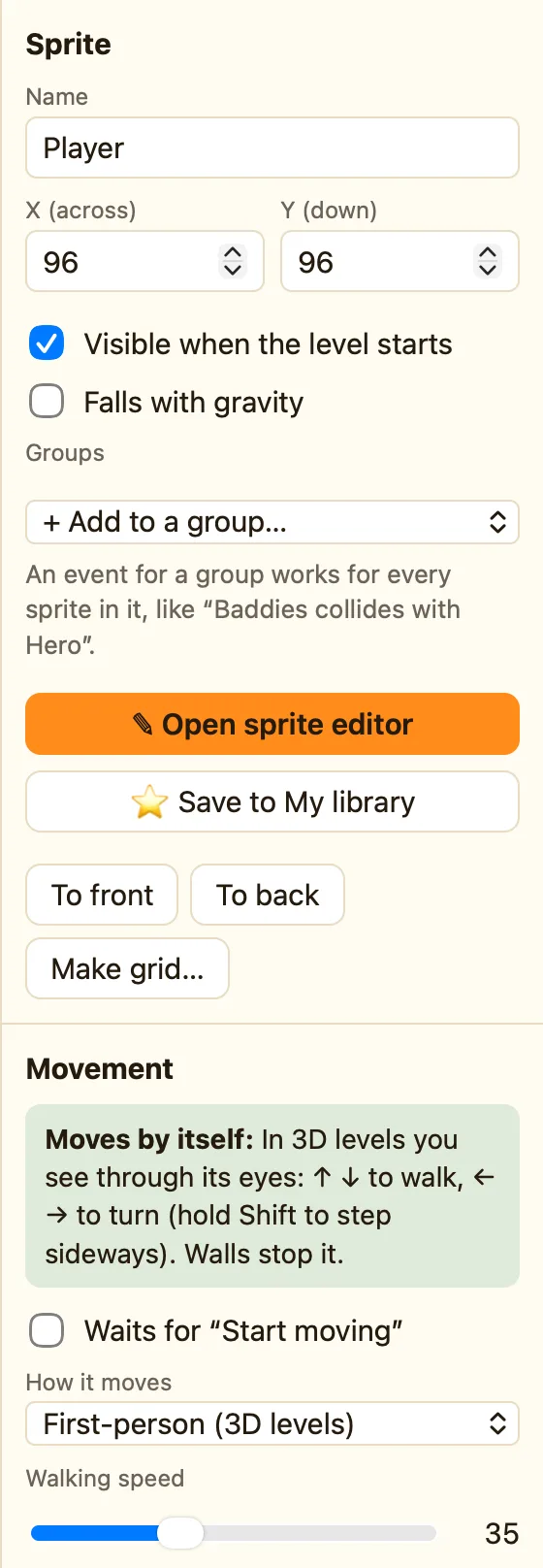
Who the player is
When you add a 3D level, NutHouse adds a sprite called Player and gives it First-person (3D levels) movement. On the map it shows as a blue arrow. When you play, the screen shows what the Player sees.
You can use any sprite as the player. Select it, open How it moves in the Movement section and choose First-person (3D levels). The green banner then says: “In 3D levels you see through its eyes: ↑ ↓ to walk, ← → to turn.”
The keys
| ↑ ↓ | Walk forward and backward. |
|---|---|
| ← → | Turn left and right on the spot. |
| Shift + ← → | Step sideways, if Hold Shift to step sideways is ticked. |
| Space | Opens the door in front of you. |
These are the Player keys for Player 1. Change them under Player keys in the Whole game section. See Player keys.
What the settings mean
| Walking speed | How fast the player walks. New players start at 40. |
|---|---|
| Turning speed | How fast the view spins when you press ← or →. Lower is calmer. |
| Hold Shift to step sideways | Lets you slide left and right without turning. Handy for peeking round corners. |
Which eyes you see through
Click empty space on the map to see the level's settings. See through the eyes of is set to The first First-person sprite. You can pick a different sprite instead. You can also change it while playing with the action Look through its eyes.
How to set the start spot
- Choose 🧍 Place and move objects in the map editor.
- Drag the blue arrow to the square where the game should begin.
- Press R until the arrow points the way the player should face.
