
Arrow keys (8 directions)
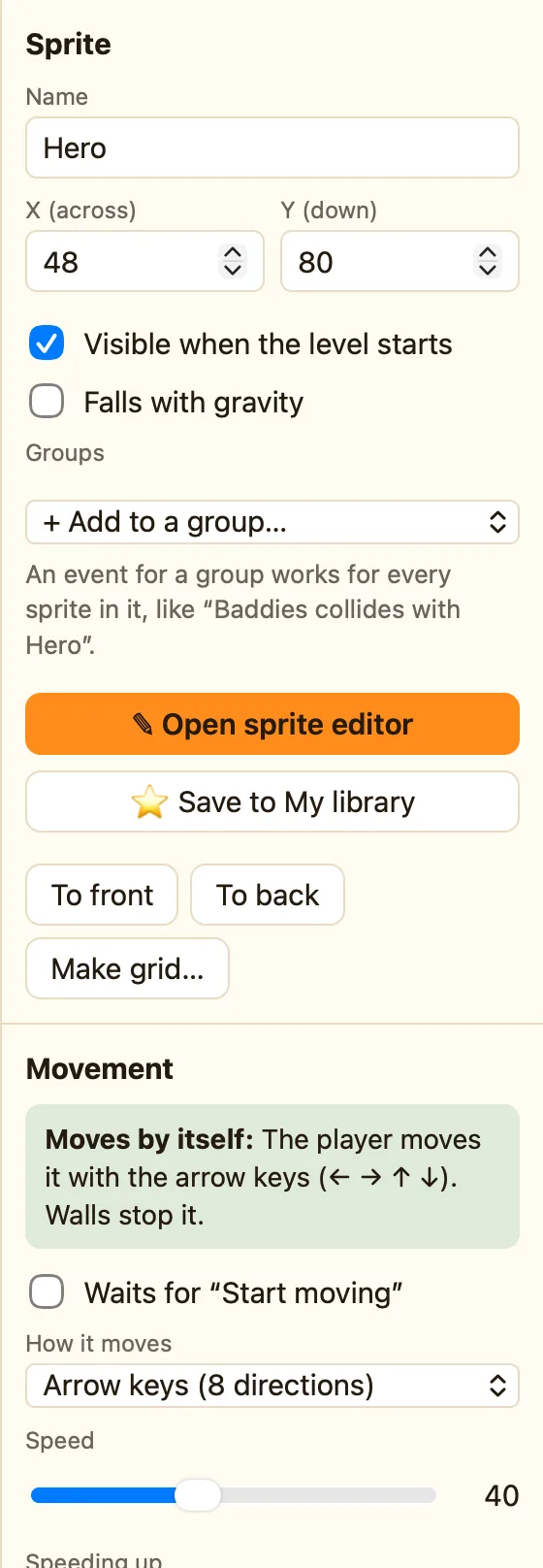
The player steers this sprite with the arrow keys. You choose how fast it goes and which ways it can turn.
What it does
The player moves it with the arrow keys. Walls stop it. Let go of the keys and it stops. This is the movement for a top-down hero, a spaceship, or a paddle that slides left and right.
A sprite with this movement plays its walking animation while it moves and stopped when it does not.
What the settings mean
| Speed | How fast it goes, from 0 to 100. Library sprites use 40 to 60. |
|---|---|
| Speeding up | How quickly it reaches full speed. Low numbers feel slippery, like ice. Advanced and Expert only. |
| Slowing down | How quickly it stops when you let go. Advanced and Expert only. |
| Allowed directions | All 8 includes diagonals. 4 ways is up, down, left and right. Left/Right only is for a paddle. Up/Down only is for a lift. |
Library sprites that come with it
Paddle and Spaceship (🎮 ← → keys), Hero (top-down), Robot, Astronaut and Rocket (🎮 Arrow keys).
Rules that go with it
- Is moving and Is stopped tell you what the player is doing.
- Is facing a direction checks which way it faces. Good for "shoot the way you are looking".
- Set speed changes the speed while the game plays. A speed boost is one rule.
- Switch off the player's controls freezes the player, for a cut scene or the end of a level.
WhenHero collides with Potion
DoDestroy PotionSet speed Hero to 80
How to make a paddle
- Click the sprite in the Level tab.
- Under Movement, set How it moves to Arrow keys (8 directions).
- Under Allowed directions, click Left/Right only.
- Press ▶ Play level and try the arrows.
