
Add an object
Pick a ready-made sprite or tile from the Library, or start a new object of any kind.
Two ways in
Click + Add object at the top of the Level tab. Or double-click empty space in the level. The second way puts the new thing right where you clicked.
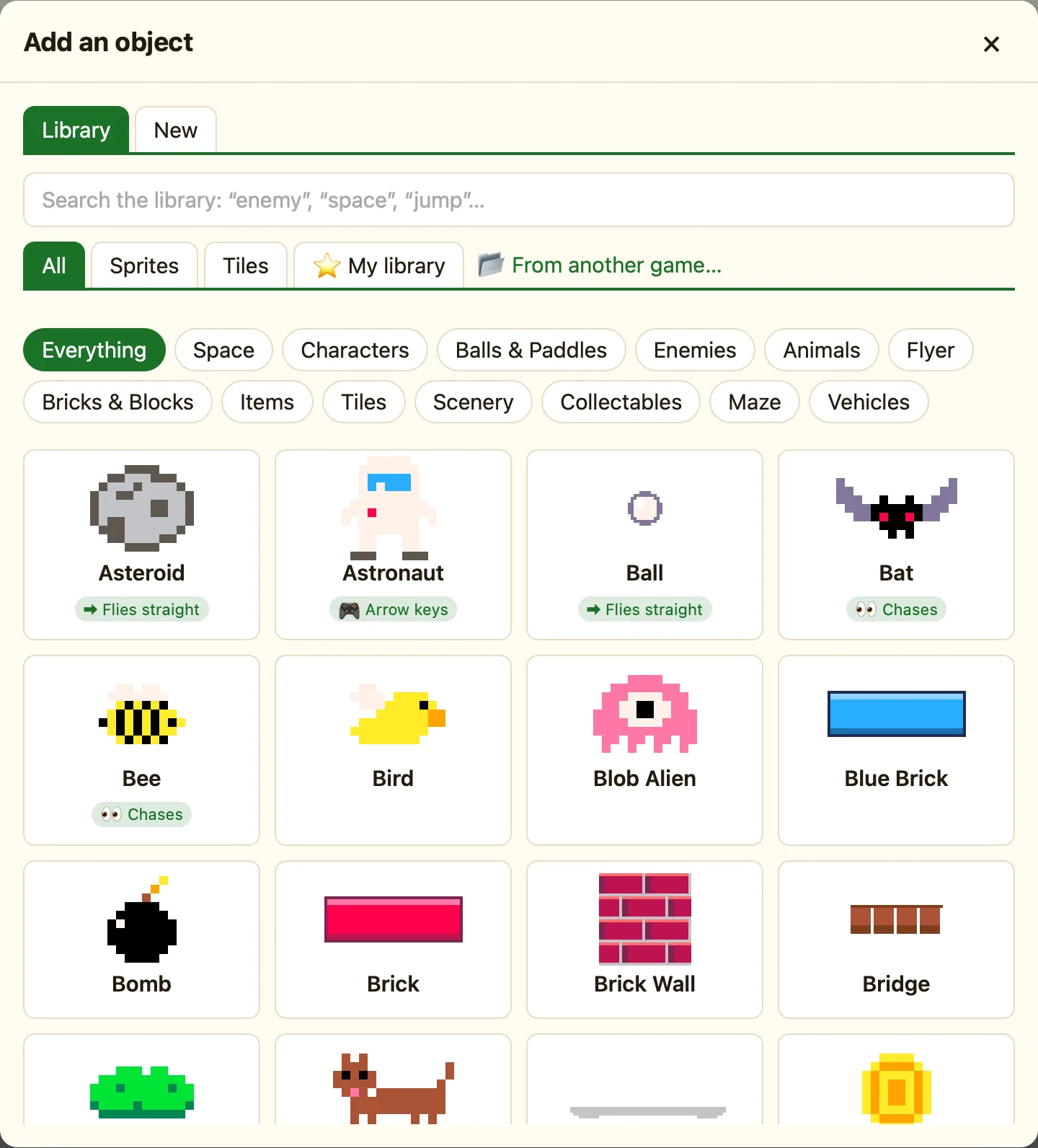
The Add an object dialog has two tabs:
| Library | Sprites and tiles that are already drawn. Many come with a movement, shown as a chip like 🎮 Walks & jumps or 🚶 Patrols. |
|---|---|
| New | An empty object of each kind. Sprite, Block, Score, Text and so on. Some kinds only show in Advanced mode. |
How to add from the Library
- Click + Add object. The Library tab is open.
- Type in the search box, like enemy or coin. Or click a chip such as Characters.
- Click a card. A toast says Added Slime, and the slime is in your level.
- If it moves by itself, another toast tells you how. Change that under Movement on the right.
How to add a new kind
- Click + Add object, then the New tab.
- Click a card, like Score or Timer display.
- The new object appears in the level. Its settings are on the right.
- For a new Sprite, click ✎ Open sprite editor to draw it.
After it is in
Drag it where you want. Change its Name on the right. Every copy of an object shares the name and settings, so name it well. The new object goes on the highlighted layer in the LAYERS panel.
To add more copies of the same thing, hold Alt and drag it, or press ⌘D. For a whole wall, use Make grid….
