
NOT: the opposite
Turn any condition the other way round with one click, so a rule runs when something is not happening.
What NOT does
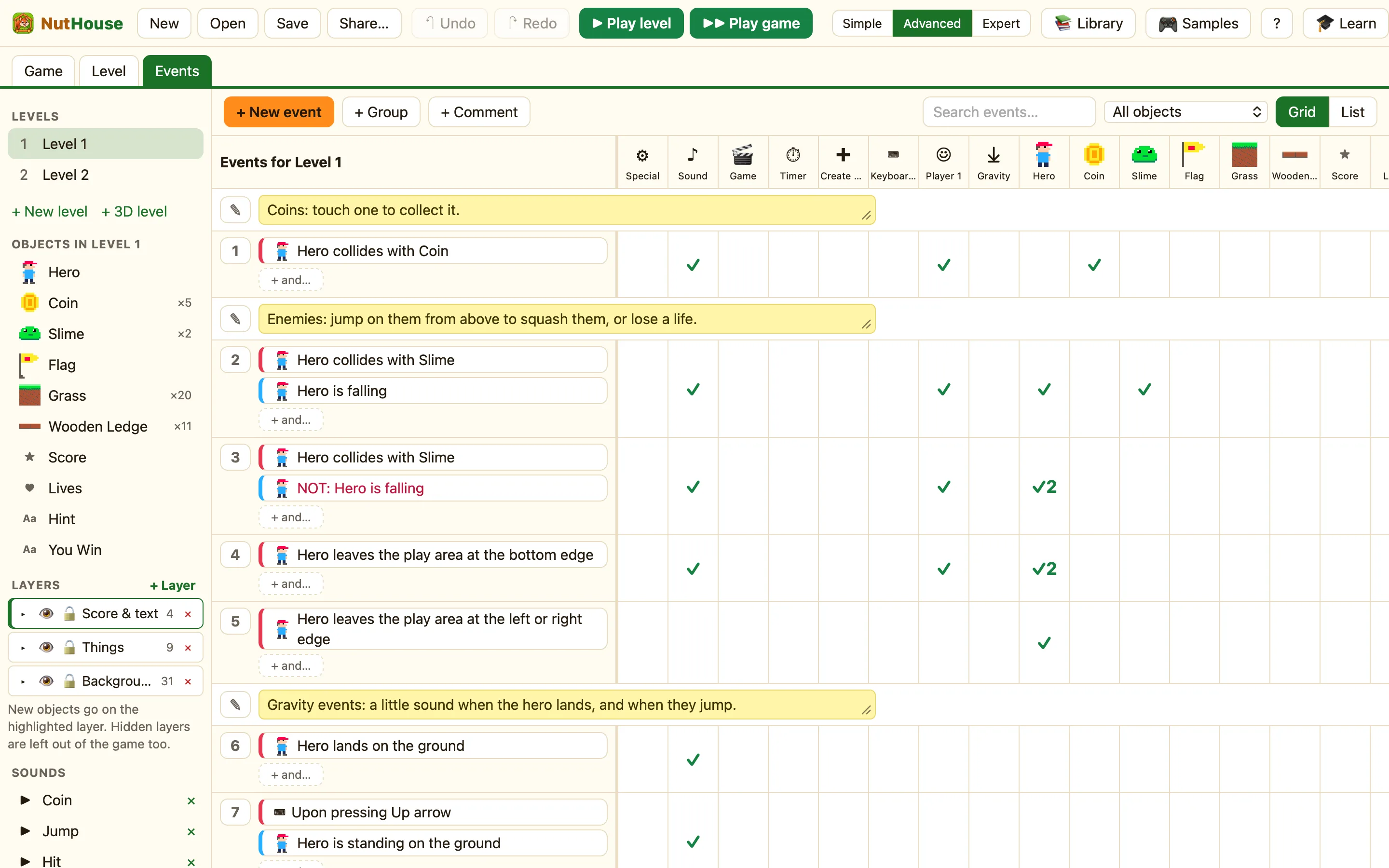
Every condition can be flipped. A flipped condition is true when the normal one is false. In the grid it shows as a chip starting “NOT: ”, like “NOT: Hero is falling”.
This saves you from hunting for an opposite test that may not exist. There is Is visible but no “is hidden”. Use NOT instead.
How to
- In the Events tab, right-click the condition chip you want to flip.
- Choose Make it the opposite (NOT). The chip now starts with “NOT: ”.
- To undo it, right-click again and choose Remove “NOT”.
The classic example
Coin Quest needs two rules for the hero and a slime. Jumping on a slime squashes it. Walking into one hurts. The difference is whether the hero is falling.
WhenHero collides with SlimeHero is falling
DoDestroy SlimeAdd 50 to score
WhenHero collides with SlimeNOT: Hero is falling
DoSubtract 1 from livesHero flashes for 1 seconds
Both rules start with the same red condition. The second condition splits them: one for falling, one for NOT falling.
More places NOT helps
| NOT: Music is playing | Start the next tune when the music stops. |
|---|---|
| NOT: Is standing on the ground | The hero is in the air, so do not let them jump again. |
| NOT: Is overlapping another object | The door is not blocked, so let it close. |
| NOT: Is visible | Show something that is hidden when a key is pressed. |
