
Import your own sounds
Record a boing, a cheer or your own tune, and bring it in as a .wav, .ogg or .mp3 file.
What you can import
NutHouse can use .wav, .ogg or .mp3 sounds, up to 2 MB each. That is plenty for a sound effect and enough for a short tune. If you pick another kind of file, the toast says NutHouse can use .wav, .ogg or .mp3 sounds. If it is too big: That sound is too big. Try one under 2 MB.
How to import
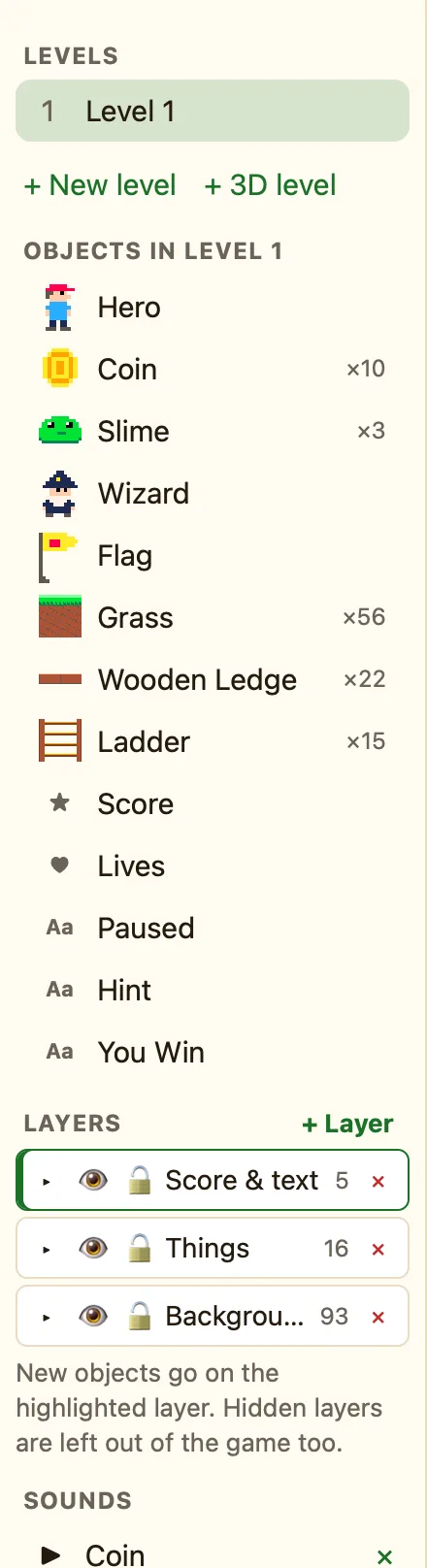
- In the sidebar, find SOUNDS.
- Click + Import… and choose the file.
- It appears in the list with the file's name. Click ▶ to check it.
- Use it in a rule with Play a sound or Play music (loops). See Play a sound from a rule.
Click ✕ next to a sound to remove it from the game. Rules that used it will have nothing to play, so check them.
Recording your own
Any sound recorder on your Mac will do. Say "boing" into the microphone, save it as .wav or .mp3, and import it. Keep effects short, under a second if you can. The sound starts the moment the rule runs, so trim any silence from the beginning or it will feel late.
Size matters
Imported sounds are saved inside your .nuthouse file and inside the web page you share. The built-in sounds take almost no space, but a 2 MB tune makes your game 2 MB bigger. The Share your game dialog shows the file size, so you can see what each sound costs.
If the shared page is getting big, use .mp3 or .ogg instead of .wav, or use a built-in tune. See My shared game is big.
