
The Welcome screen
Every time NutHouse opens, this screen asks what you want to do: learn, start fresh, open a saved game, get back unsaved work, or play a sample.
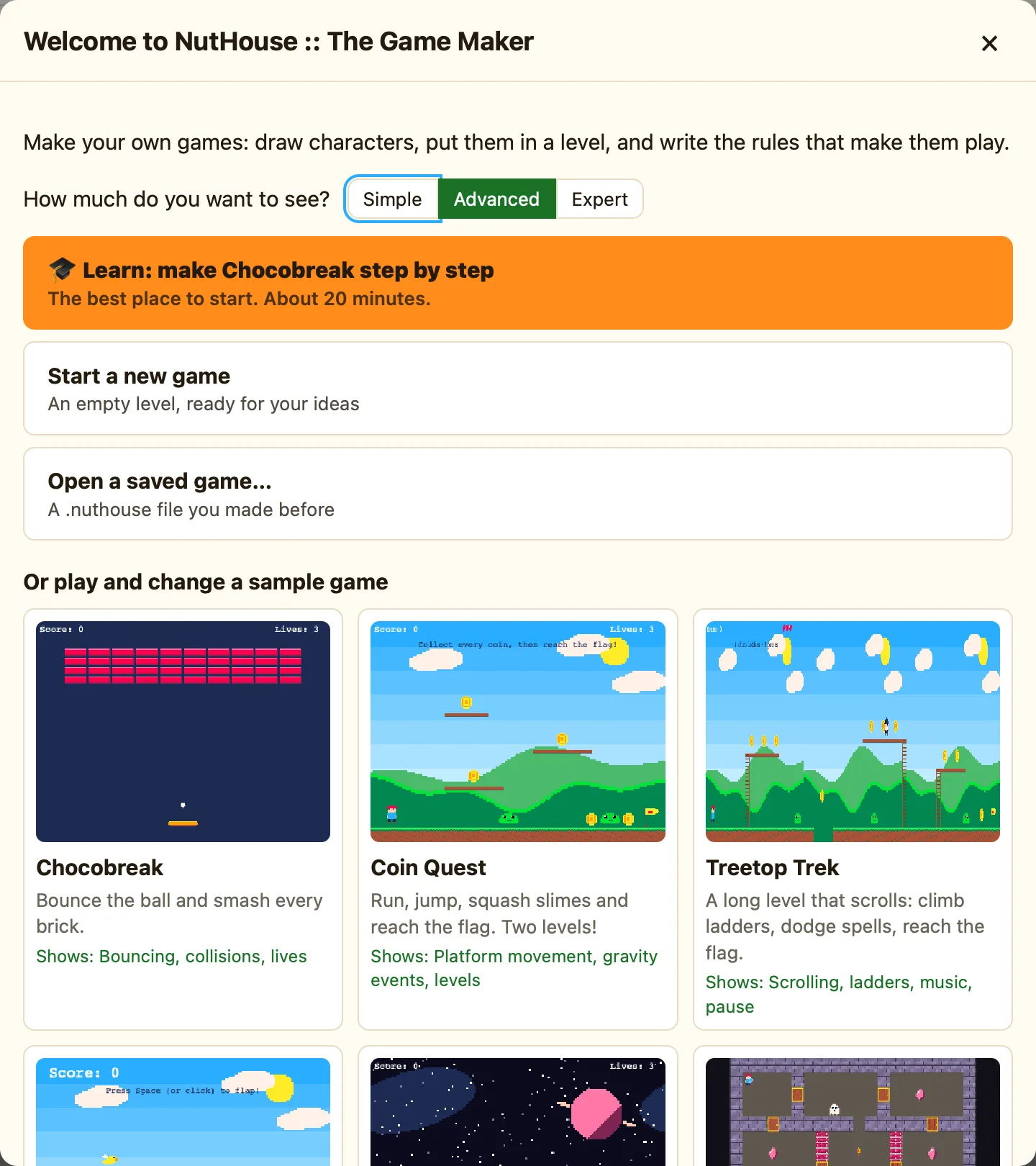
What is on it
| How much do you want to see? | The mode switch: Simple, Advanced or Expert. Start with Simple. You can change it any time in the toolbar. See Simple, Advanced and Expert. |
|---|---|
| 🎓 Learn: make Chocobreak step by step | Starts the tutorial. The best place to start. About 20 minutes. |
| Start a new game | An empty level, ready for your ideas. |
| Open a saved game… | A .nuthouse file you made before. |
| Get back unsaved work | Only shows up when NutHouse has an autosave. It says the game's name and when it was saved. Press it to carry on where you left off. |
| Or play and change a sample game | Seven finished games. Each card shows a picture, the name, what it is about and a Shows: line that says what it teaches. Click one to open it. |
How to open yesterday's game
- Press Open a saved game….
- Find your .nuthouse file and press Open.
- The game opens in the Level tab, ready to play or change.
Getting the Welcome screen back
You only see this screen when NutHouse starts. Once you are inside, use the toolbar instead: New for an empty game, Open for a saved one, 🎮 Samples for the sample games and 🎓 Learn for the tutorial.
