
How to read these pages
Every condition and action in NutHouse, listed by column, with its mode, what it asks for, and the sentence NutHouse shows.
One page per column
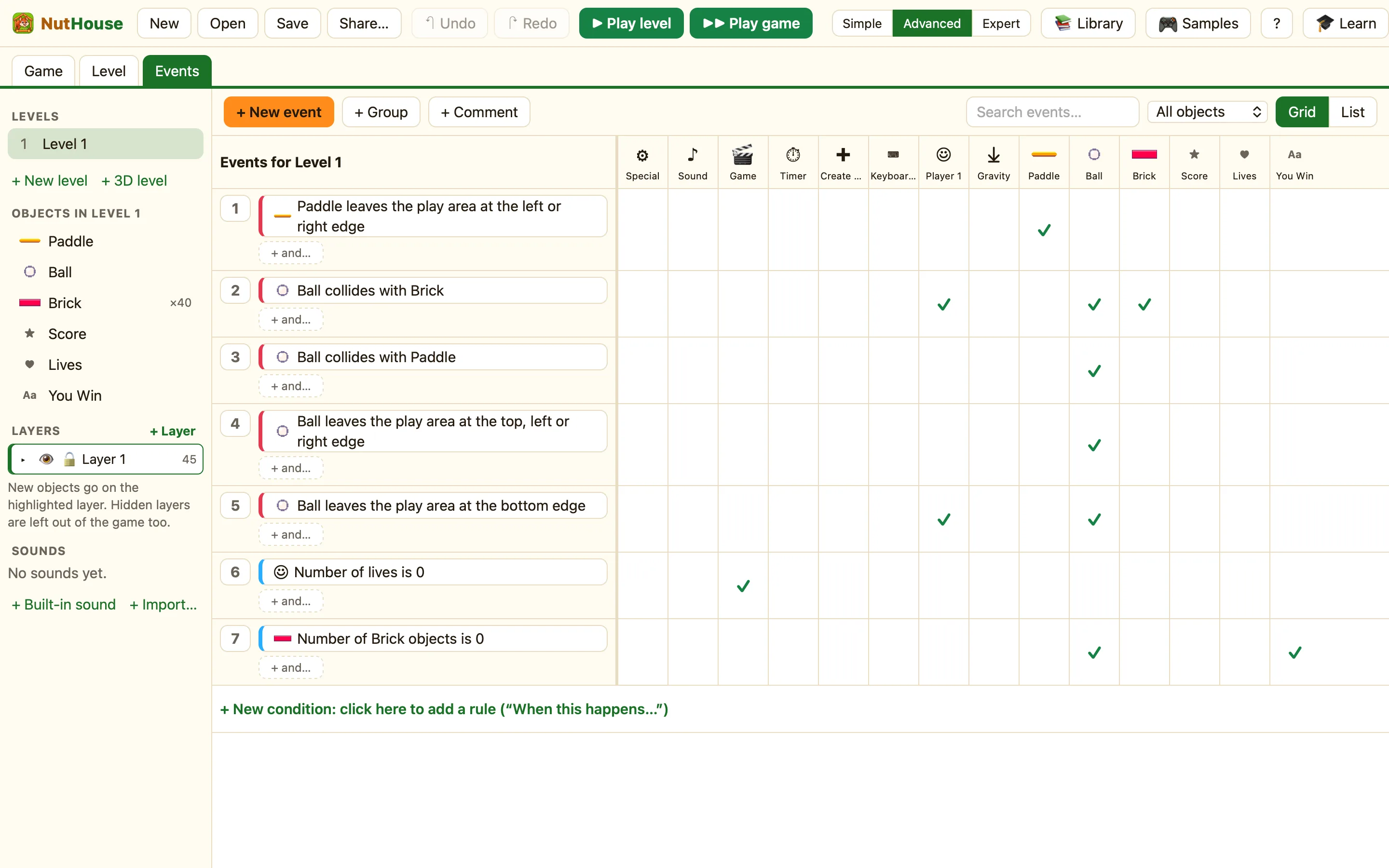
The Events tab has one column for each thing a rule can be about. The reference is split the same way, in the same order as the grid:
| ⚙ Special | Special · Global values (under Global values) |
|---|---|
| ♪ Sound | Sound and music |
| 🎬 Game | Game (levels) · Saving (under Saving) |
| ⏱ Timer | Timer |
| ✚ Create objects | Create objects |
| ⌨ Keyboard & mouse | Keyboard and mouse |
| ☺ Player 1 | Player 1 |
| ☻ Player 2 | Player 2 (only in two-player games) |
| ⤓ Gravity | Gravity (level) |
| One per object | Every object in the level gets its own column. A sprite’s tests and actions are grouped by sub-menu, so they get a page each (below). Counters, displays and gadgets are on one page. |
Sprite pages
A sprite column has the most to offer, so the picker and the action menu split it into sub-menus. Each one is a page:
Sprites: collisions · Sprites: position · Sprites: movement · Sprites: direction · Sprites: animation · Sprites: values and switches · Sprites: visibility and look · Sprites: pick or count · Sprites: shoot · Sprites: gravity and jumping · Sprites: 3D
The other kinds of object (Counter, Score, Lives, Text, Timer display, Health bar, Button, Text box, Question, High scores, Spawner) are together on Counters, displays and gadgets. Each only appears in the column of an object of that kind.
The three modes
Every row has a coloured chip: Simple, Advanced or Expert. It is the mode where that condition or action first appears in the picker.
| Simple | “Just the main pieces. Great for starting out.” Collisions, keys, score, lives, destroy, bounce, sounds. |
|---|---|
| Advanced | “More events, movements and objects.” Overlapping, positions, animation, the mouse, global values, cool-downs. |
| Expert | “Everything: formulas, values, switches and groups.” Values A–J, switches 0–7, turning groups on and off. |
Changing mode never changes your game. A rule that is already in a game always shows, whatever the mode. See Simple, Advanced and Expert.
The red “once” mark
Some conditions carry a small once mark. In the picker and the grid they are red. They are true once, at the moment something happens: a key goes down, two sprites first touch, the level starts. The others are checked every tick, sixty times a second, and stay true as long as the thing is true.
Put a red condition first in a rule. Read Red rules happen once if your rule runs too often.
“Asks for”
Under the help sentence, “Asks for” lists the boxes you fill in when the settings dialog opens. They are written exactly as the dialog labels them, like Comparison · Score or Object to shoot · Speed. Where a box is a choice, the choices follow in brackets, like Direction (Down / Up / Off (floating)). Nothing after “Asks for” means there is nothing to fill in: click it and it is added.
Any box that takes a number also takes a formula. See What a formula is.
“Reads as”
The last column shows the sentence NutHouse writes in the grid and in List view once the condition or action is in a rule, with example settings. “Ball collides with (choose an object)” becomes “Ball collides with Brick” in your game. The sentence at the bottom of the settings dialog is the same sentence, updating as you type.
What a row looks like
| Name | The words in the picker or the action menu, plus the mode chip and the once mark if it has one. |
|---|---|
| What it does | The help sentence (the 💡 line in the settings dialog), then “Asks for”. |
| Reads as | The example sentence. |
